|
By default, the solution discovers and monitors all virtual disks in the HP EVA storage systems. Discovering and collecting disks metrics are resource-intensive actions that can create extra workload on the targeted system. To limit the number of instances created and therefore reduce the system resource consumption, administrators can disable the monitoring of all the virtual disks of a system.
To disable virtual disks monitoring
| 2. | Under Tasks, click Elements |
| 3. | Select the Element for which you wish to disable volumes monitoring and click Edit. |
| 4. | Scroll down to Application Classes > click the Application class for which you want to enable the debug mode > click Edit. |
| 5. | Click Thresholds, Properties and Credentials > Edit. |
| 6. | Select Yes from the Disable Virtual Disks Monitoring drop-down list. |
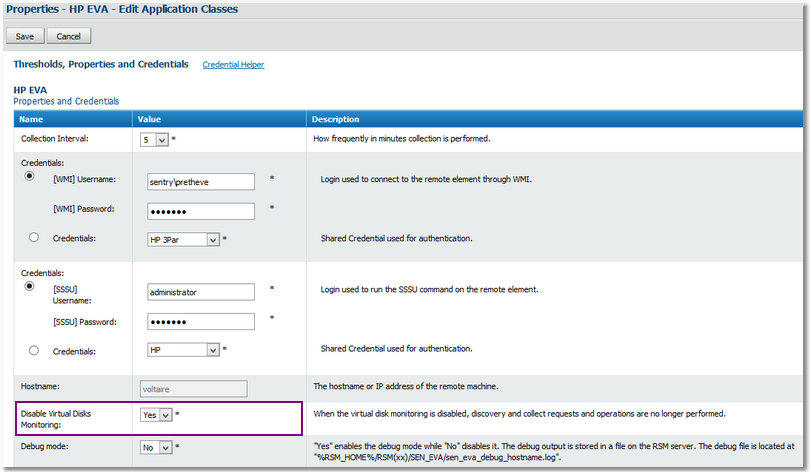
HP EVA - Disabling Virtual Disks Monitoring
| 7. | Click Save. The Success, changes have been saved message indicates that the modifications have been registered. |
|


