Modifying Parameter Thresholds


|
Modifying Parameter Thresholds |
|
|
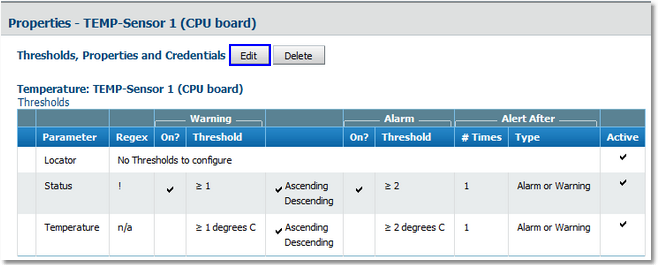
Whenever possible, BPM Express for Hardware automatically sets thresholds for parameters. These thresholds are retrieved from the element's instrumentation agents and in most cases they are apt for the system. Generally, there is no need to modify these thresholds but in case BPM Express for Hardware cannot obtain them, or if you prefer a more fault-tolerant monitoring, you can modify the thresholds of each parameter through the Configure tab > Edit Thresholds. 1.To modify the parameter thresholds of several hardware objects of an element, click on the Hardware (<platform>) icon in the Configure tab > Thresholds, Properties and Credentials > Edit. or To modify the thresholds of a particular instance, click on the instance icon > Thresholds, Properties and Credentials > Edit.
Thresholds, Properties and Credentials Click Edit to modify the thresholds
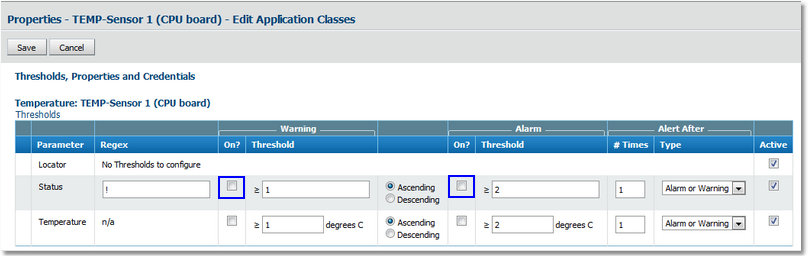
2.Disable the alert conditions in the Status parameter, i.e. un-check the boxes for Warning and Alarm.
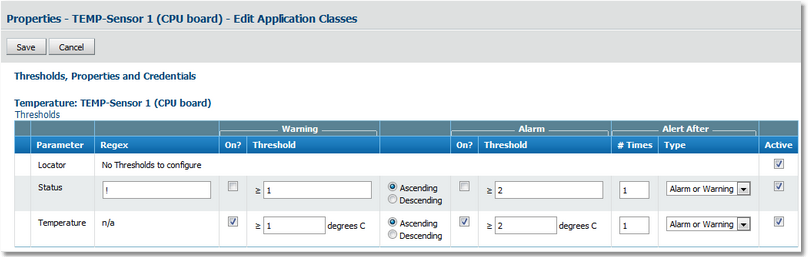
Disabling the default alert thresholds on Status Disable the alerts on the Status parameter by un-checking the boxes 3.Enable the alert conditions on the parameter (Temperature in the image below) by checking the boxes, and manually enter the threshold values and then click on Save.
Modifying threshold values Manually modify the thresholds on the parameter and activate the alerts 4.The "Success, changes have been saved" message indicates that the modifications have been registered. Alerts, if any, will be henceforth be displayed by the Temperature parameter icon, and not the Status icon as is the case when default thresholds are maintained. Alerts are displayed by the parameter whose thresholds are modified. |