|
Uploading BMC Performance Manager Express for SharePoint to BMC Portal
| 1. | Place BMC-PM-Express-for-Hardware-2.7.08.par file in a known location on your file system. |
| 2. | Log on to BMC Portal with "superadministrator" credentials. |
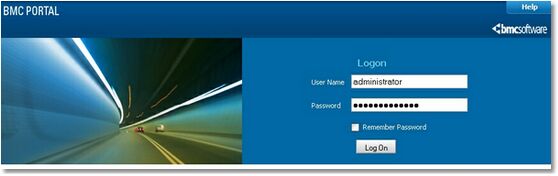
Logging on to Portal
| 3. | Click the Portal tab. Under Tasks in the left pane, select Performance Managers to open the Performance Managers page and then click Upload. |
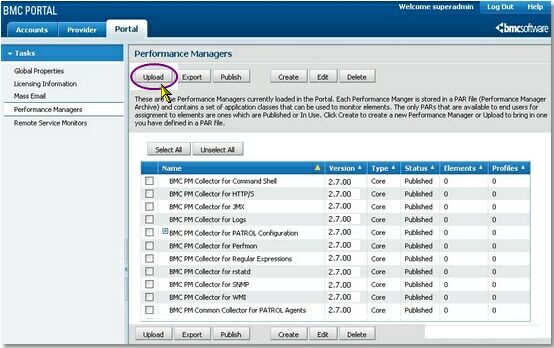
Uploading Performance Managers
| 4. | Click Browse to open a file selection dialogue box, select the file BMC-PM-Express-for-Hardware-2.7.08.par and click Upload. |
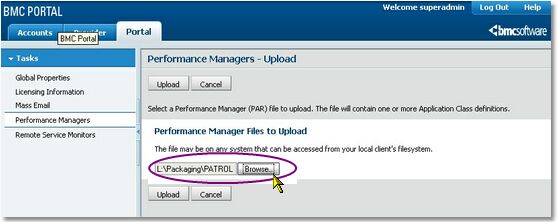
Locating the .par file
| 5. | The Portal uploads the PAR file to the database, and you should see BMC PM Express for SharePoint in the list of Performance Managers as Published, which means it is installed. |
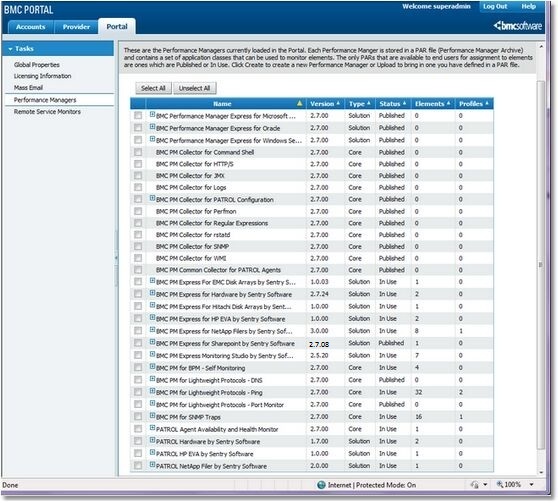
BMC PM Express for Hardware appears as Published
| 6. | The “+” symbol next to BMC Performance Manager Express for SharePoint indicates that there are several application classes within the main Performance Manager. Expand the tree to see the platform-specific application classes of BMC Performance Manager Express for SharePoint: |
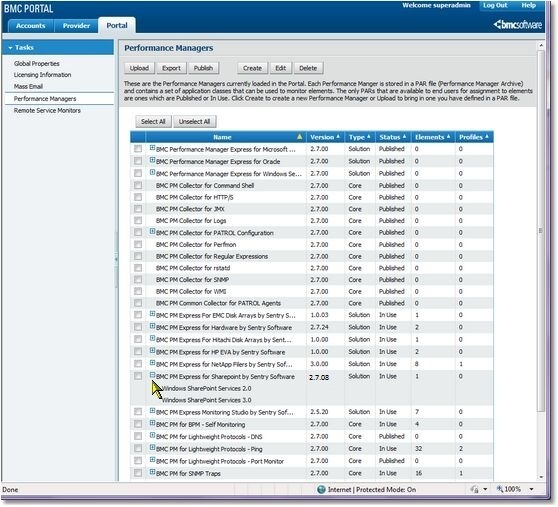
Viewing platform-specific SharePoint classes
The installation of BMC Performance Manager Express for SharePoint is now complete. To begin using the performance manager, log out and then log in again, this time, with user credentials. You are now ready to begin using the Performance Manager.
|


