|
Installing Microsoft Search KM for PATROL is an automated process managed by a wizard. The wizard goes through the necessary steps to install Microsoft Search KM for PATROL and all files associated with it. You are simply prompt for the product's folder location and the product/components to install.
Browse to the bmc_products folder where the files have been extracted (both Microsoft Search KM for PATROL and the Common Installer).
•On Windows: Launch the setup.exe program •On UNIX: Launch the setup.sh script To install Microsoft Search KM for PATROL
| 1. | Allow the perl.exe program to listen on this port: Click Allow access. |
| 2. | The welcome screen of the installer appears. Click Next to continue. |
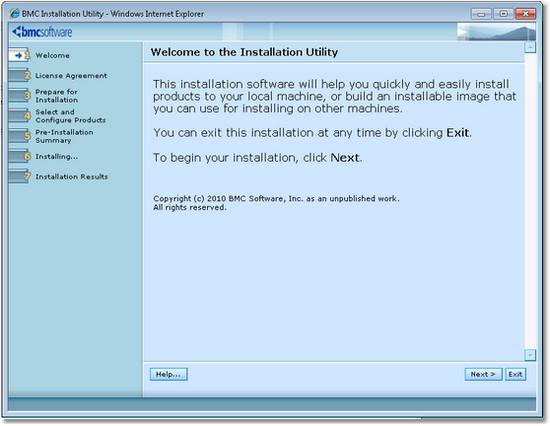
Installation Wizard - Step 2: Welcome
| 3. | Read the license agreement, click the Accept option and then click Next to continue. |
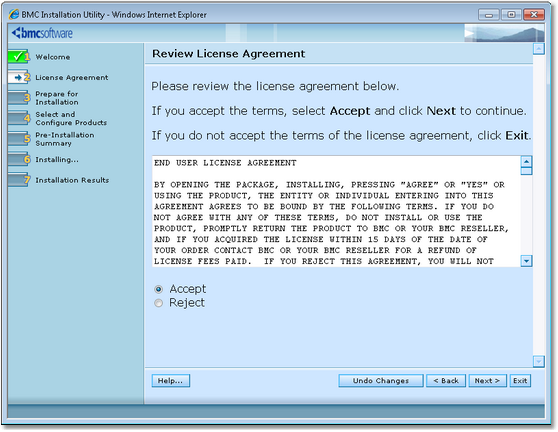
Installation Wizard - Step 3: Reviewing Licence Agreement
| 4. | Select Install products on this computer now and click Next to continue. |
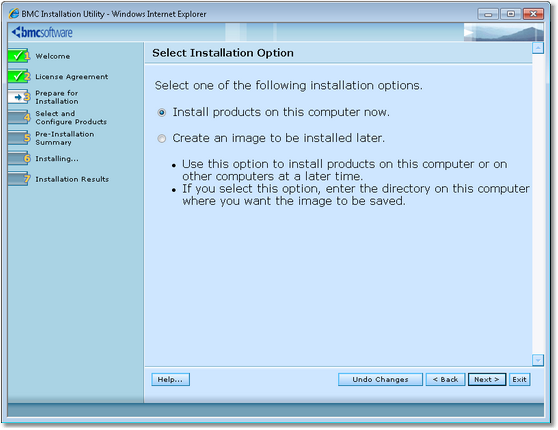
Installation Wizard - Step 4: Selecting Installation Options
| 5. | Specify the BMC Software products folder. See the BMC Software documentation for more information about the BMC Software products folder. Click Next to continue. |
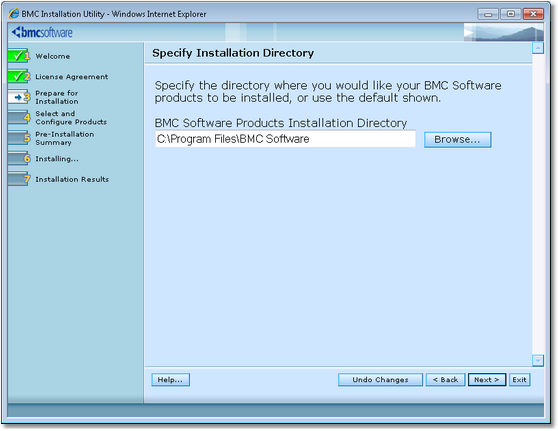
Installation Wizard - Step 5: Selecting the Installation Directory
| 6. | Select Default. Installing Microsoft Search KM for PATROL does not require any customization. Click Next to continue. |
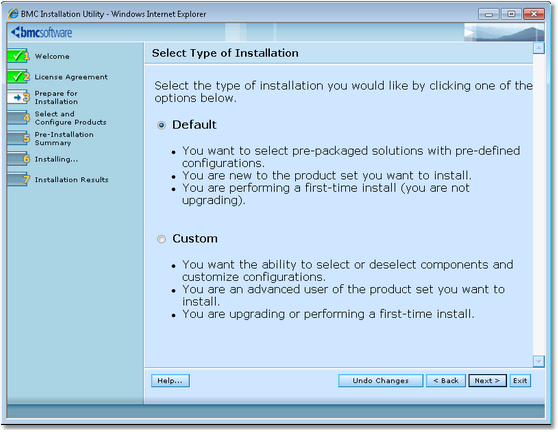
Installation Wizard - Step 6: Selecting an Installation Type
7.Select Managed System to install Microsoft Search KM for PATROL on a PATROL Agent.
Select the Console Systems role to install Microsoft Search KM for PATROL on a PATROL Classic Console.
Select Common services to install Microsoft Search KM for PATROL on the Console Server or on PATROL Central – Web Edition.
Click Next to continue. 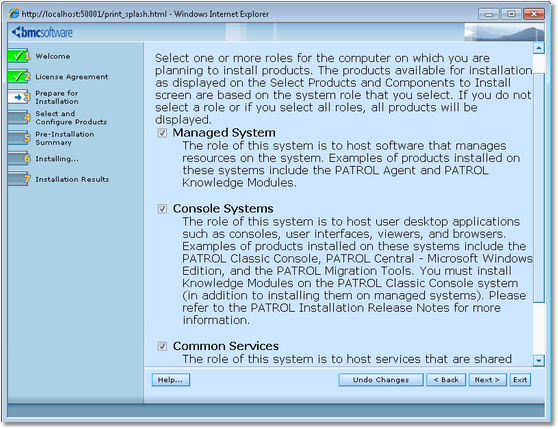
Installation Wizard - Step 7: Selecting Roles
| 8. | Check the Microsoft Search KM for PATROL box to install the KM (it should be selected by default). Click Next to continue. |
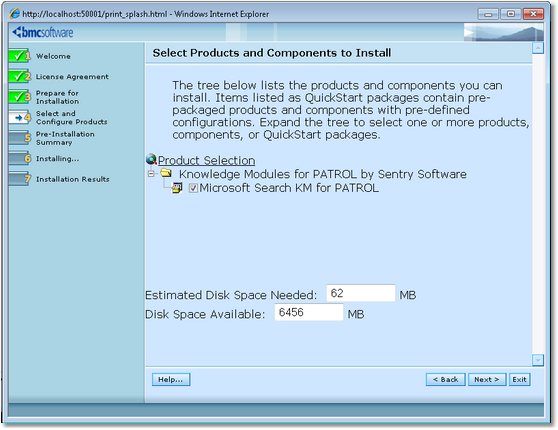
Installation Wizard - Step 8: Selecting Products and Components
| 9. | Review the installation parameters and click Start Install to launch the installation procedure. |
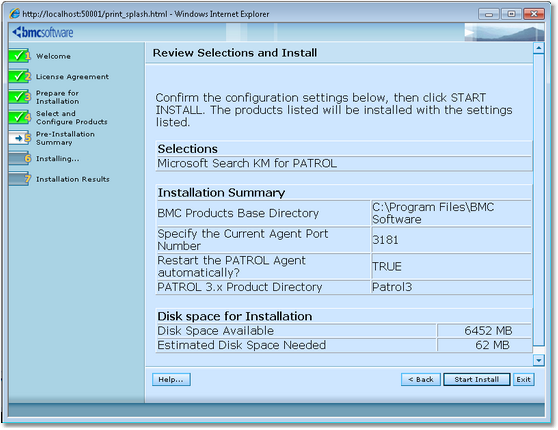
Installation Wizard - Step 9: Reviewing Installation Options
| 10. | The setup program displays the actions performed and indicates the percentage of completion.
Once the installation complete, click Next the view the installation results. |
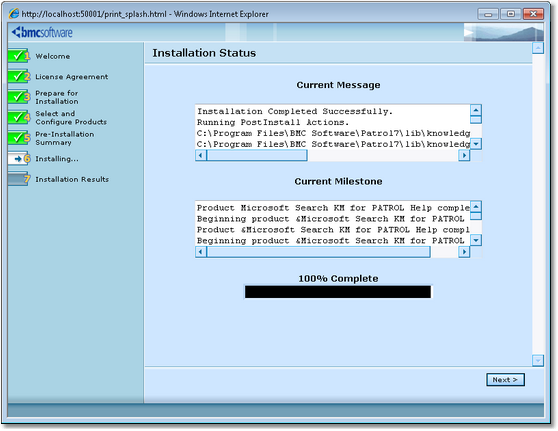
Installation Wizard - Step 10: Installation Status
| 11. | The wizard displays the installation results.
Click View Log to display a detailed log of the installation procedure. Click Next and then Finish to exit the setup program. |
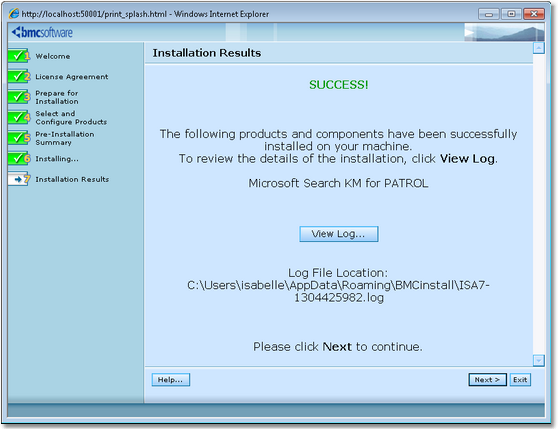
Installation Wizard - Step 11: Installation Results
12. Click the Finish button to complete and close the installation wizard.
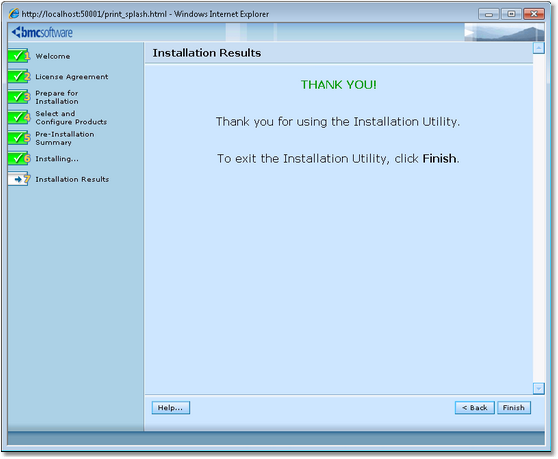
Installation Wizard - Step 12: Completing and closing the Installation Wizard
 | A Help button is available at each step of the procedure. Click to display the installation online help. The Exit button allows you to stop the installation procedure. |
See Also
Uninstalling Microsoft Search KM for PATROL
| 

