Query Analysis for Windows SharePoint Search Server


Query Analysis for Windows SharePoint Search Server |
|
|
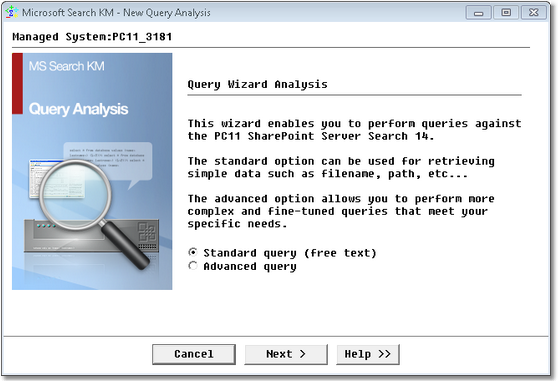
To create a query on catalogs built with the Microsoft Indexing Service search engine right-click the Windows SharePoint Search Server icon > KM Commands > New Query Analysis: Step 1: Select the Query TypeA search query can be expressed by building a simple string consisting of keywords or by making use of the powerful, but more complex, Enterprise SQL Search query language that extends the standard SQL-92 and SQL-99 database query syntax and is tuned for compiling full-text search queries
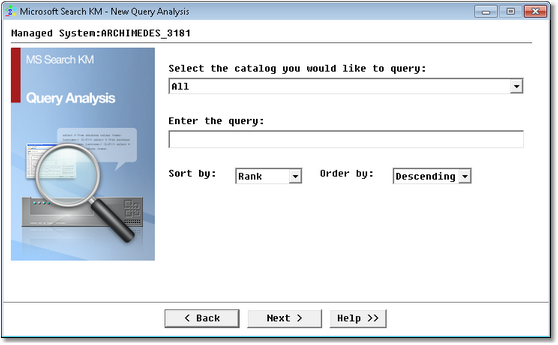
Query Analysis Wizard – Query Type Selection •Select Standard Query (free text) to perform a simple query, or •Select Advanced Query to perform complex query and to adjust the query to your specific needs Step 2.1: Set the Standard Query OptionsUse the Standard Query to execute a query defined with the keyword-type syntax.
Query Analysis Wizard – Catalog Selection •Select the specific catalog you want to query, or select All to query all the monitored catalogs at once •Type the query string •Select the sorting and the order option •Click Next to continue.
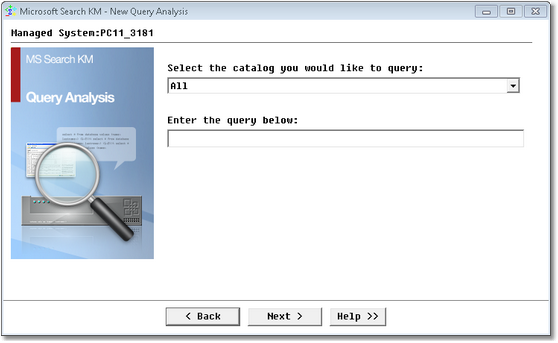
Step 2.2: Set the Advanced Query OptionsUse the Advanced Query when the search query is defined by using the Enterprise SQL search query syntax.
Query Analysis Wizard – Catalog Selection (Advanced) •Select the specific catalog you want to query, or select All to query all the monitored catalogs at once •Type the query string. Use the SQL query language to built your query, as shown in the provided example: SELECT rank, title, path, author FROM Scope() WHERE CONTAINS(title, 'Office") •Click Next to continue. Step 3: Define the Query display name
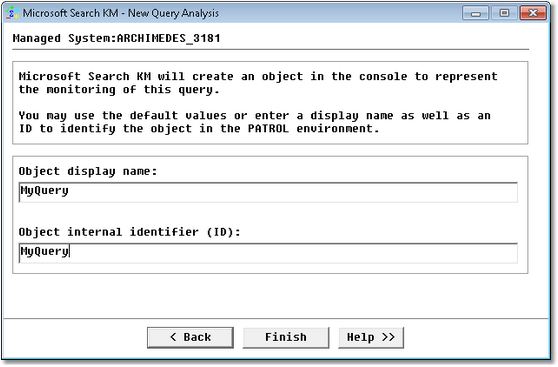
Query Analysis Wizard – Object Definition •Object display name: Label that will be displayed in the PATROL Console for this web request monitoring. •Object internal identifier (ID): PATROL internal identifier of this monitored object. Click Finish to submit the query. |