Reinitialize the KM


Reinitialize the KM |
|
|
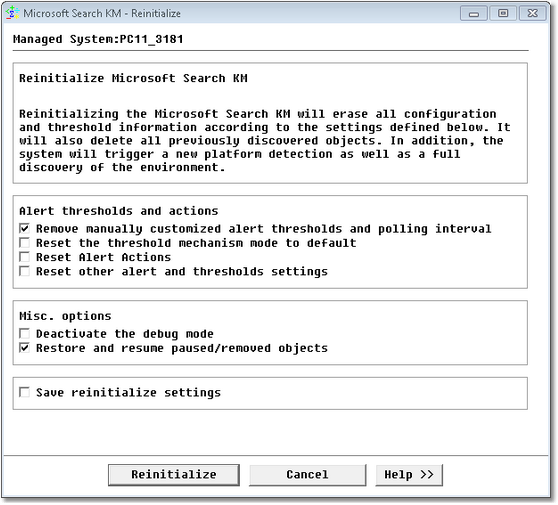
If ever Microsoft Search KM for PATROL does not function properly: displays devices as missing that you know are present, or does not detect several devices as it should etc., it is possible to reinitialize the configuration and let Microsoft Search KM for PATROL re-start monitoring from scratch. The above cases of malfunction could occur after a configuration change or especially after a software/hardware upgrade etc. In such a case, you can reinitialize the KM that will then run a full discovery and will re-detect the managed system, set the appropriate connectors and re-start the monitoring of existing & new devices. Thresholds will be set to default so all previously manually set thresholds will be lost, unless specified otherwise in the Reinitialize KM wizard shown below. 1.To reinitialize Microsoft Search KM for PATROL, right-click the KM icon > KM Commands > Reinitialize KM:
Reinitialize KM 2.Select the options as per your specific needs: Alert thresholds and actions ▪Remove manually customized alert thresholds: Selection removes all customized thresholds. ▪Reset the threshold mechanism mode to default: Selection makes the KM revert to the default mode i.e. Microsoft Search KM for PATROL selects the mechanism that is best suited to the system. ▪Reset Alert Actions: Selection removes all manually set Alert Actions and reverts to basic default actions i.e. Trigger a PATROL event and Annotate a parameter graph. ▪Reset other alert and threshold settings: Selection reverts any manually done configuration changes to default Microsoft Search KM for PATROL values. Misc. options ▪Deactivate the debug mode: Selection deactivates the debug mode if manually enabled. ▪Restore and resume paused/removed objects: Selection restores all paused or removed objects. Save reinitialize settings ▪Save reinitialize setting: Selection saves the defined settings that will then be considered as default.
3.Click Reinitialize. See Also
|