Uninstalling Microsoft Search KM for PATROL


Uninstalling Microsoft Search KM for PATROL |
|
|
Uninstalling Microsoft Search KM for PATROL is an automated process managed by a wizard. The wizard goes through the necessary steps to remove Microsoft Search KM for PATROL and all files associated with it. You are simply prompt for the product's folder location and the product/components to uninstall. 1.Locate the Uninstall folder under the BMC products directory (typically under C:\Program Files\BMC Software, or /opt/bmc): ▪On Windows systems, launch uninstall.exe ▪On UNIX, launch uninstall.sh
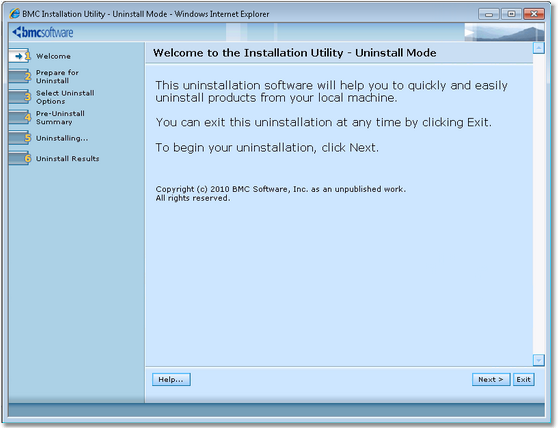
Un-install Wizard — Welcome Step
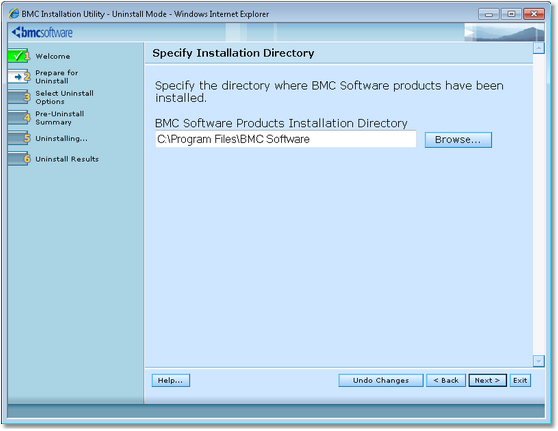
2.Specify the BMC Software products folder. See the BMC Software documentation for more information about the BMC Software products folder.
Un-install Wizard — Specifying folder
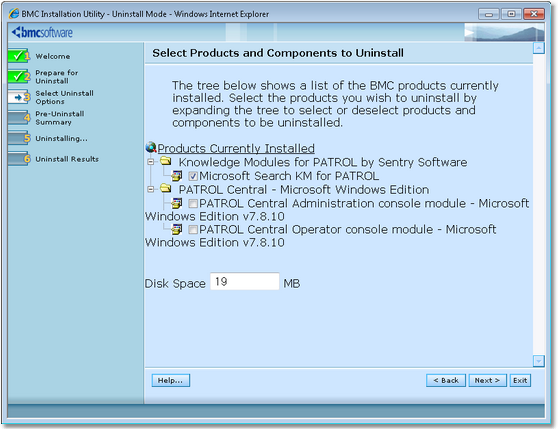
Un-install Wizard — Selecting Products and Components Directory
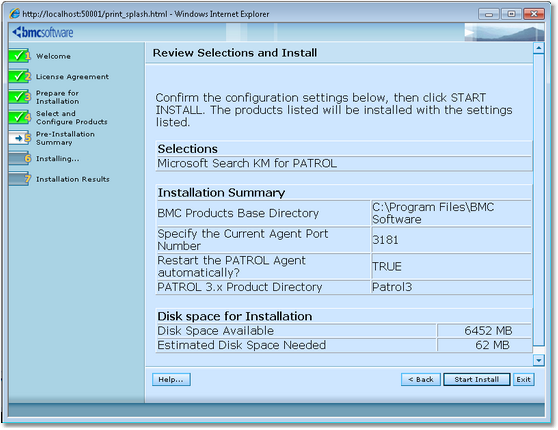
Un-install Wizard — Reviewing Selected Products & components and start uninstalling
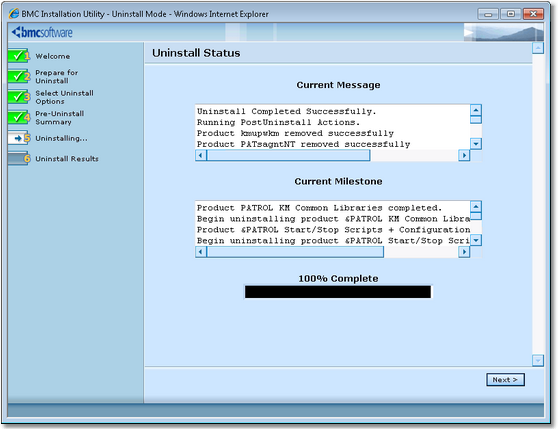
Un-install Wizard — Status
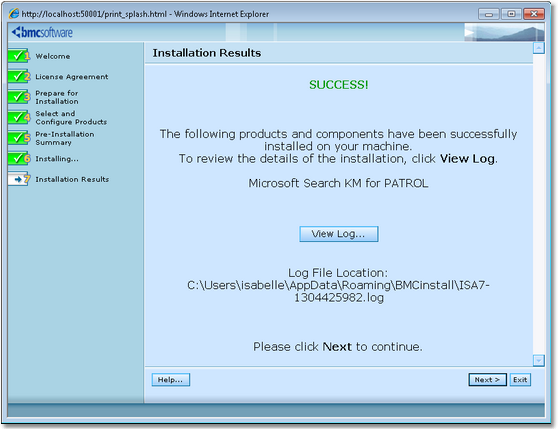
Un-install Wizard — Uninstall Results |