Configuring Java Settings


Configuring Java Settings |
|
|
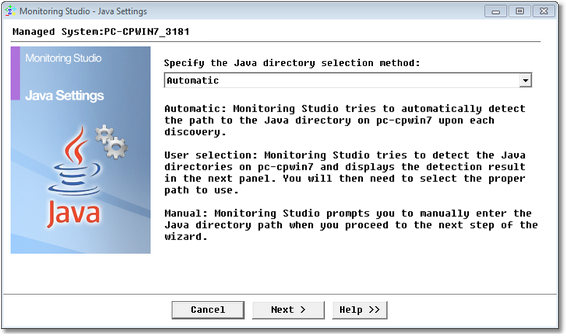
The Java Settings wizard enables you to define which Java instance is to be used by Monitoring Studio. You can either use the automatic detection, select a pre-detected java path or enter manually the path leading to the Java executable directory to be used. To access the Java Settings wizard, right-click the main Monitoring Studio icon > KM commands > Options > Java Settings.
Java Settings Wizard — Welcome Page Select the Java executable detection method: Select one of the three following options:
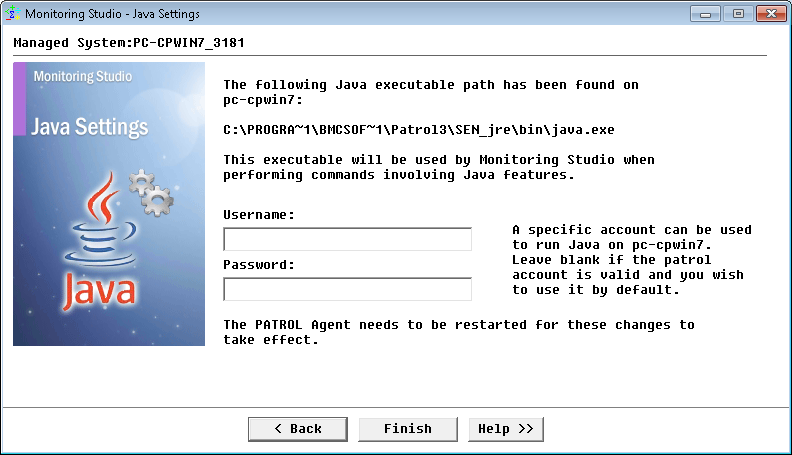
Click Next to continue. Automatic DetectionIf you have selected the automatic detection at the previous step of the wizard and if Monitoring Studio detects Java on the managed system, the path of the Java executable directory that will be used when performing commands requiring Java features is displayed.
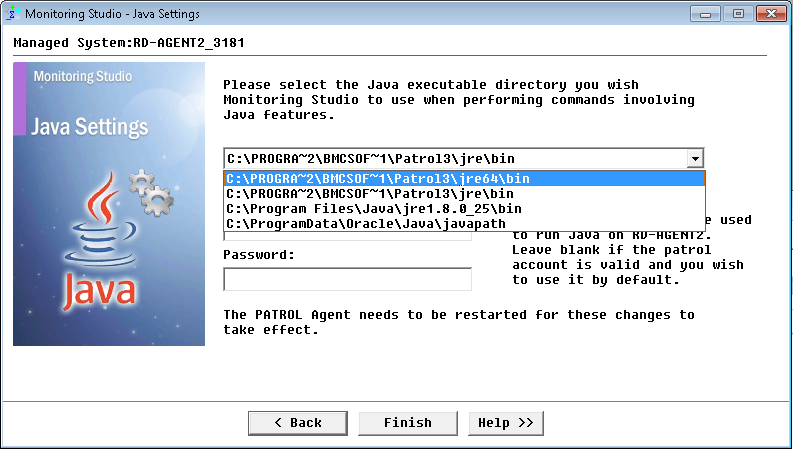
Java Settings Wizard — Automatic Detection Click Finish to save your settings. User SelectionIf you have selected the user selection option at the previous step of the wizard, Monitoring Studio displays a list of all the Java executable directory found on your machine.
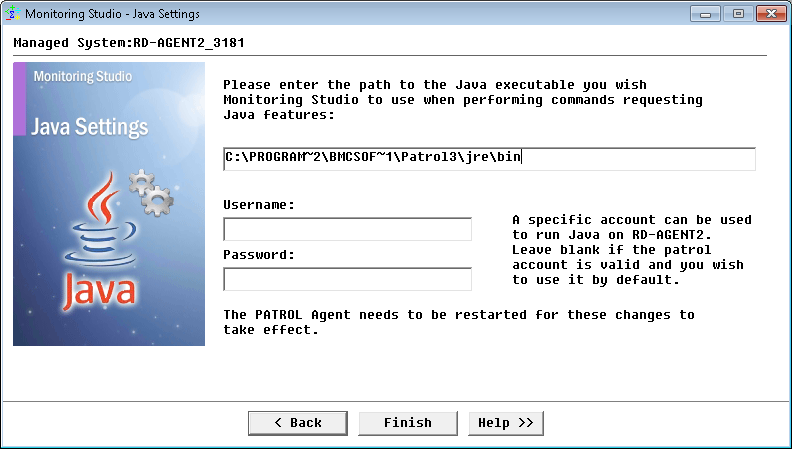
Java Settings Wizard — User Selection Select the Java executable directory you wish Monitoring Studio to use when performing commands requiring Java features and click Finish to save your settings. ManualIf you have selected the Manual option at the previous step of the wizard, Monitoring Studio let you enter the path to the Java executable directory you wish Monitoring Studio to use when performing commands requiring Java features.
Java Settings Wizard — Manual Settings Click Finish to save your settings. |