Diagnosing a Bad Disk Layout


Diagnosing a Bad Disk Layout |
|
|
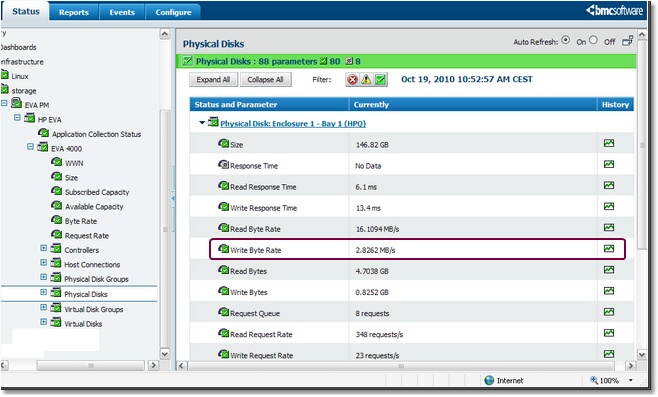
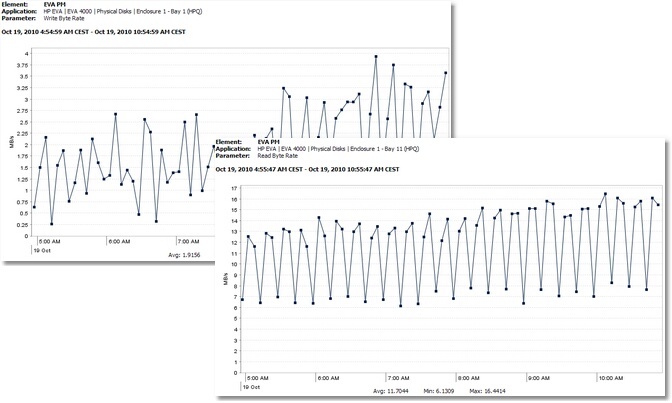
A non-optimal physical disk layout can cause one single physical disk to become the bottleneck of a SAN. To verify that the I/Os are well-balanced across all physical disks you can check the Read Byte Rate and Write Byte Rate parameters of each physical disk and make sure they have similar average values. Verify Physical Disks Workload Distribution
Selecting Write Data Rate Parameters
Comparing Several Physical Disks' Write Byte Rate Parameters |