Installing Enterprise Manager Data Collector


Installing Enterprise Manager Data Collector |
|
|
1.Download the Enterprise Manager Data Collector software: ▪Go to the Dell Compellent Support Home Page. ▪Log on to the customer or partner portal. ▪Click Knowledge Center, then launch the Enterprise Manager Data Collector Setup file.
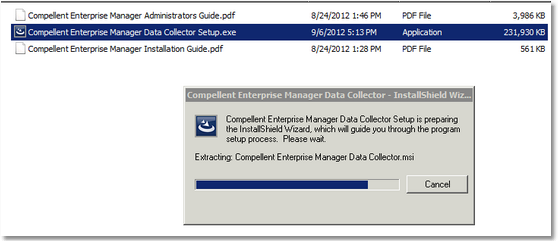
Installing Enterprise Manager Data Collector - Setup File 3.Run Compellent Enterprise Manager Data Collector Setup.exe.
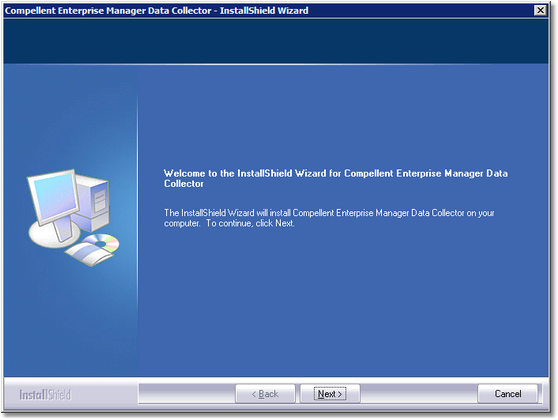
Installing Enterprise Manager Data Collector - Welcome 4.Click Next.
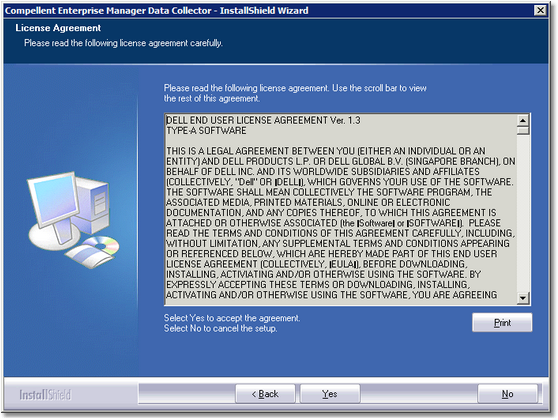
Installing Enterprise Manager Data Collector - License Agreement 5.Click Yes to accept the license agreement and launch the installation.
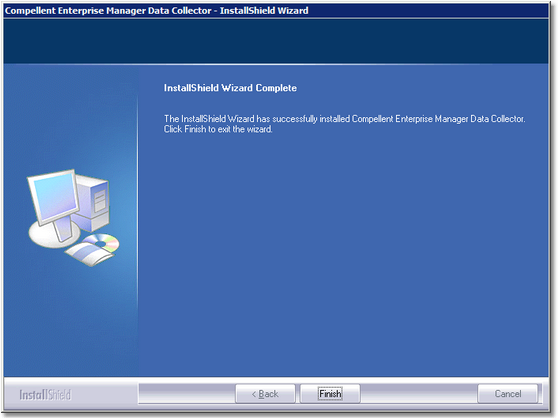
Installing Enterprise Manager Data Collector - Installation Complete 6.Once the installation is complete, click Finish. The Enterprise Manager Data Collector Setup wizard appears:
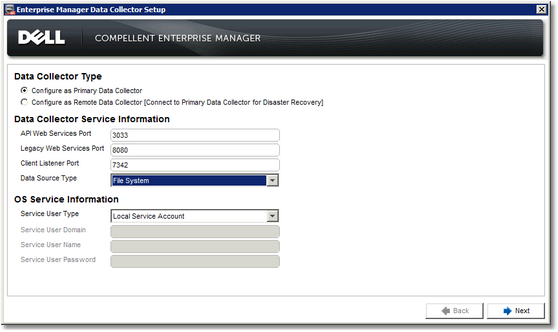
Installing Enterprise Manager Data Collector - Configuration 7.Configure Enterprise Manager Data Collector: ▪Select Configure as Primary Data Collector ▪Set the Data Collector Service and OS Service Information ▪Click Next.
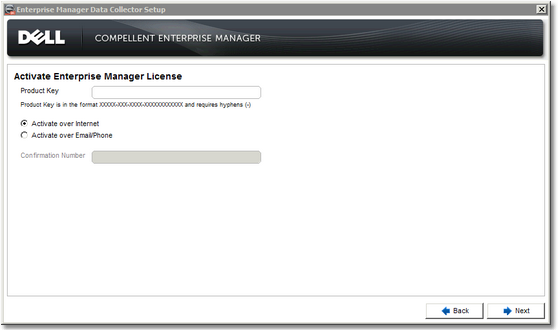
Installing Enterprise Manager Data Collector - License Activation 8.Enter the Product Key, choose whether you want to activate your license over Internet or over Email/Phone, and click Next.
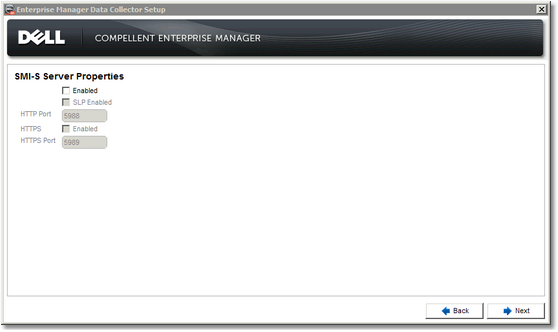
Installing Enterprise Manager Data Collector - SMI-S Server Properties 9.Since TrueSight Operations Management - Dell Compellent Storage Monitoring leverages the Dell Compellent API, there is no need to enable the SMI-S Server. Leave the fields blank and click Next.
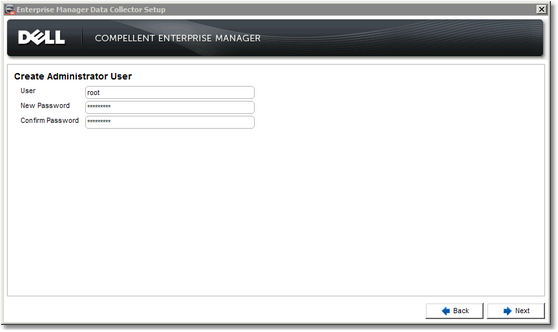
Installing Enterprise Manager Data Collector - Administrator User 10.Create the Administrator User that will be used to log on to the Enterprise Manager and click Next.
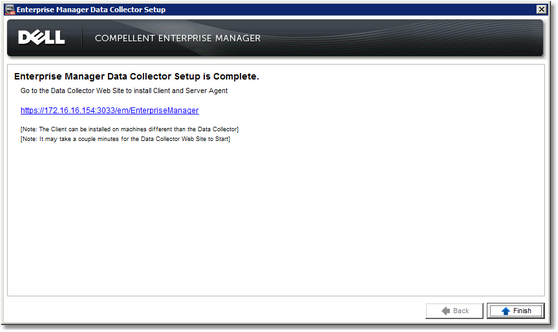
Installing Enterprise Manager Data Collector - Setup Complete 11.The Enterprise Manager Data Collector setup is now complete. Click the URL to go to the Data Collector Website. Click Finish. |