|
In this example, we monitor a LOG file and look for the string "error" in the lines. Every time an "error" is found, we want to trigger a standard PATROL event containing the name of the parameter, the name of the LOG file, the content of the line that triggered the alert and the name of the application.
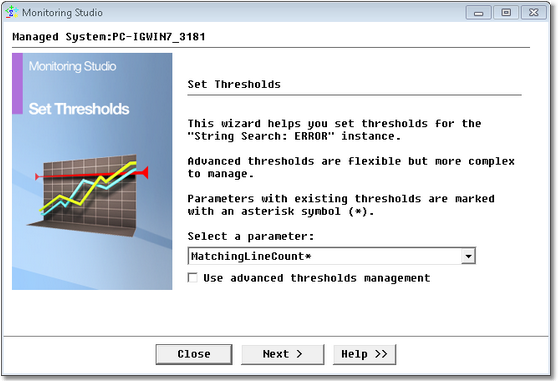
Before setting the alert action, you will first have to make sure that the thresholds for the MatchingLineCount Parameter is set to 1. To do so:
| 1. | Right-click the String Search icon and select Set Thresholds. |
| 2. | Select the MatchingLineCount parameter and click Next. |
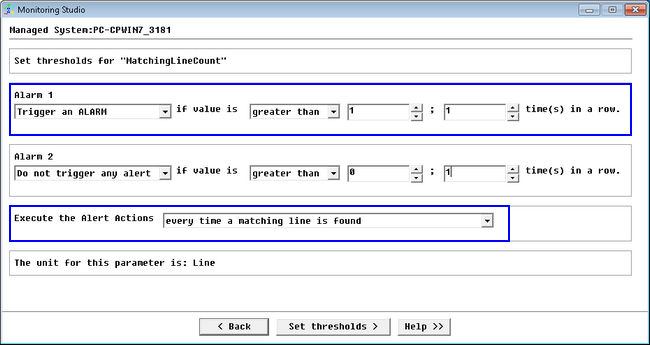
| 3. | Verify that an alarm is triggered if the value is greater than 1 and click Set thresholds. |
To Set the Alert Action
| 1. | Select the Set Alert Actions… command from the menu to run the Alert Actions wizard: |
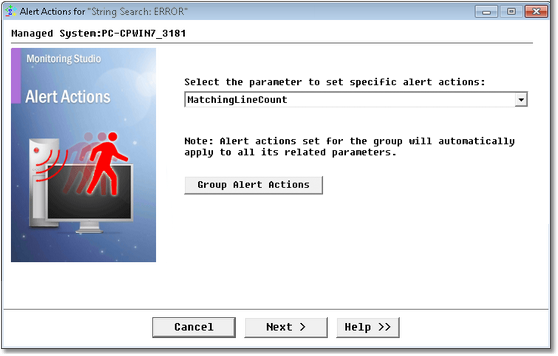
Selecting the MatchingLineCount Parameter
| 2. | Select the MatchingLineCount parameter and click Next. |
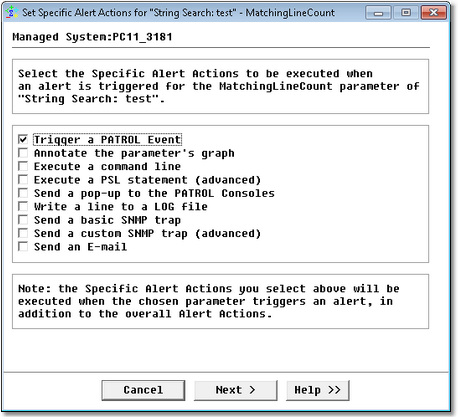
Selecting an Alert
| 3. | Select the type of action to be executed when the MatchingLineCount parameter goes into alert state: |
| ▪ | Check the Trigger a PATROL event box and click Next. |
| ▪ | Enter the message of the PATROL event: Name of the application ; Name of the log file ; The error message (i.e. the line in the LOG file that triggered the alert) |
| ▪ | Enter the text below in the box called Enter the text to be sent with the PATROL Event: |
Application %{APPLICATION_LABEL}: error found in %{PARENT_LABEL}.%{NEWLINE}Error message: %{MORE_INFORMATION}
%{APPLICATION_LABEL} contains the application display name in the PATROL Console.
%{PARENT_LABEL} contains the LOG file display name (it is the parent of the String search in the PATROL Console).
%{NEWLINE} will create a new line in the message.
%{MORE_INFORMATION} contains the entire line in the LOG file that triggered the alert.
|
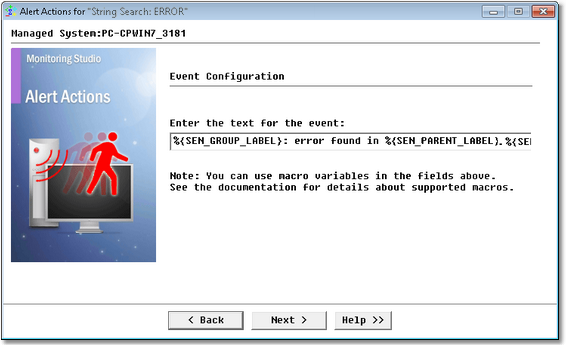
Setting the Alert Parameters
The text sent with the PATROL event will look like this:
Application myApplication: error found in LOG File: /opt/myApplication/log/myApp*.log.
Error message: [line content]
|
| 4. | Click the Next button to get to the final panel of the Alert Actions wizard that summarizes the Alert Actions set for the MatchingLineCount parameter. |
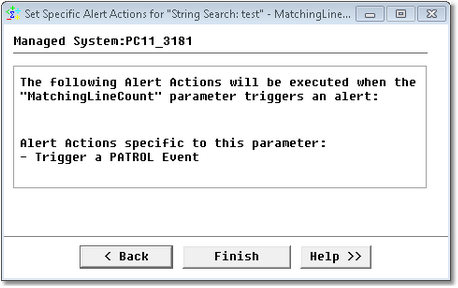
Confirming an Alert Action
In this example you set just one Alert Action, Trigger a PATROL Event, but it would have been possible to set several Alert Actions, such as an OS command that runs a recovery action for the monitored application or writes an annotation to the graph built by the MatchingLineCount parameter with the content of the matching line.
|