|
An object is created in the PATROL Console for each configured element. This object is defined by a name and an internal identifier. These values, set by default by Monitoring Studio, can however be modified while configuring the element:
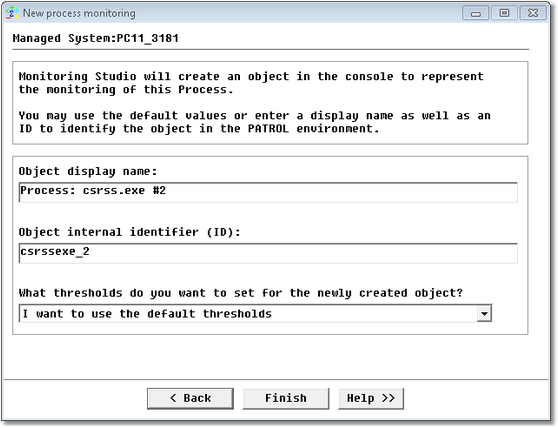
Configuring Monitoring Studio Settings
| 1. | Modify the fields of your choice: |
| ▪ | Object display name: Label that will be displayed in the PATROL Console for this monitoring object. |
| ▪ | Object internal identifier (ID): PATROL internal identifier of this monitored object. |
| ▪ | What thresholds do you want to set for the newly created instance?: Mode to be used to set alert thresholds: |
| ▪ | Use default thresholds: Uses the default thresholds set by Monitoring Studio |
| ▪ | Set custom thresholds: Allows you to customize the thresholds for all parameters of the instance |
| ▪ | Use default thresholds and customize them: Sets the default Monitoring Studio thresholds on certain parameters and then allows you to customize any/all of them. This is mainly intended to help save time if you wish to customize the thresholds of just one of many parameters for the instance, and leave the default settings for the others. |
| ▪ | Do not set any thresholds for now: No thresholds will be set on any parameter of the instance, and as a result no alerts will be triggered. Monitoring Studio will poll the object and return the output of the polling – but will not raise any alerts until you set thresholds. |
 If you select Use default thresholds and customize them; on clicking Finish, the Set Thresholds panel will appear, certain parameters for the instance may appear with an asterisk symbol indicating that they already have thresholds. Thresholds can be set or modified at anytime by right-clicking on the instance > KM commands > Set Thresholds. If you select Use default thresholds and customize them; on clicking Finish, the Set Thresholds panel will appear, certain parameters for the instance may appear with an asterisk symbol indicating that they already have thresholds. Thresholds can be set or modified at anytime by right-clicking on the instance > KM commands > Set Thresholds.
|


