|
To monitor a Windows service:
| 1. | In the PATROL Console, right-click the Monitored Application icon and select KM Commands > New > Windows Service Monitoring... |
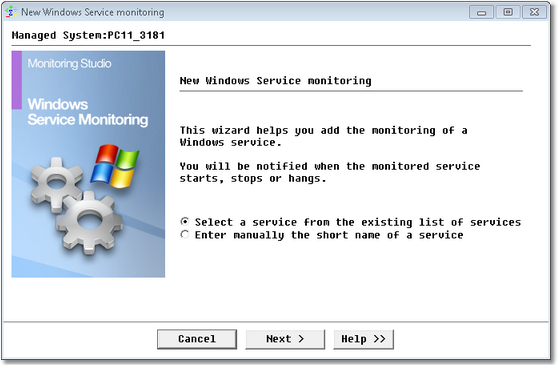
Windows Service Monitoring Wizard — Welcome Page
| 2. | To display the list of currently installed services: |
| ▪ | Select Select a service from the existing list of services and click Next. |
| ▪ | Select the service to be monitored and click Next. |
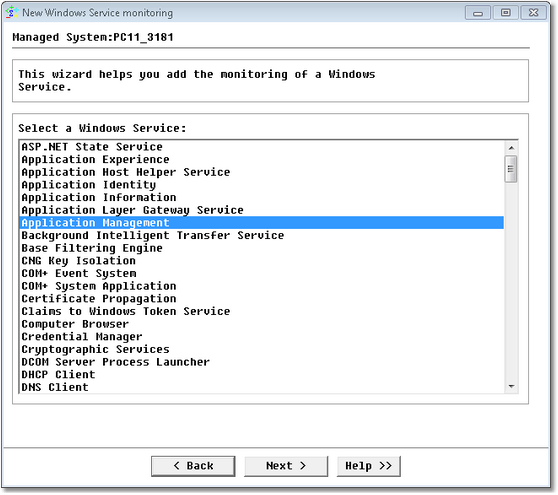
Windows Service Monitoring Wizard — Service Selection Page
| 3. | To manually enter the short name of a Windows service that is not currently installed on the managed system: |
| ▪ | Select Enter manually the short name of a service and click Next. |
| ▪ | Manually enter the name of the Windows service to be monitored and click Next. |
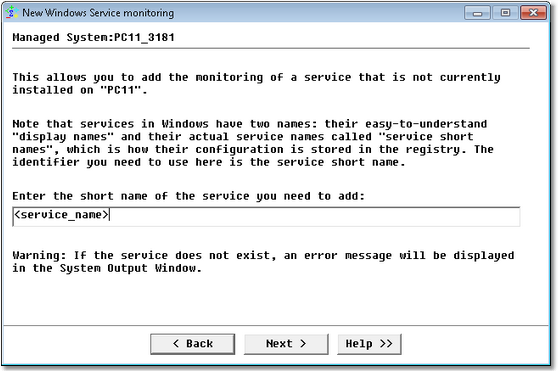
Service Monitoring Wizard — Service Selection Page
See Also
SW_NTSERVICES
| 

