|
Because file systems (or Windows logical disks) are often a critical resource for applications, Monitoring Studio provides a File System Monitoring tool to rapidly identify which applications are impacted when a file system is full.
To monitor a file system:
| 1. | In the PATROL Console, right-click the Monitored Application icon and select KM Commands > New > File System monitoring... |
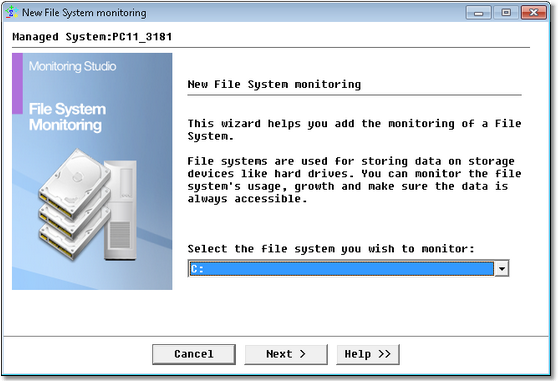
File System Monitoring Wizard on Windows — Welcome Page
| 2. | Select the file system you wish to monitor and click Next. |
 On UNIX/Linux servers with more than 30 file systems, PSL limitations render the correct functioning of a long drop-down list difficult, hence these systems will display a dialog box. By clicking Existing File Systems, a small box showing current file systems will appear. Again, owing to PSL limitation, selection of the drive/file system with the cursor is not possible – you are required to enter the drive manually. The dialog box that shows all the drives is for display/information purpose only. Click Accept/Cancel. On UNIX/Linux servers with more than 30 file systems, PSL limitations render the correct functioning of a long drop-down list difficult, hence these systems will display a dialog box. By clicking Existing File Systems, a small box showing current file systems will appear. Again, owing to PSL limitation, selection of the drive/file system with the cursor is not possible – you are required to enter the drive manually. The dialog box that shows all the drives is for display/information purpose only. Click Accept/Cancel.
| 4. | Click Finish. The corresponding object is created in the PATROL interface with the following parameters: |
| ▪ | FreeMegabytes: Free space left in megabytes. It is possible to trigger an alert when the free space in MB is lower than a given value. |
| ▪ | FreeSpacePercent: Free space in percentage. You can configure Monitoring Studio to trigger an alert when the percentage of free space on the file system is lower than a given threshold. |
| ▪ | UsedSpaceGrowthPercentage: Shows how fast the file system is filled up, in percentage of its size (in percentage per hour - %/hour). Note that the UsedSpaceGrowthPercent parameter may have negative values. |
| ▪ | UsedSpaceGrowthSpeed: Shows how fast the file system is filled-up (in megabytes per hour – MB/hour). Note that the UsedSpaceGrowthSpeed parameter may have negative values. |
See Also
Numeric Value Extraction
String Search
SW_FILESYSTEMS
|


