|
Since folders/directories are critical elements for an application, checking their content is a good way to monitor the application's health. The Folder Monitoring tool monitors folders (directories) that store files processed by the application. It measures their size, growth and flow (including how many files move in, how many out, etc.).
This feature allows you to:
| • | Ensure that your application is not overloaded (number of files to be processed, e.g.) |
| • | Measure the application activity (how many removed files, that is, how many have been processed) |
| • | Check the age of the newest file (whether the data is coming in properly…) |
| • | Check the age of the oldest file (whether the application late in processing queued files). |
 Folder monitoring may be time-consuming for large size folders. Therefore, Monitoring Studio will automatically reduce its monitoring features when the monitored folder contains more than 1000 files. To change this limit, set the configuration variable "/MASAI/SENTRY8/folderLimit" to a suitable value. Folder monitoring may be time-consuming for large size folders. Therefore, Monitoring Studio will automatically reduce its monitoring features when the monitored folder contains more than 1000 files. To change this limit, set the configuration variable "/MASAI/SENTRY8/folderLimit" to a suitable value.
Folder monitoring objects are instances of the SW_FOLDERS class.
To monitor folders:
| 1. | In the PATROL Console, right-click the Monitored Application icon and select KM Commands > New > Folder monitoring... |
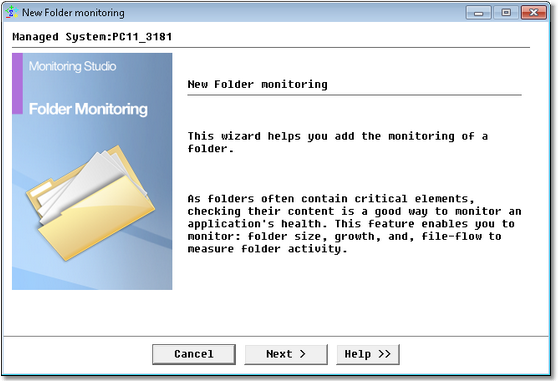
Folder Monitoring Wizard — Welcome Page
| 3. | Identify the folder to be monitored: |
| ▪ | Folder name and path: Enter the name and path of the folder (directory) to be monitored. |
| ▪ | Include sub-folders: Check this box to monitor all the sub-folders of the above-specified folder. |
| ▪ | Monitor only files matching the mask below (optional): Specify the file types or enter masks, and only these files will be monitored (e.g.:.txt;myFiles?.log;file.*). You can use wildcards such as "*" to replace any number of characters, or "?" to replace just one character. You may also use several masks separated by ";". Monitoring Studio will only take into account the files matching the masks entered. |
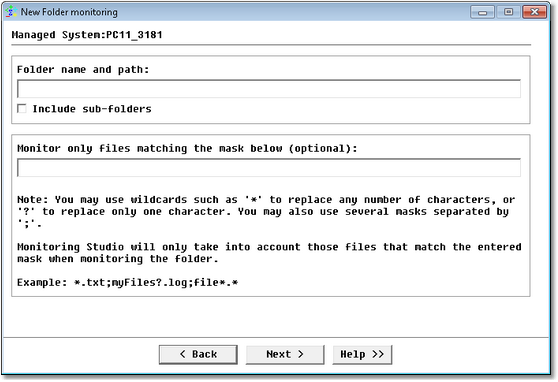
New Command Line Execution Wizard — Folder Identification Page
| 4. | Select the parameters to be monitored for this folder. See the SEN_MS_FOLDER application class for parameter details. application class for parameter details. |
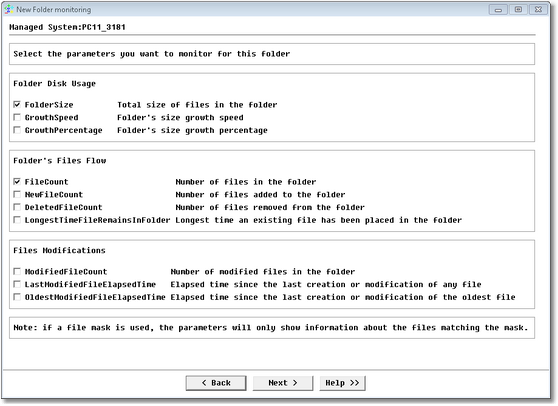
Monitoring Folder Wizard — Parameters Page
Specifying the Time-Based Parameters Behavior
When the monitored folder contains no file, Monitoring Studio is unable to determine the value of the time-based parameters LastModifiedFileElapsedTime, LongestTimeFileRemainsInFolder, and OldestModifiedFileElapsedTime. To indicate to Monitoring Studio the action to be performed when such situation occurs, you will have to set the /MASAI/SENTRY8/timeParameterBehaviorWhenEmptyFolder configuration variable to one of these values:
| • | <empty>: The time-based parameters are not updated at all. They keep the value set by the last collect when there were files in the folder. If the last value set was within an alarm range, the alert remains active on the parameter until set again, i.e. when files are found in the folder. This is the default behavior. |
| • | suspend: The time-based parameters are suspended (disabled, or deactivated) and immediately enabled again. The value of these parameters are not updated. They remain offline as long as no files are found in the folder and a new value is set. If the last value set was within an alarm range, the alert is cleared but no PATROL event (STD/9) is triggered. |
| • | zero: The time-based parameters are set to zero as long as no files are found in the folder. While the value could be considered as improper, it ensures that previous alerts are cleared and the corresponding PATROL event (STD/9) is triggered if zero is out of the alarm range. |
 The timeParameterBehaviorWhenEmptyFolder variable replaces the recessTimeParametersWhenFolderIsEmpty variable introduced through patch P1743. The recessTimeParametersWhenFolderIsEmpty variable should thefore be deleted before setting the new configuration variable. . The timeParameterBehaviorWhenEmptyFolder variable replaces the recessTimeParametersWhenFolderIsEmpty variable introduced through patch P1743. The recessTimeParametersWhenFolderIsEmpty variable should thefore be deleted before setting the new configuration variable. .
See Also
Monitoring Studio does not update all my folders
SW_FOLDERS
|


