|
The File Monitoring Tool provided by Monitoring Studio can instantly detect and alert for example when a critical file goes missing, if the file size is growing too fast, if its security settings have changed, etc. It is one of the most important monitoring tools offered by Monitoring Studio as most applications deal with files and many of them are critical. The most typical usage of file monitoring is parsing a LOG file. Most applications use LOG files to trace their operations and notify operators when failures occur.
Monitoring Studio allows you to:
| • | monitor the main characteristics of these files such as: presence, size, growth & security |
| • | parse the file content to retrieve useful data (including strings that should be present or not and numeric values to build graphs). |
To create a file monitoring:
| 1. | In the PATROL Console, right-click the Monitored Application icon > KM Commands > New > File monitoring and analysis... |
| 2. | Specify the type of file that you wish to monitor: |
| ▪ | LOG file: if you only want the new lines to be scanned when searching for strings or numeric values. |
| ▪ | FLAT file: If you want the entire file to parsed when searching for strings or numeric values. |
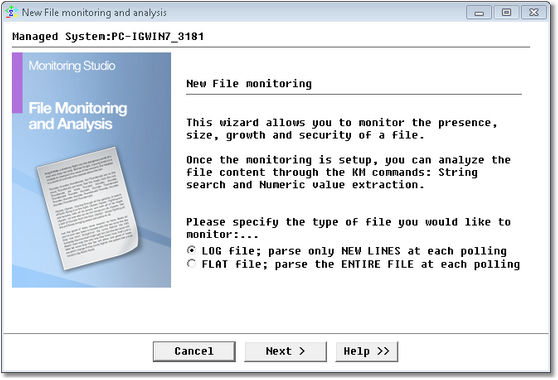
File Monitoring and Analysis Wizard — Welcome Page
| 2. | Click Next. The following dialog box is displayed: |
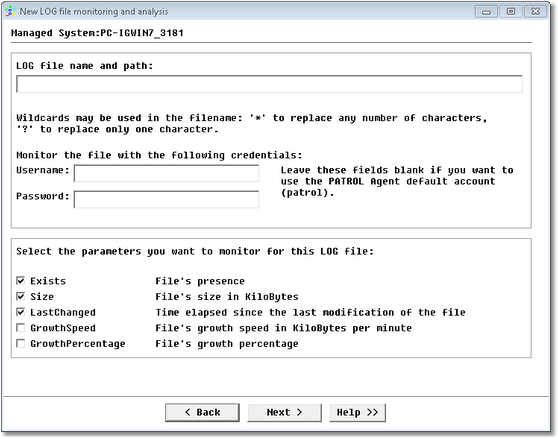
File Monitoring and Analysis Wizard — File Name and Parameters Page
| 3. | Identify the file to monitor: |
| ▪ | File name and path: Indicate the path and name of the file to be monitored. You can use: |
| ▪ | the ? wildcard to replace one character; the * wildcard to replace one or more characters |
| ▪ | a format Command to dynamically assign the current date or time in the file name or path. Simply insert the following string in the "File name and path" field, replacing the three dots by date format symbols: %{ASCTIME:…}. For the complete list of format symbols, meaning and some examples, please see Format Symbols in the Reference section. |
Example
| • | Monitor: /opt/myApplication/log/myApp*.log |
| • | Behavior: Monitoring Studio will look for the most recent file that matches the mask (e.g. /opt/myApplication/log/myApp) and start the monitoring of this file. |
When the application stops writing in this LOG file and creates a new one (e.g. /opt/myApplication/log/myApp), Monitoring Studio analyses the current file for changes and searches for strings and numbers, and then switch to this new file. This way, no information is lost when switching from the previous file to the new one.
|
| 4. | (Optional) Fill the Username and Password fields if you want to use a specific account to monitor the file instead of the PATROL Agent default account. |
| 5. | Select the parameters you want to monitor. See SW_FILES for parameter details. |
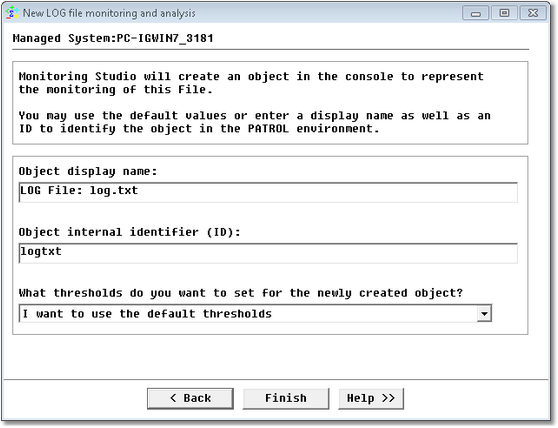
File Monitoring and Analysis Wizard — Settings Page
| 8. | Click Finish. The most recent file found by Monitoring Studio is now be monitored. You can now: |
See Also
Can I search for Windows Events whose description match a regular expression?
What is the meaning of the "Argument1, 2..." fields in the Windows Event monitoring wizard?
Windows EventLog Reader tool
SW_NTEVENTS
|


