|
Problems with an application are not always as simple as a sentence explaining that an "error has occurred." Sometimes, an application reports its health by providing critical numbers, like a queue length, a processing time, a utilization percentage, etc. These numbers may be reported by the application through its files, in the output of commands, in a database, in a Web page, etc. Monitoring Studio extracts these values and reports them as graphs in the Console. This feature is called Numeric Value extraction as its purpose is to extract numeric values from a text input (the output of a command, a Web page, the result of a SQL query, or WBEM query etc.).
All you need to do is indicate how to find the numeric value(s) within the information source. The basic mechanism is:
| 1. | Specify an information source |
| 2. | Specify with a regular expression the location of the numeric value within the searched lines |
| 3. | Indicate the numeric value’s position in these lines i.e. before/after the string; column number etc. |
| 4. | Indicate which numbers are to be considered if several lines contain the searched numeric value: first value, last value, calculate average; highest value; lowest value. |
The numeric value searching function works a bit differently on "running sources" (LOG files and never-ending command lines) than on flat sources (flat files, command lines, Web requests, etc.):
| • | On "running sources" (LOG files and never-ending command lines); the numeric values are searched only in new lines since the last polling. |
| • | On "flat sources" (flat files, command lines, Web requests, database queries), the numeric values are searched in the entire source (the whole file, the whole standard output, the whole HTTP response, the whole data-set). |
If several values are found, it is possible to select which value should be kept: the last value found, the average of all values, the minimum or maximum or a total of all values. A graph is then built with these values.
Numeric value search objects are instances of the SW_NUMBERS class.
To Extract a Numeric Value:
| 2. | In the PATROL Console, right-click the information source icon (file, Web request, etc.) and select KM Commands > New > Numeric Value Extraction... |
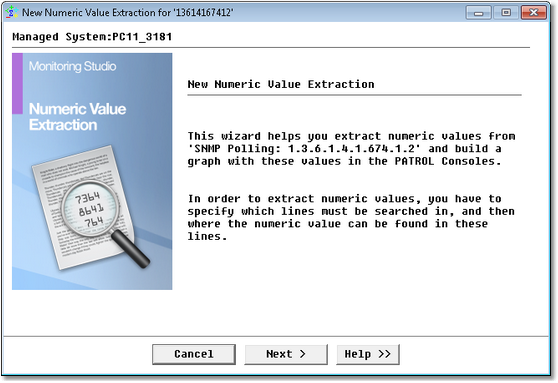
Numeric Value Extraction Wizard — Welcome Page
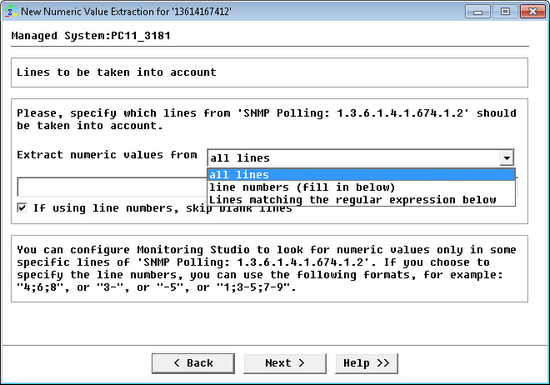
Numeric Value Extraction Wizard — Lines Identification Page
| 3. | Specify which lines are to be searched for the numeric value. The information to enter subsequently depends on this first choice. There are three modes to choose from: |
| ▪ | All lines: All lines of the text will be scanned for the Numeric value search. There is no need to enter anything. |
| ▪ | Line numbers (fill in below): Only specific line numbers will be scanned. If this mode is selected, the line numbers must be specified in the text field below. Line numbers are specified as follows: |
x, y: line x and line y
x-y: all lines from x to y inclusive
x: only line x
x-: all lines from x to the end of the file inclusive
If the "Skip blank lines" option is selected, empty lines will be ignored in the line-count.
| ▪ | Lines matching the regular expression below: The lines scanned will be lines matching the regular expression specified in the field. |
Click Next.
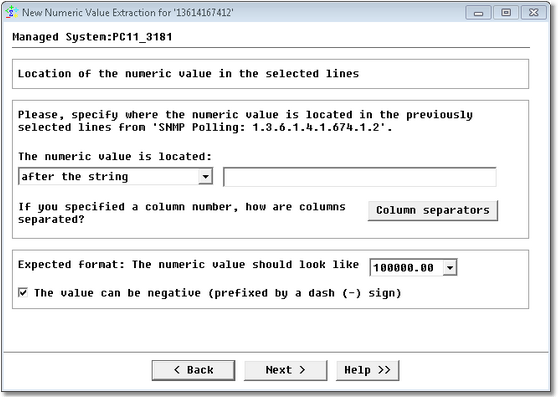
Numeric Value Extraction Wizard — Location Page
| 4. | Indicate the position of the numeric value to be found: |
| ▪ | The numeric value is located: There are four different modes to choose from and the information to enter depends on this choice. |
| ▪ | After/before the string…: Indicate if the numeric value is located after or before the string to be entered in the text field. |
| ▪ | At the character offset…: The value should be at a specific character offset in the line. Enter the offset number in the box. Monitoring Studio will look for the numeric value at that exact character offset in the line. If no numeric data is found, no value will be collected. |
| ▪ | In the column number…: The previously selected lines contain several columns identified by a separator character. Enter the column number that should contain the value and click the "Column separators" button to specify how columns are separated. |
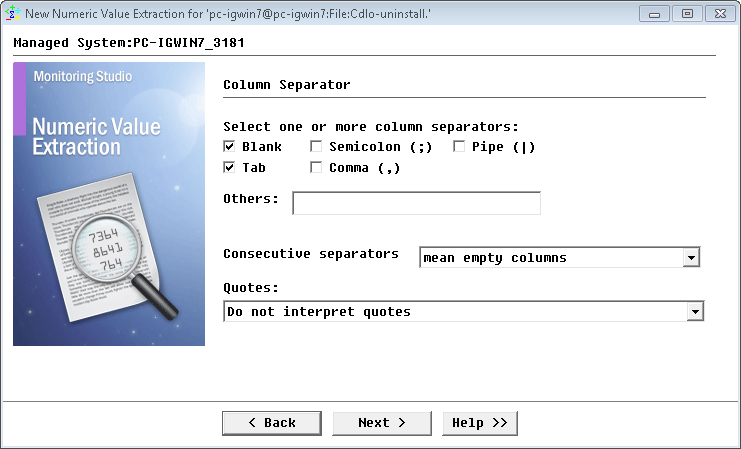
Numeric Value Extraction Wizard — Column Separator Definition
| ▪ | Check or uncheck separators as you need. You can also add a list of custom separators in the Other field. Simply type the separators one after the other. |
| ▪ | Consecutive separators must be treated as a single one: Typically, it indicates that consecutive separators must be treated as a single separator. |
| ▪ | Consecutive separators mean empty columns: Each separator is treated as an individual column separator and the column is considered empty.
The above two options are especially useful for data separated by blanks. |
| 5. | From the Expected format drop-down list, select how the numeric values are formatted. This option allows you to extract numeric values that use blank, comma or points as decimal and thousand separators. |
| 6. | Check the box The value can be negative if the numeric values that you are looking for can be negative. |
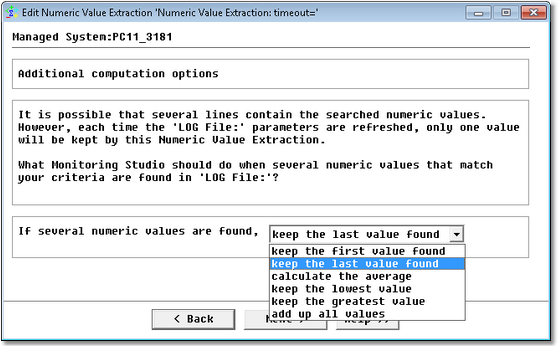
Numeric Value Extraction Wizard — Additional Options Page
| 8. | Indicate which value should be used to set the parameter value and build the graph in the PATROL Console if several values are found in the searched text. The possible values are: |
| ▪ | Keep the first value found |
| ▪ | Keep the last value found (default) |
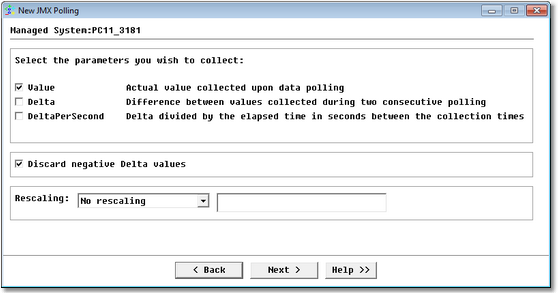
Numeric Value Extraction Wizard — Parameters Selection Page
| 10. | Select the parameters you wish to collect: |
| ▪ | Value: Reports the actual value collected upon data polling |
| ▪ | Delta: Calculates the difference between values collected during two consecutive polling. |
| ▪ | DeltaPerSecond: Reports the value resulting of the division of the Delta by the number of seconds elapsed between the collection times |
| ▪ | Select the option Discard negative Delta values if you do not want negative values to be reported on the graph. |
| ▪ | Use the Rescaling option to configure Monitoring Studio to rescale the value that is being extracted in order to have a more readable graph in the PATROL Console. The available rescaling options are: |
| ▪ | Divide the value by a value that then gives you the reading in terms best suited to you |
| ▪ | Multiply the extracted value by a constant factor |
| This can be useful if you extract numeric values in bytes but prefer to show a graph in megabytes. In such a case, you would divide the values by 1048576 (1024*1024). |
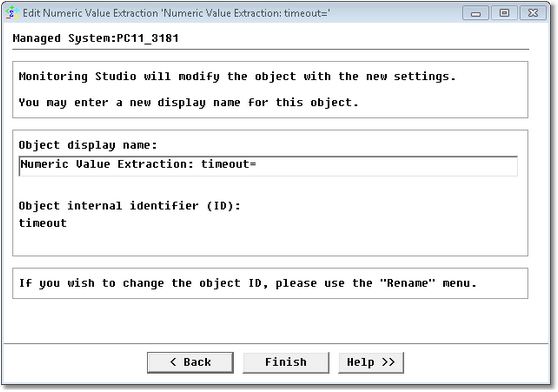
Numeric Value Extraction Wizard — Settings Page
 If Monitoring Studio does not find a number at the specified location, no numeric value will be extracted and the PATROL graph will not be refreshed (space characters are ignored). If Monitoring Studio does not find a number at the specified location, no numeric value will be extracted and the PATROL graph will not be refreshed (space characters are ignored).
See Also
File monitoring and analysis
String Search
SW_NUMBERS
|


