|
The Dynamic Object Builder tool monitors objects whose return output is dynamic by applying a set of user-defined rules on this return output data.
Once the PATROL administrator has created a Dynamic Object Builder instance, Monitoring Studio:
| • | Applies the user-defined set of rules to the output data |
| • | Extracts each matching line and creates a dynamic object for each of them in the PATROL console according to the user-defined naming |
| • | Groups all dynamic objects under a dynamic container to facilitate the management of all the dynamic objects. |
Dynamic objects can be analyzed with String Search and Numeric Value Extraction. They are instances of the SW_DYNAMIC class.
Creating a Dynamic Object
| 1. | In the PATROL console, right-click one of the following monitoring features: |
| 2. | Select KM Commands > New > Dynamic Object Builder... |
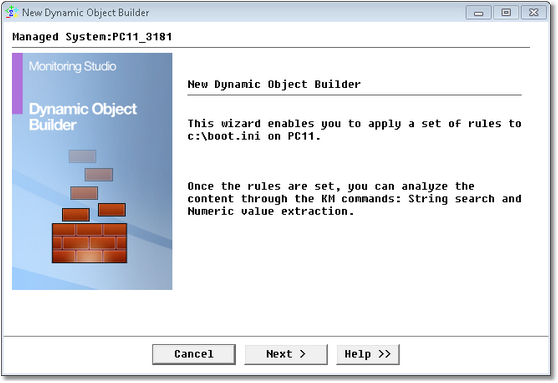
Dynamic Object Builder Wizard — Welcome Page
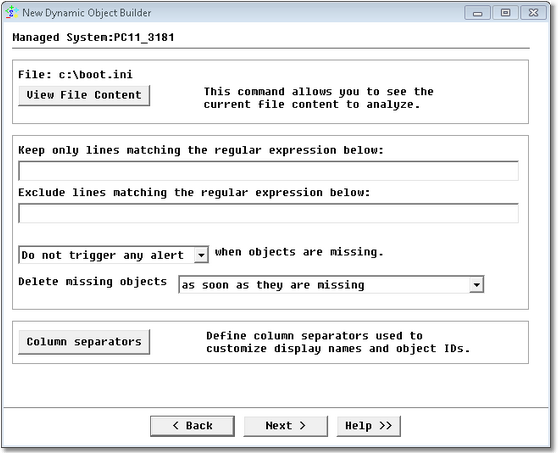
Dynamic Object Builder Wizard — Rules Definition Page
| 3. | Define the rules to apply to the output data: |
| ▪ | View File Content: Displays the current output data to which the Dynamic Object Builder rules will be applied. |
| ▪ | Keep only lines matching the regular expression below: Specify the regular expression to be searched for by the Dynamic Object Builder. Each matching lines is displayed in a separated Dynamic Item automatically added in the PATROL Console under the Dynamic Container icon. |
| ▪ | Exclude lines matching the regular expression below: Specify the regular expression to be searched for by the Dynamic Object Builder. Each matching lines will be ignored. |
| ▪ | Trigger an alarm when objects are missing: This option allows you to define if and how Monitoring Studio must trigger an alert when the Dynamic Item, containing the extracted line, is missing from one collect to another: |
| ▪ | Do not trigger any alert: Select this option if you do not wish Monitoring Studio to trigger any alert when objects are missing |
| ▪ | Trigger an INFORMATION: Select this option if you wish Monitoring Studio to trigger an Information alert when objects are missing |
| ▪ | Trigger a WARNING: Select this option if you wish Monitoring Studio to trigger a Warning alert when objects are missing |
| ▪ | Trigger an ALARM: Select this option if you wish Monitoring Studio to trigger an Alarm alert when objects are missing |
If you have chosen to trigger an alert, a Status parameter will automatically be activated and displayed under the Dynamic Item in the PATROL Console to indicate that the Dynamic Item is missing. Click the Status parameter to open a graph pane displaying the status history of the Dynamic Item.
| ▪ | Delete missing objects: Set this option according to how you want Monitoring Studio to display missing objects in the console. The available options are: |
| ▪ | Never: Monitoring Studio never deletes missing objects in the console. They will always be present. |
| ▪ | As soon as they are missing: Monitoring Studio deletes missing objects from the console as soon as their absence is discovered. If an alarm is configured, Monitoring Studio will trigger the alarm before deleting the object. |
| ▪ | When they are missing .... in a row: Monitoring Studio deletes missing objects after they have been missing a specific number of times in a row |
| ▪ | Column separators: Define the way the Dynamic Object Builder detects columns of output data. Column contents are used to generate the Dynamic Items display name and ID in the PATROL Console. |
| ▪ | Click the Column Separators button to define how the Dynamic Object Builder will detect columns in the output data. Column contents are used to generate the Dynamic Items display name and ID in the PATROL Console |
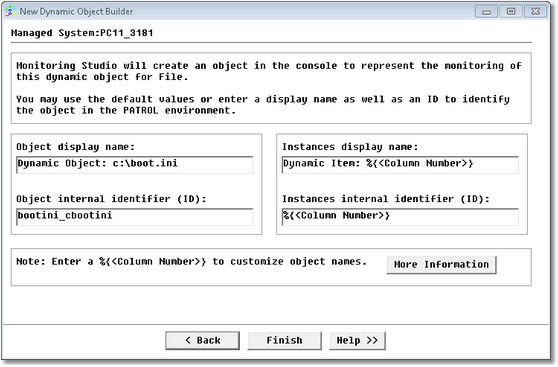
Dynamic Object Builder Wizard — Dynamic Object Names and ID definition Page
| 5. | Define the dynamic objects, instance names and internal identifier: |
| ▪ | Object Display Name: Name of the Dynamic Object Builder as it will appear in the PATROL Console |
| ▪ | Object Internal Identifier (ID): Name used by the PATROL Console to internally identify the Dynamic Object Builder |
| ▪ | %{Column Number>}: Indicate the column number in which the name of the object will be found by Monitoring Studio (e.g.: %{1} for the first column) |
| ▪ | More Information: Provides information about the objects creation and labeling |
| 6. | Click Finish to apply the Dynamic Object Builder rules to the KM command output file. |
Using String Search and Numeric Value Extraction Templates
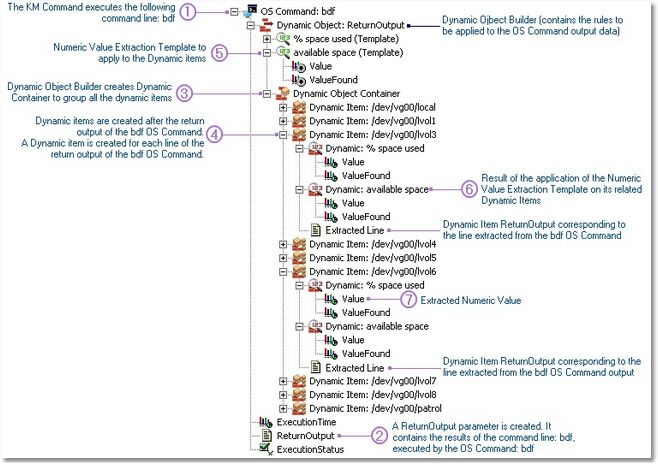
Features such as String Search and Numeric Value Extraction can help you analyze the Dynamic Items output. In order to apply these features to all the Dynamic Items in a single operation, the Dynamic Object Builder creates Templates instances of these features. While standard String Search and Numeric Value Extraction features apply to a single return output, Templates apply to all the Dynamic Items' output within the Dynamic Container (see step  in the example below). in the example below).
When you modify a Template, the changes will apply to all the Dynamic Items upon the next data collection.
Example
How a Dynamic Object Builder elements are managed and displayed in the PATROL Console
|
See Also
Numeric Value Extraction
String Search
SW_DYNAMIC
SW_DYNAMIC_CONTAINER
SW_DYNAMIC_DISCOVERY
SW_DYNAMIC_NUMBERS
SW_DYNAMIC_STRINGS
| 

