|
Monitoring Studio provides the Command Line Analysis tool execute any operating system command, command-line or in-house script and parse the output of the command to detect any error or performance issues.
It also allows you to:
| • | Stop the command execution once a given timeout is reached |
| • | Run a background command that never ends |
 The program or script being executed should not need any user interaction and should not create any window. Monitoring Studio will analyze its output, i.e. what has been written to the stdout and stderr streams. The program or script being executed should not need any user interaction and should not create any window. Monitoring Studio will analyze its output, i.e. what has been written to the stdout and stderr streams.
Command line analysis objects are instances of the SW_OSCOMMANDS class.
To create a command line analysis:
| 1. | In the PATROL Console, right-click the Application icon and select KM Commands > New > Command Line analysis... |
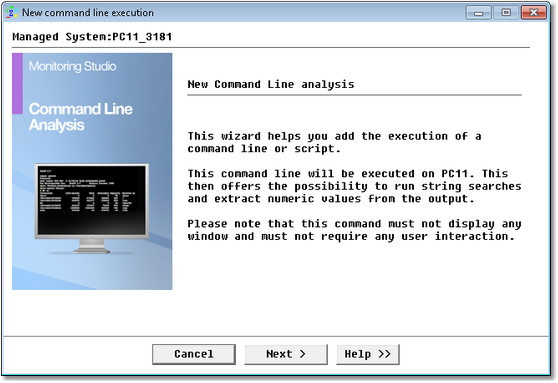
New Command Line Execution Wizard — Welcome Page
| 3. | Enter the command line to execute: |
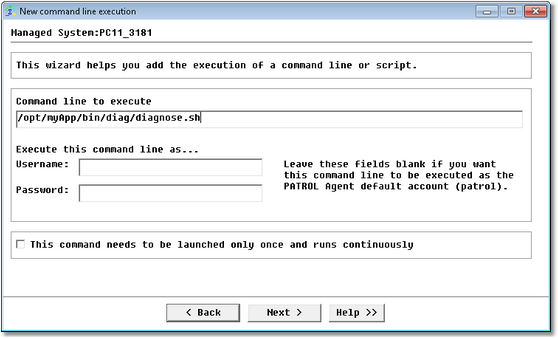
New Application/Container Icon Wizard — Command Line Page
| ▪ | Command line to execute: Enter the OS command line or the path to the script that Monitoring Studio will execute. You can use the %{TIME:…} and %{LASTTIME:…} macros in the command line that will be executed. They will be replaced respectively by the current time and by the last execution time. See Format symbols for more details on the macros. |
Examples
The following command line runs the diagnose.sh shell script: /opt/myApp/bin/diag/diagnose.sh
The following command executes a VBS script: CSCRIPT.EXE //NoLogo C:\MyApplication\bin\diag\diagnose.vbs
The following command dumps the errpt log on IBM AIX and only takes into account the new lines that have been logged since the last polling: errpt –a –s %{LASTTIME:%m%d%H%M%S}
|
| ▪ | Execute this command line as Username/Password: Enter a username and password if the command line needs to be run with a user account different from the default PATROL Agent account. |
| ▪ | This command needs to be launched once and runs continuously: check this box if you want the command to only be launched once. |
| 4. | If you chose to only launch the command once, the following dialog box will be displayed: |
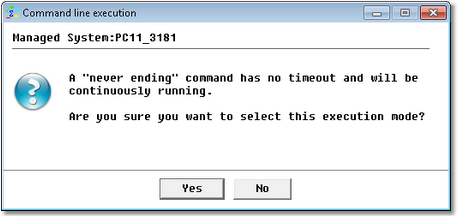
Never-ending Command Execution — Confirmation Message
| ▪ | Click Yes. The following dialog box is displayed: |
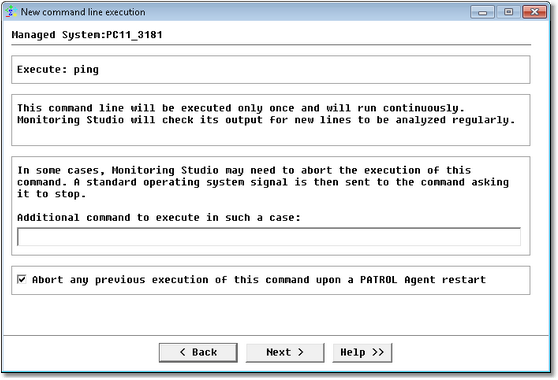
Never-ending Command Execution — Command Execution
| ▪ | Additional command to execute in such a case: Enter a specific command to execute in order to stop the execution of the previously launched never-ending Command. This command runs when the command analysis is deleted from the PATROL configuration. It is required to properly end the execution of the command. |
| ▪ | Abort any previous execution of this command upon a PATROL Agent restart: Select this option if you wish the system to automatically stop the execution of the previous launched never-ending Command upon the next PATROL Agent restart. |
| 5. | If you did not choose to only launch the command once, the following dialog box will be displayed: |
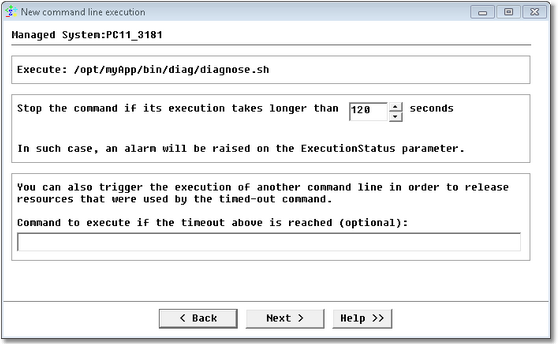
New Application/Container Icon Wizard — Command Execution Period Page
| 6. | Set the execution period and execution time: |
| ▪ | Stop the command if it takes longer than … seconds: Enter the time in seconds after which the command will be stopped. If the timeout is reached, the value of the ExecutionStatus parameter will be set to 1, indicating that the command failed to execute properly. No further analysis will be performed (String and Numeric Value searches). |
| ▪ | Command to execute if the timeout above is reached (Optional): Type a command similar to a recovery/cleaning action that will be executed when the timeout is reached. The {%PID} macro can be used to indicate the PID of command line process being interrupted. |
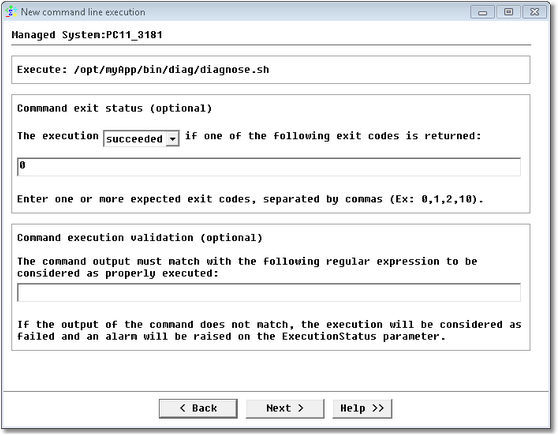
New Application/Container Icon Wizard — Command Execution Validation Page
| 8. | Set the command execution validation (optional): |
| ▪ | Command Exit Status: States if the command line has been properly executed: |
| ▪ | Select an execution option (succeeded/failed). This option specifies the exit code returned at the end of the command line execution. |
| ▪ | Enter one or several exit codes separated by commas. When one of the exit codes is found or not depending on the execution option selected, Monitoring Studio triggers an alarm on the ExitStatus parameter to indicate that the execution failed. |
| ▪ | Command execution validation: The regular expression entered here will be searched in the output of the command. If it is not found, the value of the ExecutionStatus parameter will be set to 1, indicating that the command failed to execute properly. |
 This option is useful to avoid basic execution errors like "File not found" because the command line was mistyped. This option is useful to avoid basic execution errors like "File not found" because the command line was mistyped. | |
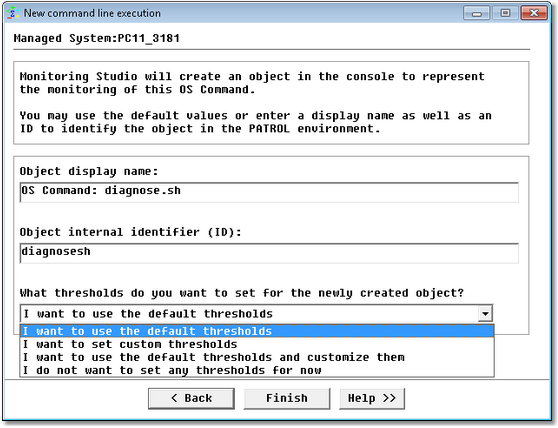
New Application/Container Icon Wizard — Settings Page
See Also
Numeric Value Extraction
String Search
SW_OSCOMMANDS
| 

