|
The String Search tool allows you to run fast and powerful searches for strings on the information sources that you previously configured (flat or LOG files, output of a Web request or a database query, OID content, etc.
Please note that the string search tool works a bit differently on "running sources" (LOG files and never-ending command lines) than on flat sources (flat files, command lines, Web requests, etc.):
| • | On "running sources" (LOG files and never ending OS commands): |
| ▪ | the strings are searched only in new lines since the last polling. For a string search in a running source, two graphs are built: Number of matches since the last acknowledgement and Number of matches per minute since the last polling. |
| ▪ | you can specify auto-acknowledging strings that will automatically reset the graph to the "number of matches". |
| • | On "flat sources" (flat files, OS commands, Web requests, database queries): |
| ▪ | the strings are searched in the entire source every time (the whole file, the whole standard output, the whole HTTP response, the whole dataset). For a string search in a flat source, one graph is built: Number of matches at the current polling. |
| ▪ | you cannot specify auto-acknowledging strings since the parameter is recalculated from "0" at each polling. |
| ▪ | you can specify where information should be searched in the file (n lines, pre-filter, etc.). |
String search objects are instances of the SW_STRINGS class.
To search for a specific string:
| 2. | In the PATROL Console, right-click the information source icon (file, Web request, etc.) and select KM Commands > New > String Search... |
| 3. | Specify the information to search for: |
| ▪ | Contain/do not contain: You can enter up to two strings (regular expressions) to look for, and decide whether or not those strings should be contained in the line.
It is also possible to specify if the two strings should be found together (AND), or if only one of the two strings is sufficient (OR). |
| ▪ | Case sensitive: Check the box or leave it unchecked as per your need |
| ▪ | Select where to search: For each entered string, you can specify where in the line to search for the string: |
| ▪ | Anywhere in the line (default) |
| ▪ | At the following character offset: if you choose to search for the string from a character offset in the line, you must specify the offset in this field. Character offset is nothing but the character number. For example, to search for a string that starts from the seventh character in the line, you enter the digit 7 as the character offset. |
| ▪ | In the following column number: Enter the column number |
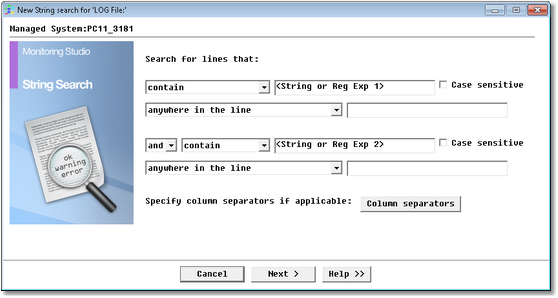
String Search Wizard — Search definition Page
| 4. | If the option In the following column number was previously selected, click the Column separators button to specify how to identify the relevant column by entering the column. number and specifying the separator: |
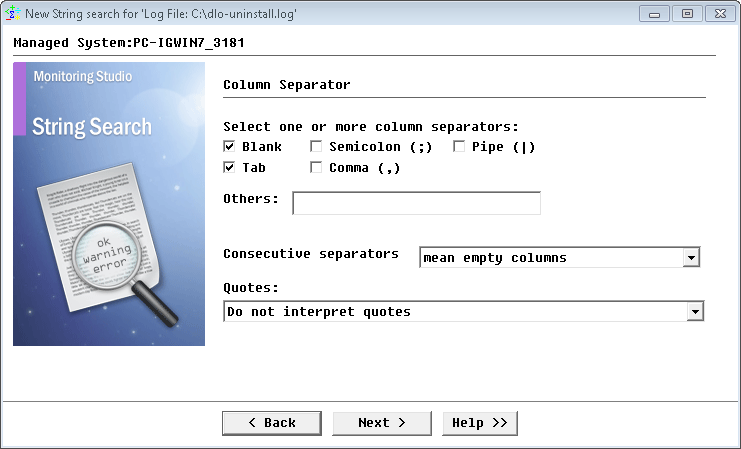
String Search Wizard — Column separator definition
| ▪ | Select or de-select applicable separators. For custom separators, enter the character in the Other field. |
| ▪ | Consecutive separators must be treated as a single one (useful for data separated by blanks): Typically, it indicates that consecutive separators must be treated as a single separator. |
| ▪ | Consecutive separators mean empty columns (useful for data separated by blanks): Each separator is treated as an individual column separator and the column is considered empty. |
| 5. | For string searches on a flat source (flat file, command line, Web request, etc.), the following dialog box is displayed: |
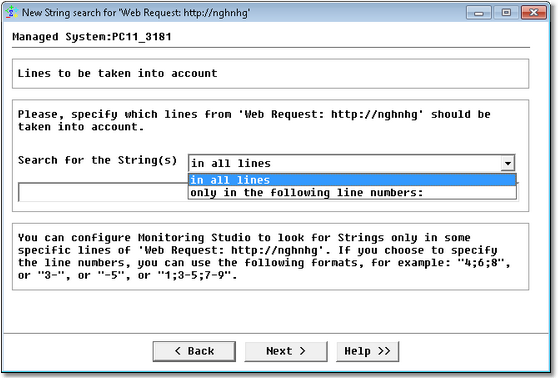
String Search Wizard — Line selection (for flat source only)
| ▪ | Select which lines of the source should be scanned |
| ▪ | Search for the String(s) in all lines: The string(s) will be searched for in all the lines of the specified source. |
| ▪ | Search for the String(s) only in the following line numbers: Enter the list of line numbers you wish to scan separated by ‘;’. Lines are specified as follows: |
x, y: line x and line y
x-y: all lines from x to y inclusive
x: Only line x
x-: all lines from x to the end of the file inclusive
| 6. | For string searches on a "running source" (LOG file and never-ending OS commands, the following dialog box is displayed: |
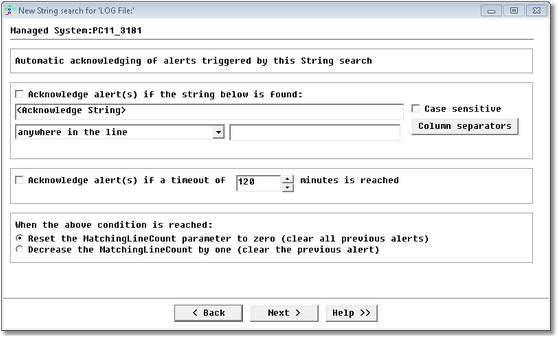
String Search Wizard — Automatic acknowledgment
| ▪ | Set the automatic acknowledgment of alerts: |
| ▪ | Acknowledge alert(s) if the string below is found: Check the box to acknowledge the alert. |
| ▪ | Indicate whether or not it is case-sensitive |
| ▪ | Select where to search: specify the location of the string, enter the column separators if any |
| ▪ | Acknowledge alert(s) if a timeout of "x" minutes is reached: Check the box to enable alert acknowledgement. A timeout expires since the last matching line found; enter the value (default is set to 120 minutes). |
| ▪ | Select the action to be performed when the condition is reached. |
See Also
Command Line analysis
Database Query analysis
File monitoring and analysis
Regular expressions
SW_HTTP_REQUESTS
SW_STRINGS
Text Pre-processing
|


