|
Because string and numeric value searches cannot be run in paragraphs, you will have to first process the multi-line, XML or HTML content by using the Text Pre-Processing tool. This tool transforms paragraphs into single lines for easy parsing with the String Search and Numeric Values Extraction tools.
All text pre-processing objects are instances of the SW_Transform class.
Converting Multi-Line Records into single line
| 1. | In the PATROL Console, right-click the File Monitoring icon and select KM Commands > New > Text Preprocessing... |
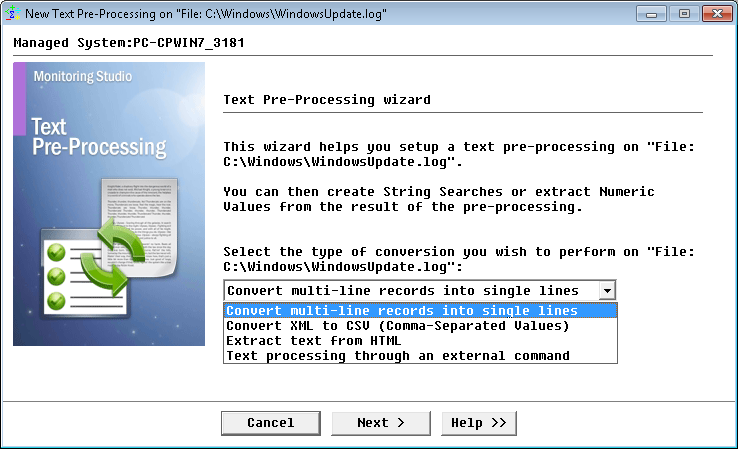
Text Pre-Processing Wizard — Welcome Page
| 2. | Select Convert multi-line records into single line and click Next. |
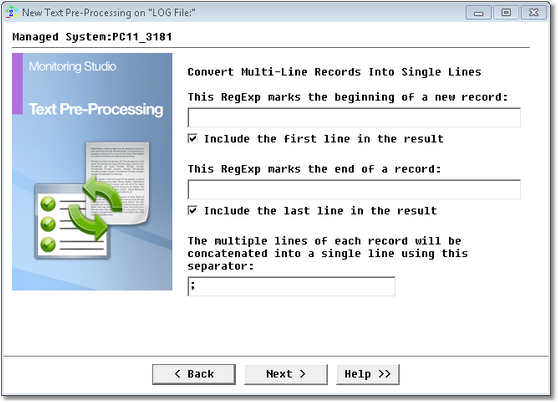
Text Pre-Processing Wizard: Convert multi-line records into single lines — Start/End of line definition
| 3. | Define the first and/or last lines of the paragraphs: |
| ▪ | This RegExp marks the beginning of a new record: Enter the regular expression or string that marks the beginning of a new record. Please note that the regular expression can match with any part of the first line of each paragraph. If needed, include the first line in the result. |
| ▪ | This RegExp marks the end of a new record: Enter the regular expression or string that marks the end of a new record. Please note that the regular expression can match with any part of the first line of each paragraph. If needed, include the last line in the result. |
|  The regular expression ^$ can be used to match an empty line. The regular expression ^$ can be used to match an empty line. |
| ▪ | Specify the character to be used as a separator. |
You can specify a regular expression that only identifies the beginning of a new paragraph (record). In this case, Monitoring Studio skips the content until it finds a line matching with the specified criteria. The text that follows this line (and optionally including this first line) is concatenated in a single line by using the specified separator, until Monitoring Studio finds another line that matches with the specified regular expression. Each line in the original content that matches with this regular expression produces a new line in the result content. The same is true for the regular expression that marks the end of a paragraph (or record).
 If you specify both regular expressions to identify the beginning and the end of a record, Monitoring Studio will only take into account the text content that is in the between lines that matches these regular expressions (i.e. between the start line and the end line). Lines in the original text between a line matching the end marker and the next line matching the beginning marker will be skipped and not integrated in the text result. If you specify both regular expressions to identify the beginning and the end of a record, Monitoring Studio will only take into account the text content that is in the between lines that matches these regular expressions (i.e. between the start line and the end line). Lines in the original text between a line matching the end marker and the next line matching the beginning marker will be skipped and not integrated in the text result.
| 6. | Click Finish. The output will be displayed at the next discovery by the TransformResult parameter. |
You can now perform a string search or extract numeric values from this "transformed" output.
Converting XML to CVS
| 1. | In the PATROL Console, right-click the File Monitoring icon and select KM Commands > New > Text Preprocessing... |
| 2. | Select Convert XML to CVS (Comma-Separated Values) and click Next. |
Text Pre-Processing Wizard — Welcome Page
| 3. | Define the XML tag that defines the record, the sub-objects and properties, the character to be used as a separator and click Next. |
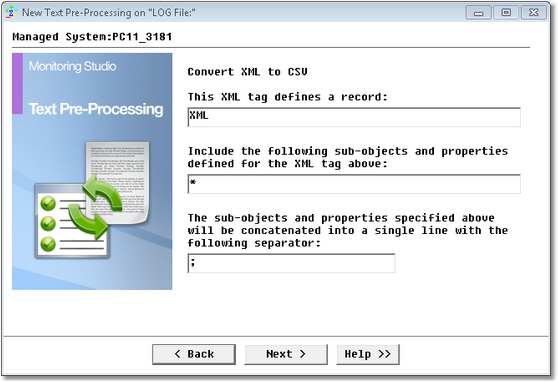
Text Pre-Processing Wizard: Convert XML to CSV — Object Definition
| 8. | Click Finish. The output will be displayed at the next discovery by the TransformResult parameter. |
You can now perform a string search or extract numeric values from this "transformed" output.
An example of the XML LOG File Parsing, is available here.
Extracting Text from HTML
| 1. | In the PATROL Console, right-click the File Monitoring icon and select KM Commands > New > Text Preprocessing... |
| 2. | Select Extract text from HTML (Comma-Separated Values) and click Next. |
Text Pre-Processing Wizard — Welcome Page
| 3. | There are no options to select since Monitoring Studio will simply transform the HTML source by removing the HTML tags and display the output in the parameter TransformResult. Click Next. |
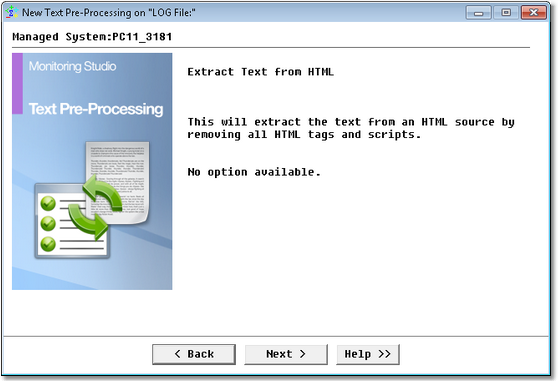
Text Pre-Processing Wizard: Extract text from HTML — Extraction Confirmation
| 5. | Click Finish. The output will be displayed at the next discovery by the TransformResult parameter. |
You can now perform a string search or extract numeric values from this "transformed" output.
Processing Text through an External Command
This option should be selected if text inputs (files, output of commands, Web requests, etc.) may need to be transformed in a special way in order to be parsed with Monitoring Studio’s String Searches and Numeric Value Extractions. If the built-in text transformation features of Monitoring Studio cannot handle such "specially formatted" text, you will have to process the content through a custom script or utility that performs the required transformation. The main advantage of processing the text through an external command feature is that it enables you to customize the processing of almost any source of information important to your application.
| 1. | In the PATROL Console, right-click the File Monitoring icon and select KM Commands > New > Text Preprocessing... |
| 2. | Select Text processing through an external command and click Next. |
Text Pre-Processing Wizard — Welcome Page
| 3. | Specify the OS command to be executed to transform the text: |
| ▪ | Command to be executed: Enter the command. The principle is very similar to the "pipe" mechanism of the UNIX shell except that the content is not passed directly but is stored in a temporary file and then the result needs to be stored in another temporary file. Hence the command line you specify needs to take the %{INPUTFILE} macro as an argument (the %{INPUTFILE} macro is replaced by the real temporary input file location at run time) as well as %{OUTPUTFILE}. |
| ▪ | The output of the command must match this RegExp to be considered as successful: Enter a RegExp to avoid typical path problems such as getting "... not found" error messages instead of the properly transformed text |
If your command line redirects its output to %{OUTPUTFILE}, the validation regular expression is likely to fail because the standard output is empty and thus matches with nothing. Use a validation regular expression only if your command line is able to produce both the %{OUTPUTFILE} and some text to its standard output.
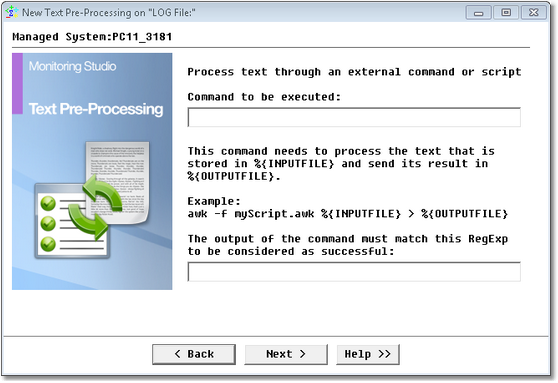
Text Pre-Processing Wizard: Text processing through an external command — Command Definition
| 5. | Click Finish. The output will be displayed at the next discovery by the TransformResult parameter. |
You can now perform a string search or extract numeric values from this "transformed" output.
Example of converting multi-line records to single lines
The "ipconfig /all" command under Windows reports various information about each network card, and each "paragraph" is about one network card:
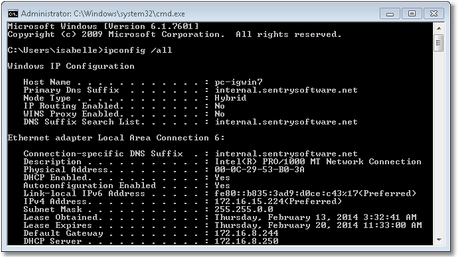
The aim here is to detect any disconnected cards. So we add a monitoring instance for the OS command ipconfig/all. But as the text is in paragraphs, a direct string search will not get the desired result in this case – which is why we run the Text pre-processing tool to convert the multi-line text to single lines.
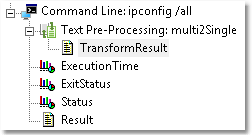
In the screenshot below, the "ipconfig /all" command is executed and its output is pre-processed to transform its paragraphs into single lines, which in turn enables an efficient parsing with a String search that looks for "disconnected" network cards.
|
See Also
Command Line analysis
File monitoring and analysis
Numeric Value extraction
SW_HTTP_REQUESTS
SW_STRINGS
| 

