|
Monitoring Studio can directly poll SNMP agents to collect critical information about the middleware.
The basic steps to follow to poll the SNMP agent are:
| • | Launch the SNMP polling wizard |
| • | Identify the host (SNMP agent), port and community string |
| • | Specify the OID to be polled or values from an SNMP Table |
Creating an SNMP polling
| 1. | In the PATROL Console, right-click the Application icon and select KM Commands > New > SNMP polling. |
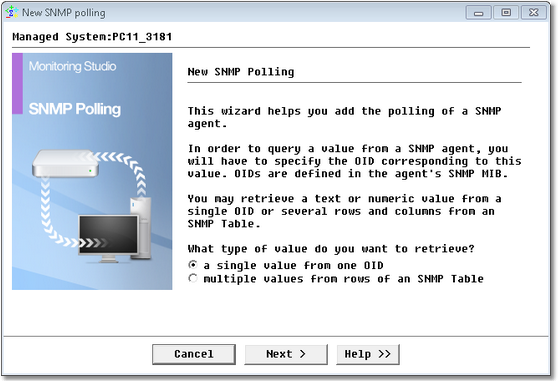
SNMP Polling Wizard — Welcome Page
| 2. | Select the type of value you want to poll: |
| ▪ | A single value from one OID: Select this option to poll a value from one OID. |
| ▪ | Multiple values from rows of an SNMP table: Select this option to poll several values from an SNMP table. |
| 3. | If you selected A single value from one OID, the following dialog box is displayed: |
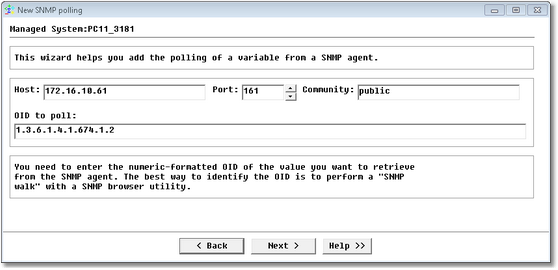
SNMP Polling Wizard — SNMP agent and OID selection Page
| ▪ | Identify the SNMP agent and the OID to poll: |
| ▪ | Host: Enter the IP of the computer running the SNMP agent that will be polled. If it is the same server as the one the PATROL agent runs on, it is possible to use the following IP: 127.0.0.1 |
| ▪ | Port: Enter the port used by the SNMP agent to communicate. |
| ▪ | Community: Enter the name of the community used by the SNMP agent. |
| ▪ | OID to poll: Enter the OID (object identifier) to poll, as given by the Management Information Base (MIB). |
| ▪ | Click Next. The wizard will try to poll the OID to identify its type. If, for some reason, the OID cannot be polled, a warning message is displayed. The user must select an OID type, either “String” or “Integer,” to let Monitoring Studio know what kind of value is expected. If you are not sure about: |
| ▪ | the OID type, it is recommended to select “The OID returns a string.” |
| ▪ | the exact OID to poll, you should use a SNMP MIB Browser tool to identify which OID corresponds to which variable. You can also use the Monitoring Studio built-in SNMP Browser tool to list the available OID variables and their values. To do so, right-click the main Monitoring Studio icon > KM Commands > Tools > SNMP Browser. |
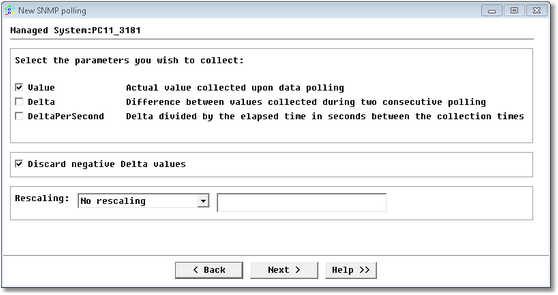
SNMP Polling Wizard — Parameter Selection Page
| ▪ | If the OID returns a number, select the parameters you wish to collect: |
| ▪ | Value: Reports the actual value collected upon data polling. |
| ▪ | Delta: Calculates the difference between values collected during two consecutive polling. |
| ▪ | DeltaPerSecond: Reports the value resulting of the division of the Delta by the number of seconds elapsed between the collection times. |
| ▪ | Select the option Discard negative Delta values if you do not want negative values to be reported on the graph. |
| ▪ | Use the Rescaling option to configure Monitoring Studio to rescale the value that is being extracted in order to have a more readable graph in the PATROL Console. The available rescaling options are: |
| ▪ | Divide the value by a value that then gives you the reading in terms best suited to you |
| ▪ | Multiply the extracted value by a constant factor |
| This can be useful if you extract numeric values in bytes but prefer to show a graph in megabytes. In such a case, you would divide the values by 1048576 (1024*1024). |
| 4. | If you selected Multiple values from rows of an SNMP table, the following dialog box is displayed: |
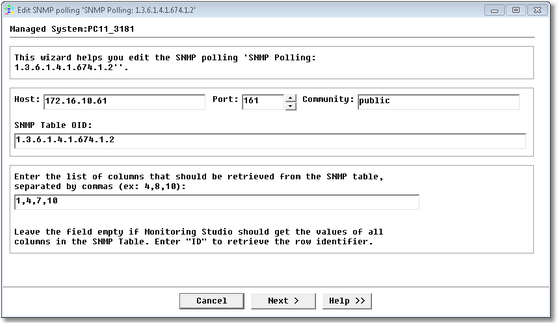
SNMP Polling Wizard — SNMP agent identification Page
| ▪ | Identify the SNMP agent and the list of columns from the SNMP table to poll: |
| ▪ | Host: Enter the IP of the computer running the SNMP agent that will be polled. If it is the same server as the one the PATROL agent runs on, it is possible to use the following IP: 127.0.0.1 |
| ▪ | Port: Enter the port used by the SNMP agent to communicate. |
| ▪ | Community: Enter the name of the community string used by the SNMP agent. |
| ▪ | SNMP Table OID: Enter the Table OID (object identifier) to poll, as given by the Management Information Base (MIB). |
| ▪ | List of table columns to poll: Enter the column numbers whose values should be retrieved. Enter “ID” to retrieve the row identifier. Leave the field blank to retrieve all values; or enter the column numbers separated by commas. Example: 4,8,9. |
 If for some reason, the OID cannot be polled, a message is displayed stating that the table seems to be empty. In such a case, verify that you have entered the right OID and/or that the table really exists and has values. If for some reason, the OID cannot be polled, a message is displayed stating that the table seems to be empty. In such a case, verify that you have entered the right OID and/or that the table really exists and has values.
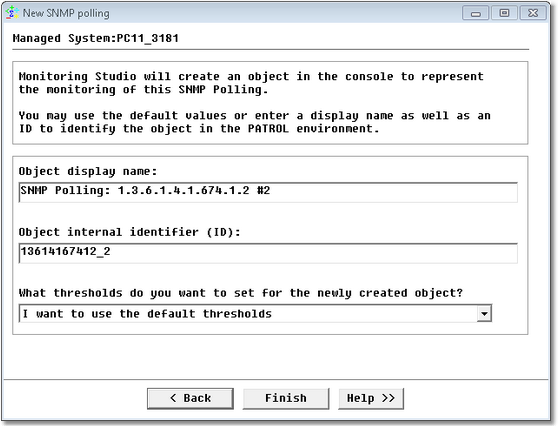
SNMP Polling Wizard — Settings Page
Monitoring Studio will get the value and allow you to store it in a graph, or search for strings in the OID content. For more details about the parameters discovered, please refer to the Reference Guide. SNMP Polling objects are instances of the SW_SNMP_POLLING class.
See Also
SW_SNMP_POLLING
|


