|
Uninstalling Monitoring Studio is an automated process managed by a wizard. The wizard goes through the necessary steps to remove Monitoring Studio and all files associated with it. You are simply prompt for the product's folder location and the product/components to uninstall.
| 1. | Locate the Uninstall folder under the BMC products directory (typically under C:\Program Files\BMC Software, or /opt/bmc) |
| 2. | Make sure the uninstall program is up-to-date. You may need to use the installation program from a fresh Installation Utility package. |
| 3. | Launch the uninstall program: |
| ▪ | On Windows systems, run uninstall.exe |
| ▪ | On UNIX, run uninstall.sh |
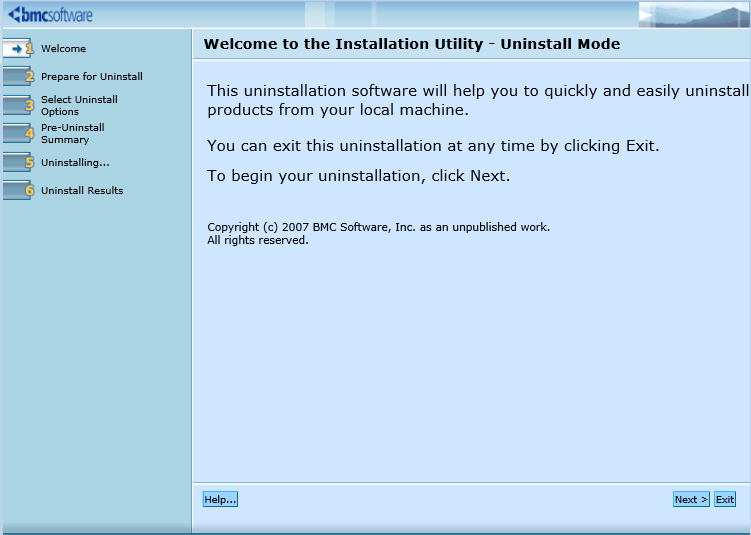
Uninstall Wizard — Welcome Step
| 4. | Specify the BMC Software products folder. See the BMC Software documentation for more information. |
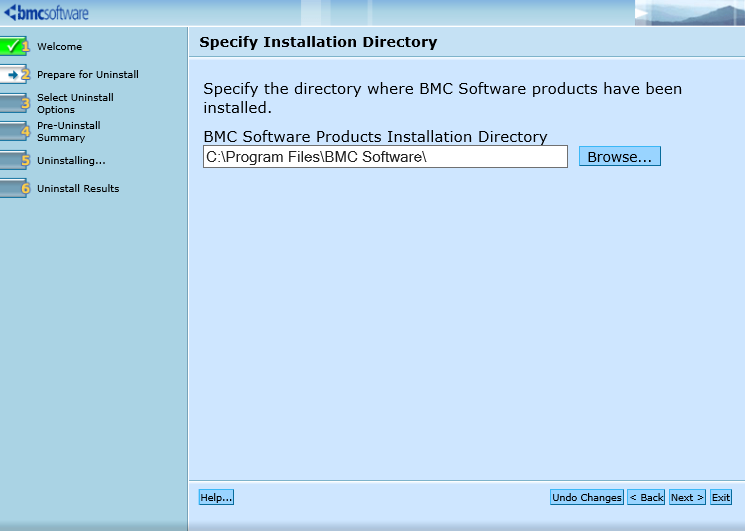
Uninstall Wizard — Specifying folder
| 5. | Select Monitoring Studio KM for PATROL. |
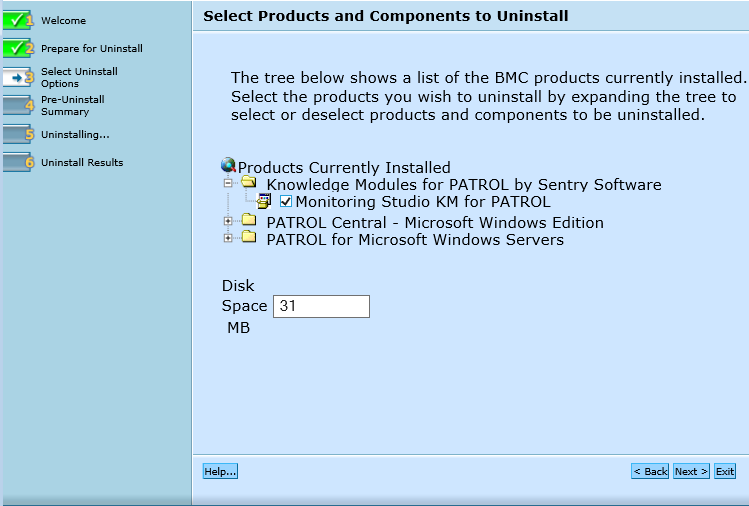
Uninstall Wizard — Selecting Products and Components Directory
| 6. | Review the summary and click Start Uninstall. |
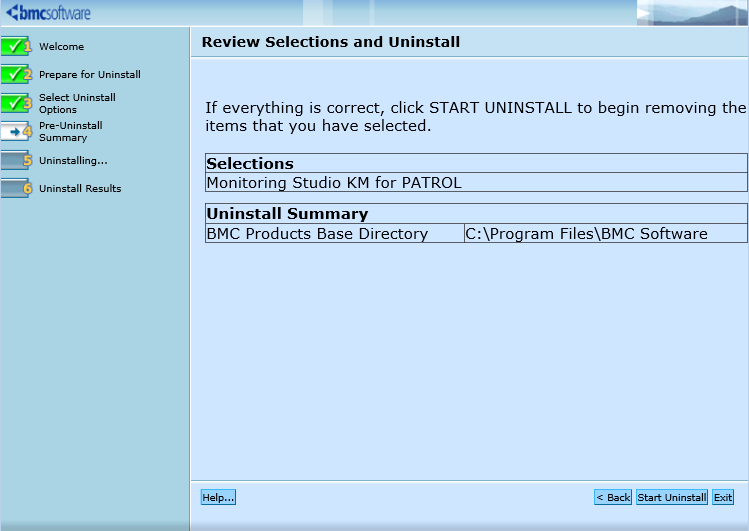
Uninstall Wizard — Reviewing Selected Products & components and start uninstalling
| 7. | A page displays the list of products/components processed and the percentage of completion. Click Next to continue. |
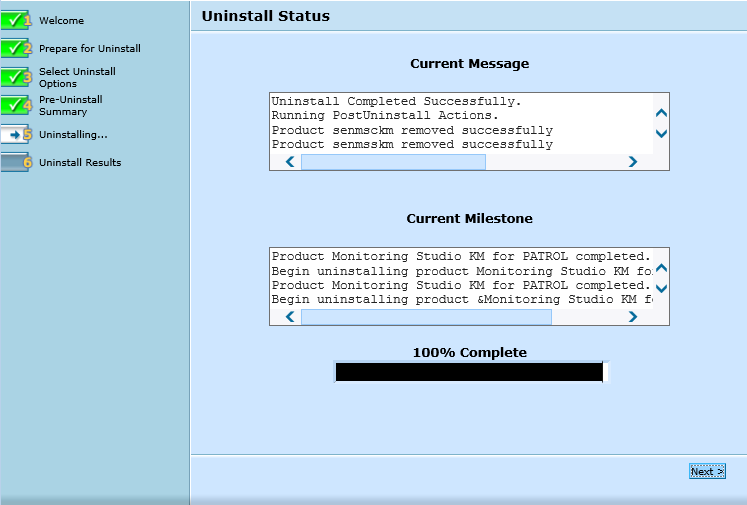
Uninstall Wizard — Status
| 8. | A page displaying SUCCESS indicates that Monitoring Studio KM for PATROL is now uninstalled. Click Finish to quit the wizard. |
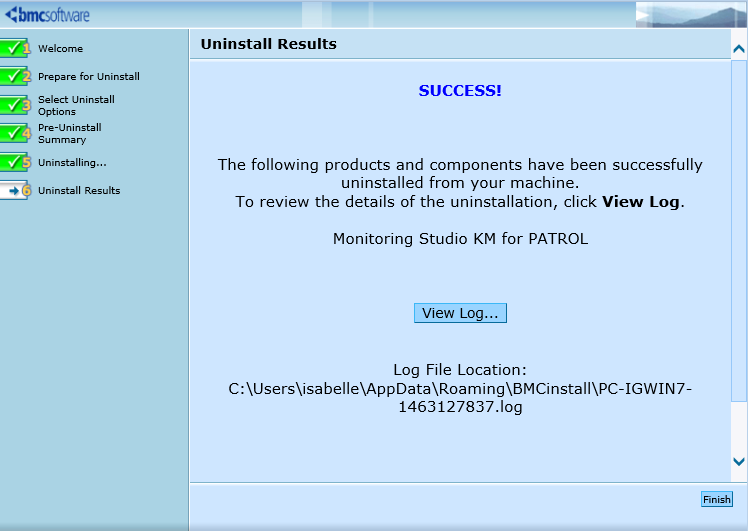
Uninstall Wizard — Uninstall Results
| 

