|
A Monitor Group is designed to facilitate the management of the monitored technologies (application, server, device, etc.). It contains a Host and one or several Monitors. Typically, the Monitor Group display name is the name of the technology you wish to monitor, for example 'My Company's Web Site'. A Monitor Group can only contain one host.
To configure a monitor group
| 1. | In the Monitoring Studio Configuration panel, scroll to the Monitor Group Settings section. |
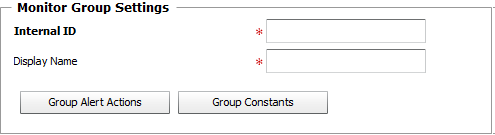
Monitor Group Settings
| 2. | Enter the Internal ID that will be used internally by TrueSight Operations Management to identify the Monitor Group. The PATROL internal identifier of every object belonging to this Group (Hosts, Monitors, etc.) will include the internal ID of the Group. It is therefore recommended to keep this ID short. |
| 3. | Enter a Display Name that is significant to you and that identifies the technology you wish to monitor. This name will be used as a label to identify the Monitor Group in TrueSight Operations Management. |
| 4. | Optional — Set the Group Alert Actions options. Group Alert Actions are typical alert actions that apply to all Monitors attached to the Group when their thresholds are breached. Note that these alert actions add up to the alert actions defined at the Monitor level.
Click the Group Alert Actions button to display the settings panel: |
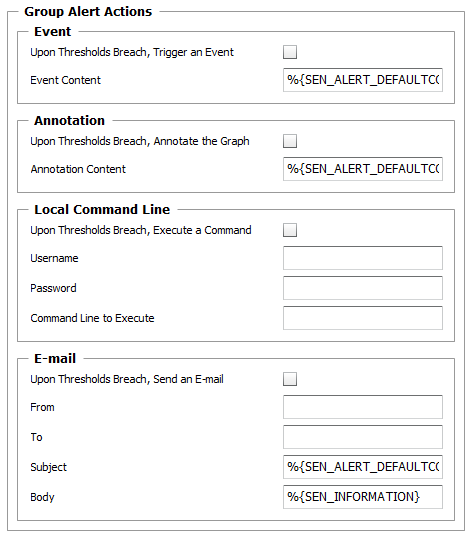
Group Alert Actions Settings
Select one or several alert actions you wish Monitoring Studio to perform when a threshold is breached. Macros can be used to customize alert actions, refer to the Alert Actions Macros chapter for detailed information.
| ▪ | Event: select this option to have Monitoring Studio trigger a PATROL event. Use the Event Content field to provide the string that will be displayed with the event. The %{SEN_ALERT_DEFAULTCONTENT} macro is proposed by default to provide basic information about the event. |
| ▪ | Annotation: select this option to have Monitoring Studio annotate the attribute's graph. Use the Annotation Content field to provide the string that will be displayed at the annotation point. The %{SEN_ALERT_DEFAULTCONTENT} macro is proposed by default to display basic information at the annotation point. |
| ▪ | Local Command Line: Select the Upon Thresholds Breach, Execute a Command option to have Monitoring Studio execute a command line on the system where the PATROL Agent is installed. Provide the Username and Password required to run the command line (or leave these fields blank to use the PATROL Agent's default account) as well as the Command Line you wish the solution to execute. |
| ▪ | E-mail: Select this option to have Monitoring Studio send an E-mail. Provide the sender and the recipient email address in the From and To fields. To send the email to multiple recipients, use the comma (,) or the semi-column (;) to separate the recipients' email addresses. The %{SEN_ALERT_DEFAULTCONTENT} and %{SEN_INFORMATION} macros are proposed by default to provide information about the event.
 An SMTP server is required to receive alerts by email. For more information refer to Configuring the SMTP Server. An SMTP server is required to receive alerts by email. For more information refer to Configuring the SMTP Server. |
| 5. | Optional — Define the Group Constants for the Monitor Group. Constants are very useful for monitoring a technology whose properties may change from one system to another.
Constants are defined at the Monitor Group level and can be reused in the Monitors related to the Group. Here are some examples of use: |
Example: You want to specify the monitoring of a device through a command line interface (CLI). Depending on where the PATROL Agent is running, this CLI may be installed in a different directory. To avoid editing every Monitor using this CLI to change the path, you create a Group Constant MYCLI_PATH with the path to the CLI executable. Then you create the "Command Line Analysis" Monitor by specifying, for example: "%{MYCLI_PATH}" -option1 - option2
|
| ▪ | Click the Group Constants button to open the settings panel and provide the required information: |
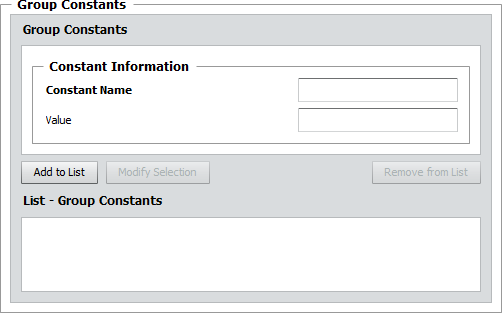
Group Constants Settings
| ▪ | Constant name: Enter the name of the constant. |
| ▪ | Value: Set a value for the constant. |
| ▪ | Click the Add to List button to complete the creation of the Group Constant. |
The next step consists in configuring Monitors for the technologies you wish to monitor.
|


