|
When you encounter an issue and wish to report it to Sentry Software, you will be asked to enable the Debug Mode and provide the debug output to the Sentry Software support team.
To enable the debug mode
| 1. | In the Global Advanced Settings section, click Debug. |
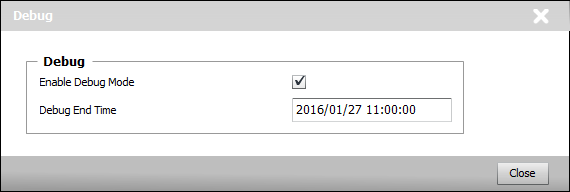
Enabling the Debug Mode
| 2. | Check the Enable Debug Mode option. The solution will store debug information in a log file. By default debug files are stored in the %PATROL_HOME%\log or $PATROL_HOME/log folder. |
| 3. | In the Debug End Time field, enter the date and time at which the system must stop logging debug information. The required format is: yyyy/mm/dd hh:mm:ss based on a 24 hour-day. |
 For the debug mode to be enabled, the Enable Debug Mode must be checked and the Debug End Time must be properly set to a date and time in the future. For the debug mode to be enabled, the Enable Debug Mode must be checked and the Debug End Time must be properly set to a date and time in the future.
| 4. | Click Close to save your settings. |
 The following debug files are generated: The following debug files are generated:
| ▪ | SEN_MS_debug_km_<PatrolAgent_Port>_<YYYY-mm-dd-HH-MM>.log, with the debug output of the KM (example: SEN_MS_debug_km_3181_2016-02-12-17-25.log) |
| ▪ | SEN_MS_CollectionHub_debug_psl_<PatrolAgent_Port>_<YYYY-mm-dd-HH-MM>.log, with the PSL debug output of the Collection Hub (example: SEN_MS_CollectionHub_debug_psl_3181_2016-01-27-09-27.log) |
| ▪ | SEN_MS_CollectionHub_debug_java_<PatrolAgent_Port>_<YYYY-mm-dd-HH-MM>.log, with the Java debug output of the Collection Hub (example: SEN_MS_CollectionHub_debug_java_3181_2016-01-27-09-27.log) |
| 5. | In the Add Monitor Types dialog box, click Add. |
|


