Alert Actions Capabilities


Alert Actions Capabilities |
|
|
The Alert Actions feature offers a large choice of actions in order to notify you of a problem with the technology or to recover from a particular problem. Monitoring Studio can be configured to run one or several types of actions when an alert is triggered by PATROL. You can use Alert Action macros to construct Alert Actions.
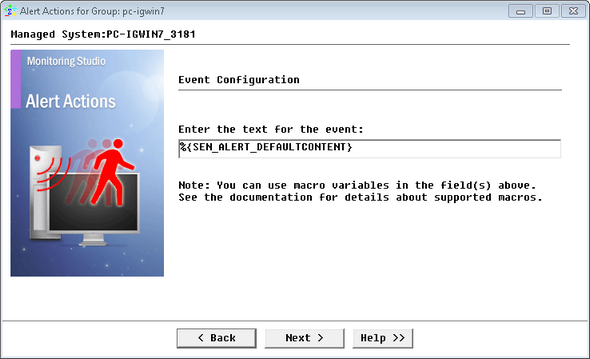
The following types of Alert Actions can be performed by Monitoring Studio: Trigger an eventIf you select the Trigger an Event action, you need to enter the string that will be displayed with the event.
Alert Actions: Trigger a PATROL Event A PATROL Event can be viewed from:
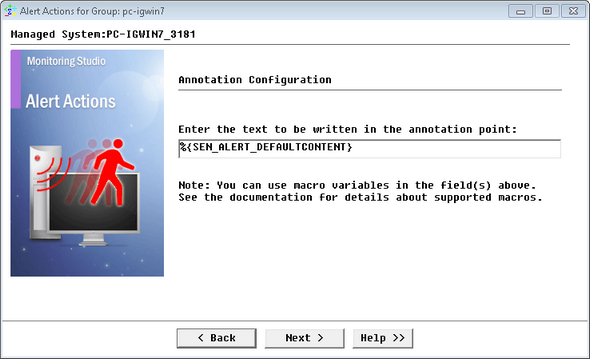
Annotate the graphIf you select the Annotate the graph action, you need to enter the string that will be displayed within the annotation point. To view an annotation, when a threshold is breached, open the graph associated to the parameter in alert and double-click on the black annotation mark on top of the first data point.
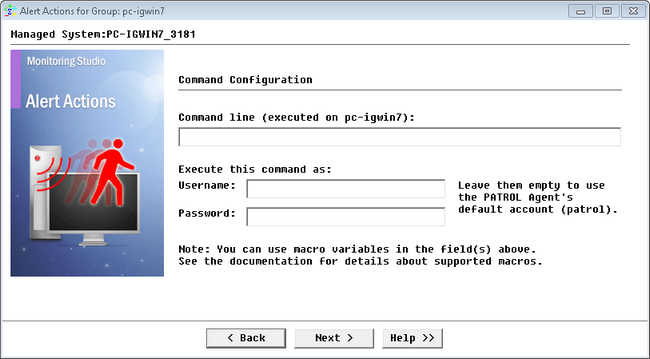
Alert Actions: Annotate the graph Execute a commandAt the Group LevelIf you select the Execute a command action, you need to complete the following panel:
Alert Actions: Execute a Command (Group Level)
The command line can be a program utility or a script call with arguments.
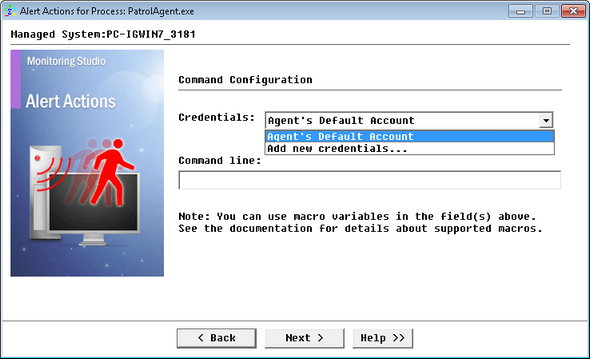
At the Host or Monitor LevelIf you select the Execute a command action, you need to complete the following panel:
Alert Actions: Execute a Command (Host or Monitor Level)
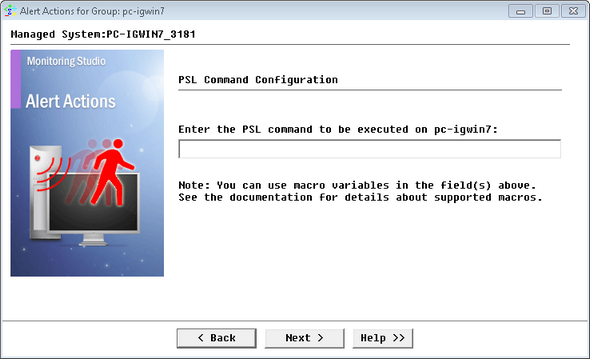
Execute a PSL statementIf you select the Execute a PSL statement (advanced) action, you need to enter the PSL statement to be executed by the PATROL Agent on the localhost. Although only a single line is permitted, it can have several PSL instructions.
Alert Actions: Execute a PSL statement
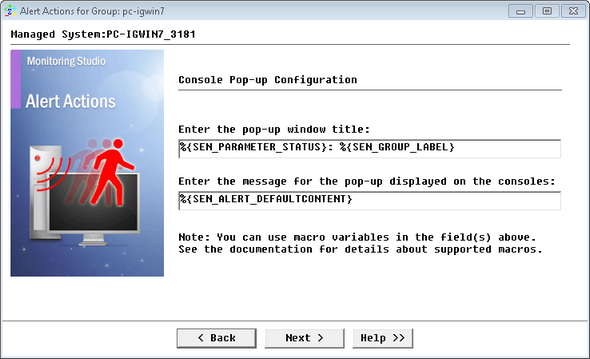
Display a pop-up on the consolesIf you select the Display a pop-up on the consoles action, you need to enter the message that will be displayed in the pop-up as well as in the title of the pop-up window.
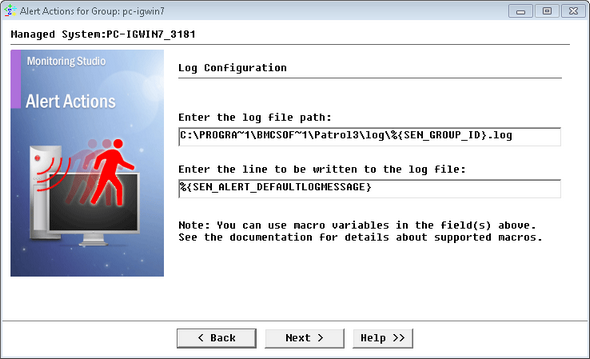
Alert Actions: Display a pop-up on the Consoles Log to a fileIf you select the Log to a file action, you need to enter the log file path on the localhost and the content of the line.
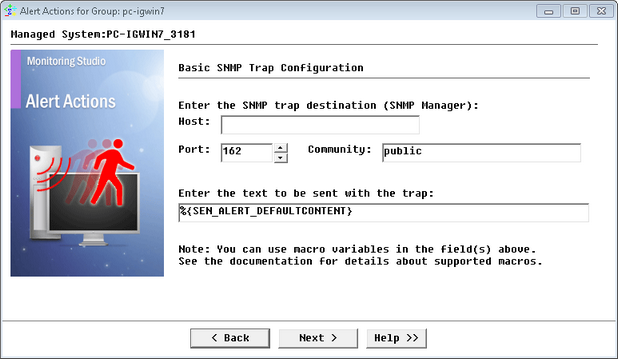
Alert Actions: Log to a file Send a basic SNMP trapIf you select the Send a basic SNMP trap action, you need to complete the following panel:
Alert Actions: Send a basic SNMP trap
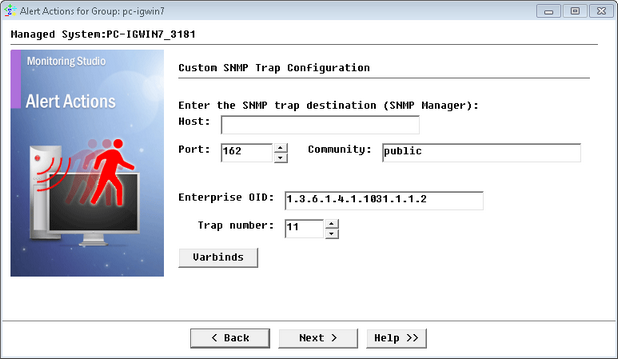
Send a custom SNMP trapIf you select the Send a custom SNMP trap (advanced) action, you need to complete the following panel:
Alert Actions: Send a custom SNMP trap
Send an e-mail
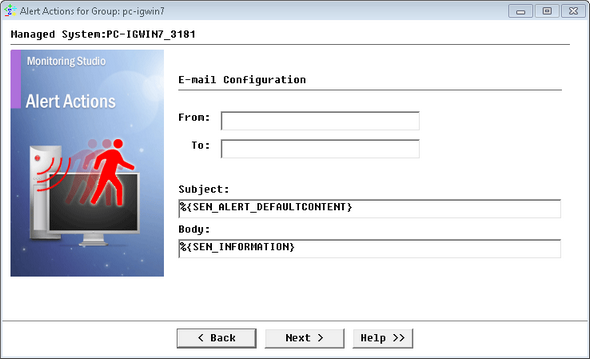
If you select the Send an e-mail action, you need to complete the following panel:
Alert Actions: Send an E-mail
|