Enabling Statistics


Enabling Statistics |
|
|
On EMC Clariion and VNX storage systems, the statistics need to be enabled to allow BMC Performance Manager Express for EMC Disk Arrays to collect statistics and to monitor performance. Using Navisphere1.In Navisphere, enable Statistics logging: •Open Navisphere •Right-click the icon for the storage system •Click Properties. •Be sure SP A and SP B are in the Storage Processors section •Click the box for Statistics Logging under the Configuration section 2.For locally attached CLARiiONs, check if authorization info is present 3.Run the dv command from EMC TestSMIProvider. Make sure all arrays are discovered without any errors 4.Make sure performance is turned on in the Profile for storage arrays 5.Make sure there are instances for the CIM_BlockStorageStatisticalData class: •Run Tek-Tools testProvider or EMC’s testSMIProvider •Type ein for command •Type CIM_BlockStorageStatisticalData for Class Name •If no instances are returned, reset EMC Provider 6.Once complete, resume steps 1-3.
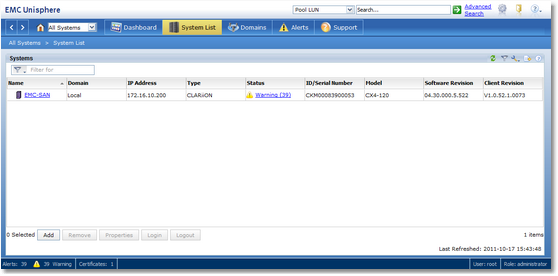
Using Unisphere1.Log on to the Unisphere console with the administrator’s account
Logging in to the Unisphere Console 2.Select the array from the System List
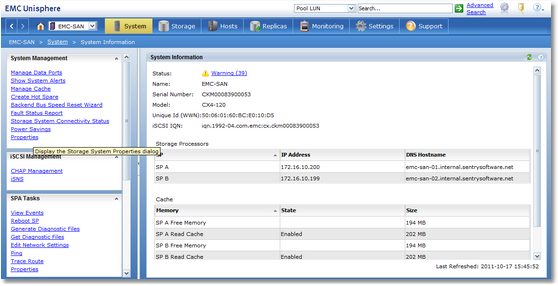
3.Under System Management, click Properties
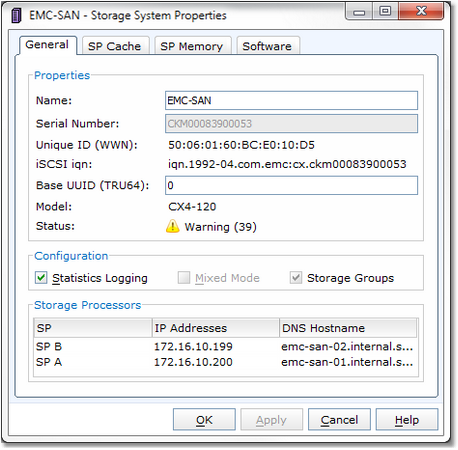
4.In the General tab: •Check the Enable Statistics Logging box •Click Apply •Click OK to finish. |