Reporting a Disk Space Consumption


Reporting a Disk Space Consumption |
|
|
Making sure that a disk array has enough remaining disk space available is critical for several reasons: •SAN administrators want to make sure to be able to provision disk space for new servers when requested, as quickly as possible. •The disk array itself may need additional disk space for specific features to work properly, like automatic snapshots, mirroring, etc. •If thin provisioning is used, the remaining disk space becomes dramatically critical since the inability to allocate additional space to a LUN when requested by the subscriber host will lead to catastrophic data loss and corruption.
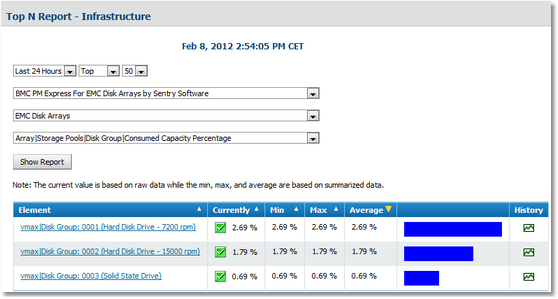
The disk space used is permanently monitored for each storage pool. The Subscribed Capacity parameter of the Pool class represents the amount of disk space that has been made available to the subscriber hosts, or in other words, the amount of disk space that is seen by the servers connected to disk array. The Consumed Capacity parameter of the Storage Pools class represents the actual space usage in the storage pool. For thin pools (when thin provisioning is enabled on the disk array), this value is normally lower than the Subscribed Capacity, as it is the main purpose of thin provisioning. For traditional pools, the Consumed Capacity parameters has the same value as the Subscribed Capacity parameter, as the entirety of the subscribed disk space is fully allocated in the storage pool. The Consumed Capacity Percentage parameter is the most critical one as a storage pool usage nearing 100% means that SAN administrators will not be able to create new LUNs in the storage pool. By default, no alarm or warning threshold is set on this parameter as the fullness of a storage pool may be a normal situation. However, you can set alert thresholds on this parameter as it fits your needs. Verifying the Available Disk Space in the Storage Pool of your EMC Disk Arrays1.In the Configure tab , select an element group in the tree view (the main “Infrastructure” group, for example) 2.Click on the Reports tab. 3.Create a report for the last 24 hours, top 50 values of the Array|Storage Pools|Disk Group|Storage Pool|Consumed Capacity Percentage parameter of the EMC Disk Arrays application class for the BMC Performance Manager Express for EMC Disk Arrays by Sentry Software solution.
Report – Disk Space Consumption |