Setting thresholds


|
Setting thresholds |
|
|
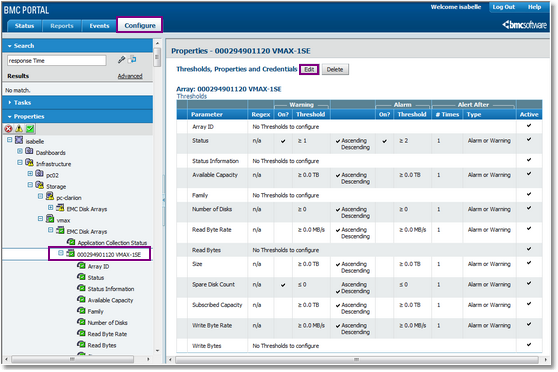
Whenever relevant, BMC Performance Manager Express for EMC Disk Arrays automatically sets thresholds for parameters. If you prefer a more fault-tolerant monitoring, you can modify the thresholds of each parameter through the Configure tab > Edit Thresholds.
To modify the parameter thresholds of several storage objects of an element: 1.In the Configure tab, click on the Storage (<platform>) or the instance icon > Edit
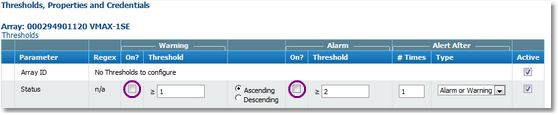
2.Uncheck the Warning and Alarm boxes for all the parameters for which you want to disable the alert conditions
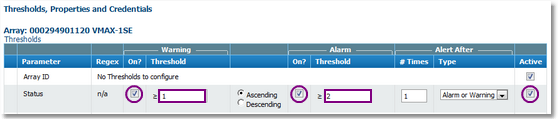
3.Check the Warning and Alarm boxes for all the parameters for which you want to enable the alert conditions. You will then have to manually enter the threshold values and check the Active box. In the example below, a Warning will be triggered if Status is greater than 1, an alarm will be triggered when greater than 2
Modifying threshold values 4.Click Save 5.The Success, changes have been saved message indicates that the modifications have been registered. Alerts are displayed by the parameter whose thresholds are modified. |