|
Application constants are defined at the application level and can be reused in the various objects underneath. They facilitate the monitoring across various systems of an application whose properties may change from one system to another. Here are some examples of use:
Example 1
When creating the application/container icon for "MyApplication", you define the APP_PATH constant with the /opt/MyApp value. Then, when creating a "LOG File Analysis" object in Monitoring Studio, you can specify %{APP_PATH}/log/MyApp.log as the path to the LOG file.
If you plan to monitor the same application on another system, and this application is located under another directory (/usr/local/MyApp for example), you will be able to use the same configuration of Monitoring Studio (export and import) and just modify the APP_PATH constant on the new system.
|
Example 2
You specify the monitoring of a remote device using SNMP polling and SNMP trap listening objects in Monitoring Studio.
Instead of specifying the IP address of the remote device directly in these SNMP objects, you can define a DEVICE_IPADDRESS Application Constant at the level of the application/container and use %{DEVICE_IPADDRESS} in the SNMP polling and SNMP listening objects.
If the IP address changes later, you will only need to modify the value of the DEVICE_IPADDRESS constant, instead of editing every SNMP polling and trap listening object.
|
To set application constants:
| 2. | Fill in the following fields: |
| ▪ | Constant name: Enter the name of the constant. Example: APPLICATION_PATH |
| ▪ | Value: Set a value for the constant. Example: /opt/MyApp. If you enter the word "PASSWORD" as a Constant name, the corresponding value will be automatically encrypted once you click the Finish button at the last step of the wizard. The Value field will then show **** instead of the actual password characters. |
| ▪ | Required: Check the box to activate this newly-set application constant. The monitoring of the application container and all its dependent objects will be offline if the value of the application constant is not set. This ensures that no monitoring operation is performed until the required application constants are properly set. This feature is particularly useful if you create an application monitoring template where all the defined application constants are empty – in this case, you first import the configuration template, then enter values to all required application constants before the monitoring actually starts. |
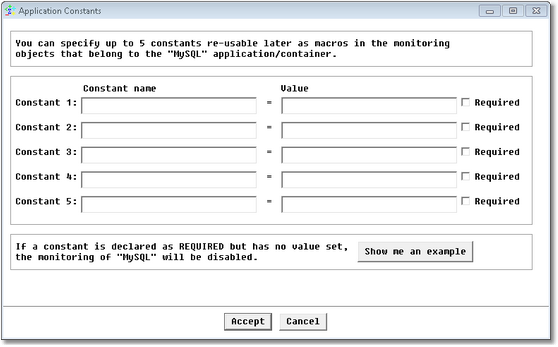
New Application/Container Icon Wizard — Advanced Options (Application Constants) Page
| 3. | Click Accept. The application constants will now be taken into consideration by Monitoring Studio. |
|


