|
Monitoring Studio allows you to set command lines to start and/or stop the application monitoring:
| 2. | Set the following start and stop options: |
| ▪ | <Application name> can be started with the following command line: Set a command line to start the application. |
| ▪ | <Application name> can be stopped with the following command line: Set a command line to stop the application. |
| ▪ | Run these commands as this user with password: Enter a login and password to execute the start and stop command lines. Please note that password will be encrypted once you complete all the configuration steps. |
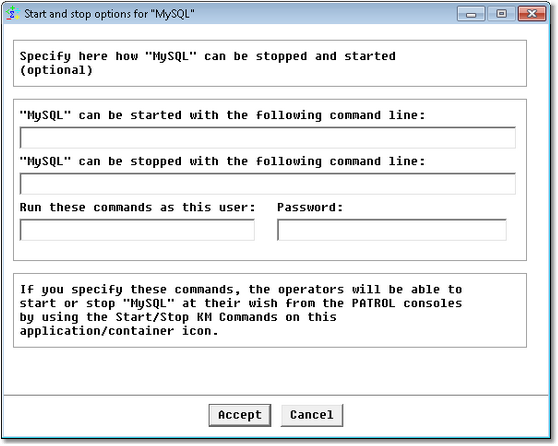
New Application/Container Icon Wizard — Advanced Options (Start/Stop Options) Page
You will now be able to start/stop the application monitoring by right-clicking the Monitored Application icon > KM commands > Manage > Start the application/Stop the application.
| 

