|
If you wish to pick the process to be monitored from a list:
| 1. | In the PATROL Console, right-click the Application icon and select KM Commands > New > Process monitoring... |
| 2. | Select Pick the process to monitor from a list and click Next. It may take a few seconds for the panel to be displayed since Monitoring Studio retrieves the list of all the currently running processes. |
| 3. | Click the process you wish to monitor and click Next. |
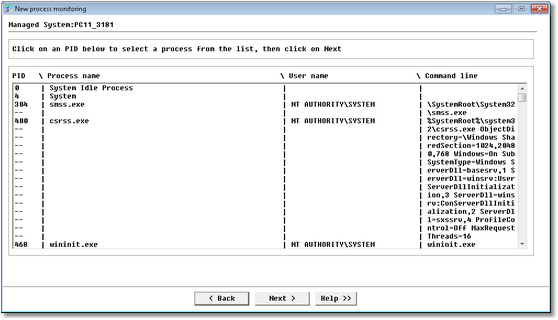
Process Monitoring Wizard — Pick the process to monitor from a list
 If you proceed to the next panel and go back to this one, the process will not be pre-selected anymore. This is due to some PSL limitation. You will then have to re-select the process before clicking Next. You may, of course, select any other process. If you proceed to the next panel and go back to this one, the process will not be pre-selected anymore. This is due to some PSL limitation. You will then have to re-select the process before clicking Next. You may, of course, select any other process.
| 4. | The process criteria panel is displayed with all information already filled. Remove or modify any information you do not wish to monitor and click Next. |
| 

