|
The Process Monitoring tool also allows you to enter search criteria to identify the process to be monitored:
| 1. | In the PATROL Console, right-click the Application icon and select KM Commands > New > Process monitoring... |
| 2. | Select Enter criteria to identify and monitor processes and click Next. The following dialog box is displayed: |
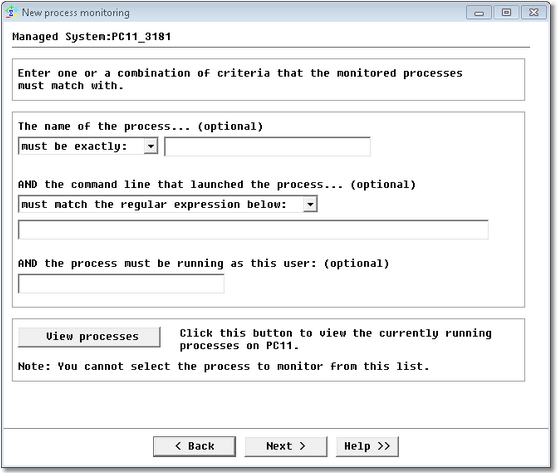
Process Monitoring Wizard — Enter criteria to identify and monitor processes
| 3. | (Optional) Click the View Processes button to list the currently running processes. |
| 4. | Specify your search criteria: |
| ▪ | In the section The name of the process..., select a condition option and enter the string to be searched. |
| ▪ | In the section AND the command line that launched the process... , select a condition option and enter a regular expression. Only processes that have been launched by a command-line that matches this regular expression will be monitored. |
| ▪ | In the field AND the process must be running as this user, enter the user name the monitored process is running as. |
Examples:
|
|
|
Example 1
|
| • | Process name MUST BE EXACTLY patrolagent.exe |
| • | Command-line = <nothing> |
| • | User Identity = <nothing> |
|
PatrolAgent.Exe
C:\Patrol\PatrolAgent.exe -p 3181
C:\Patrol\PatrolAgent.exe
|
Example 2
|
| • | Process name MUST BE EXACTLY patrolagent.exe |
| • | Command-line MUST MATCH THE REGULAR EXPRESSION -[pP] 3181 |
| • | User Identity = <nothing> |
|
C:\Patrol\PatrolAgent.exe -p 13181
|
Example 3
|
|
| • | Process name MUST CONTAIN Pat |
| • | Command-line = <nothing> |
| • | User Identity = <nothing> |
|
PatrolAgent.exe
PatProcess.exe
PatrolPerf.exe
|
 Search criteria are case-sensitive on UNIX and Linux. Search criteria are case-sensitive on UNIX and Linux.
|


