|
Alert Actions enables the PATROL administrator to choose/configure the execution of certain actions when an application goes into a state of alert. With the Alert Actions functionality, it is possible to do one of the following:
| • | Specify recovery actions |
Global vs Specific Alert Actions
Alert Actions can be set at two different levels:
| • | Global Alert Actions are set for the overall application/root container. They specify the way in which the notification of a problem is done for all instances under the application/root container. This means that any parameter within this application/root container that trigger an alert will perform the Alert Actions set at the global level. |
| • | Specific Alert Actions are set for individual parameters and generally indicate the actions to perform in order to recover from a particular problem (e.g.: when this parameter goes into alarm - execute this recovery script). Therefore, specific Alert Actions need to be set for each parameter as the need may be. |
If a specific Alert Action is set on a parameter belonging to a root container already set to trigger Global Alert Actions, both settings will be taken into account for that particular parameter instance.
 If you setup monitoring objects under the main Monitoring Studio icon without creating an application or container icon, you cannot set global Alert Actions on them. Global Alert Actions can only be set on an application container and will apply to all objects under it. If you setup monitoring objects under the main Monitoring Studio icon without creating an application or container icon, you cannot set global Alert Actions on them. Global Alert Actions can only be set on an application container and will apply to all objects under it.
Set Global Alert Actions
| 1. | Right-click on a monitored application icon > KM commands > Set Global Actions. |
| 2. | Select the Alert Actions you want to trigger each time the parameter(s) enter(s) a state of alert and click Next. |
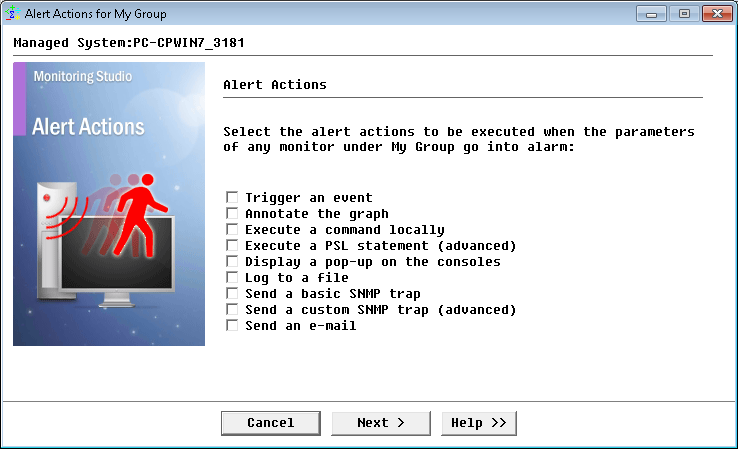
Global Alert Action Wizard — Alert Action Selection Page
| 3. | Enter the relevant text with the help of Alert Action macros, as in the example shown below and click Next. |
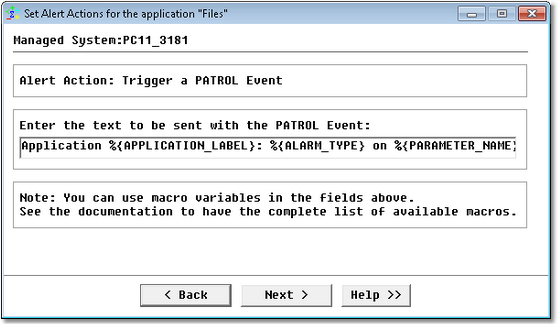
Global Alert Action Wizard — Input Definition Page
| 4. | Global Alert Actions have been set. Click Finish. |
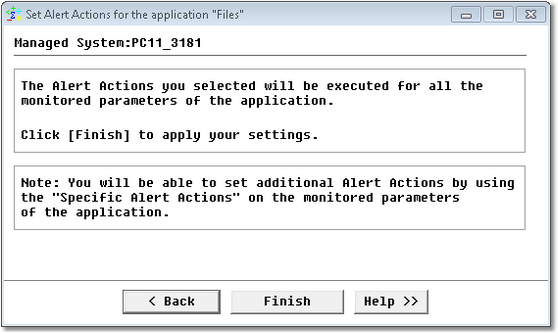
Global Alert Action Wizard — Alert Execution Confirmation Page
You can set additional Alert Actions on any/all of the monitored parameters by using "Specific Alert Actions".
Set Specific Alert Actions
| 1. | Right-click on a Monitored Instance > KM commands > Set Alert Actions. |
| 2. | Select the parameters for which you wish to set specific Alert Actions. Click Next. |
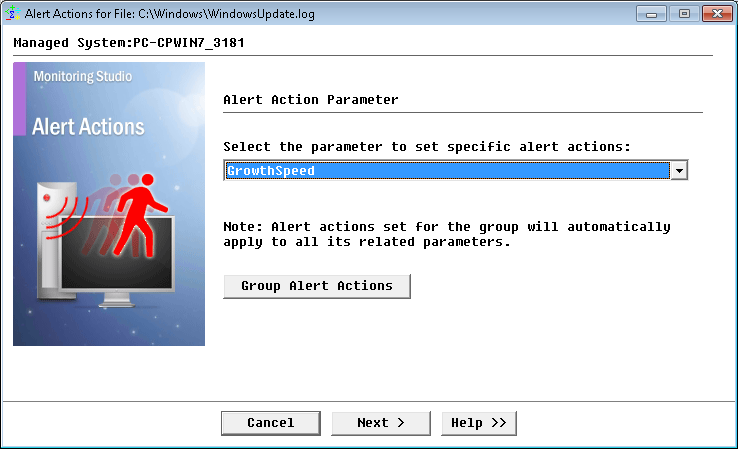
Specific Alert Action Wizard — Parameter Selection Page
| 3. | The panel lists all the available specific Alert Actions. Make your selection and click Next. |
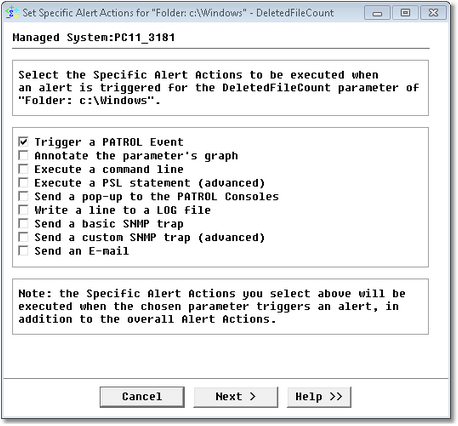
Specific Alert Action Wizard — Alert Action Selection Page
| 4. | Enter the required input. Click Next. |
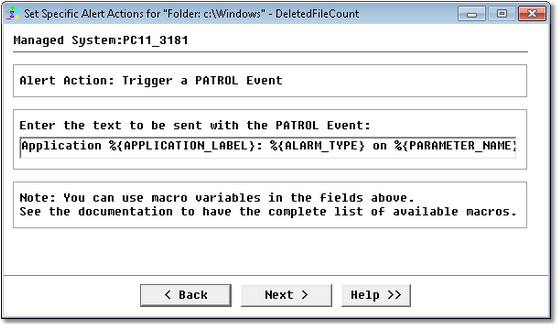
Specific Alert Action Wizard — Input Definition Page
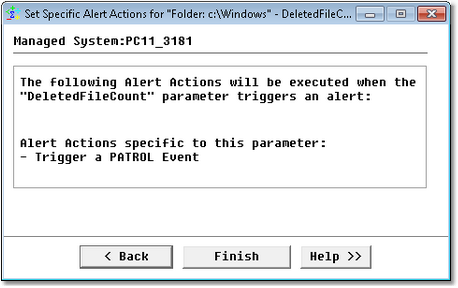
Specific Alert Action Wizard — Alert Execution Confirmation Page
When the selected parameter goes into alert, it will trigger the specific Alert Action as configured.
See Also
Alert Action macros
Alert Actions capabilities
Alert Actions example
Format symbols for %{ASCTIME:...}
| 

