|
Since a log file is constantly evolving in terms of contents, the String Search option performs slightly differently for log files than for any other sources (see Searching for a Specific String for detailed information about the String Search option for 'flat sources').
To search for a specific string in a log file
| 1. | Log on to Central Monitoring Administration. |
| 2. | Create (or edit) a Policy that will be deployed on the PATROL Agents that share the same specified tag or according to their IP address, hostname, etc. |
| 3. | Click the Monitor Configuration link and click the  (or (or  ) button. ) button. |
| 4. | In the Monitoring Solution field, select Monitoring Studio. The related Monitoring Profile, Version and Monitor Type information is automatically displayed. |
| 5. | Select the Monitoring Studio Monitor Type and click . |
| 6. | Select the Monitoring Studio Monitoring Solution. |
| 7. | Click the Files (Log) button |
| 8. | In the list of files, select the file on which you wish to perform a String Search and click the String Searches button. You can also configure a String Search when you create a brand new File (Log) Monitor instance. |
| 9. | The String Searches panel is displayed to define the String Search settings. |
| 10. | Provide the String Search information: |
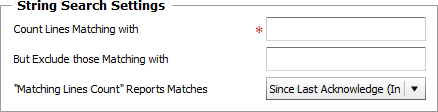
String Search for Log Files — Settings
| ▪ | Count Lines Matching With: Enter the regular expression that needs to be found for the line to be counted. |
| ▪ | But Exclude Those Matching With: Enter the regular expression that needs to be found for the line NOT to be counted. |
| ▪ | "Matching Lines Count" Report Matches: Select the period Monitoring Studio will consider for counting the number of lines matching the String Search: |
| ✓ | Since Last Acknowledge (Incremental): Select this option to count the lines matching the String Search since the last time the Matching Line Count attribute was reset. |
| ✓ | In the Current Collect Only: Select this option to count the lines matching the String Search during the current collect. |
| 11. | Define the Acknowledgment Rule settings: |
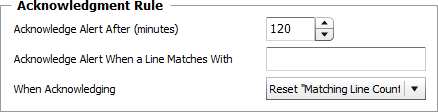
String Search for Log Files — Acknowledgment Rule Settings
| ▪ | Acknowledge Alert After (minutes): Enter the number of minutes after which Monitoring Studio will automatically acknowledge an alert triggered on the Matching Lines Count attribute. Default is 120 minutes. |
| ▪ | Acknowledge Alert When a Line Matches With: Enter the string that, if found, will automatically make Monitoring Studio acknowledge an alert on the Matching Lines Count attribute . |
| ▪ | When Acknowledging: Specify the action you wish Monitoring Studio to perform when acknowledging an alert: |
| ✓ | Select the Reset "Matching Line Count" option to have Monitoring Studio automatically reset the counter of the Matching Line Count attribute to zero. |
| ✓ | Select the Reset "Matching Line Count by One" option to have Monitoring Studio automatically decrease by one the value of the counter of the Matching Line Count attribute. Use this option if you need the solution to acknowledge each event count to get a close follow-up on the log activity. |
| 12. | Define the Alert Actions Execution criteria: |

String Search for Log Files — Alert Action Execution
| ▪ | Execute Alert Actions: Select the condition that needs to be met for the defined alert action to be performed: When the Thresholds are Reached or Every Time a Matching Line is Found. Note that when using the later option, the solution will perform as much Alert Actions as the number of matching lines found. |
| 13. | Define the Monitor Settings |
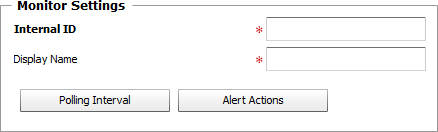
String Search for Log Files — Monitor Settings
| ▪ | Internal ID: Enter an ID to identify the managed String Search instance in TrueSight Operations Management. |
| ▪ | Display Name: Enter a name to identify the managed String Search instance in TrueSight Operations Management. |
| ▪ | Optional — Alert Actions: Define the action(s) Monitoring Studio needs to perform when the thresholds for this String Search instance is breached. |
| 14. | Click the Add to List button to complete the creation of the String Search instance. |
|


