|
This section details the various connection settings available for performing queries on Microsoft SQL database server.
To configure a connection to a Microsoft SQL database server
| 1. | In the PATROL Console, right-click the Host or Monitor Group icon and select KM Commands > New > Monitor... |
| 2. | Select Database Query: Microsoft SQL Server from the drop-down list and click Next. |
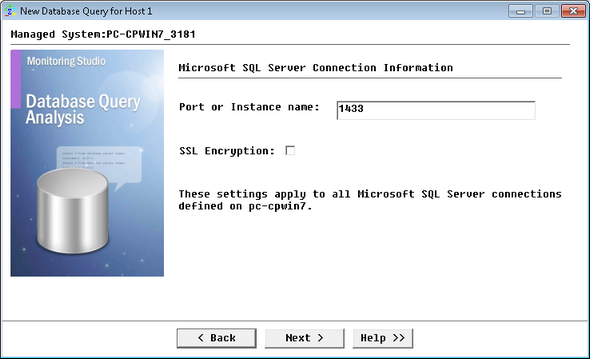
Performing a Query on a Microsoft SQL Server Database - Microsoft SQL Server Connection Information
| 3. | Define the Connection Information to the Microsoft SQL database server: |
| ▪ | Port or Instance name: Specify the SQL server instance name if there are several SQL Server instances installed. Leave "default" if there is a single instance; or enter the port to be used to access the Microsoft SQL database (Default: port 1433). |
| ▪ | (Deprecated) SSL Encryption: Since version 9.4.01 of Monitoring Studio, the SSL Encryption option is deprecated as it is handled automatically by the Microsoft's JDBC driver. |
 These settings apply to all Microsoft SQL Server connections defined for the host. These settings apply to all Microsoft SQL Server connections defined for the host.
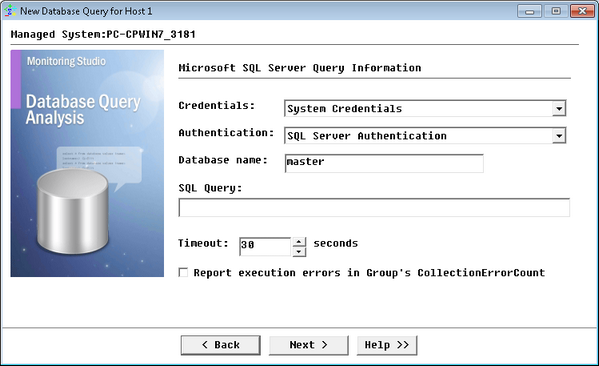
Performing a Query on a Microsoft SQL Server Database - Microsoft SQL Server Query Information
| 5. | Define the Query Information to the Microsoft SQL database server: |
| ▪ | Credentials: Select the type of credentials that you want to use: |
| • | System Credentials (default): Uses the credentials previously specified when creating the Host. |
| • | Add new credentials...: Lets you set new specific credentials. |
| ▪ | (Deprecated) Authentication: Since version 9.4.01 of Monitoring Studio, the SQL Server Authentication option is deprecated as it is handled automatically by the Microsoft's JDBC driver. To use Windows-integrated Authentication, you need to specify new Credentials with empty username and empty password. In this case, the connection will be done using the PATROL Agent's default account. |
| • | Database name: Enter the name of the database. (Default: master) |
| • | SQL Query: Enter the SQL query you wish to perform. |
| • | Timeout: Specify the time in seconds after which the query will be stopped (Default: 30 seconds). If the query times out, the Status parameter will be set to 2 (Failed) and an alarm will be triggered. |
| • | Report execution errors in Group's CollectionErrorCount: Select this option to have the CollectionErrorCount parameter of the Group reflect possible alerts triggered upon the query execution. The CollectionErrorCount parameter of the Group reports on the collection errors of any Monitor associated to the group, for which this option is available and selected, providing a global view of the collection errors for the whole Group. |
| 8. | Click Finish. The corresponding Database Query instance (Database Query: <Display Name>) is created in the PATROL Console. The collected parameters for Database Query Monitors are listed in the SEN_MS_DBQUERY chapter. |
|


