Adding the EMC Disk Arrays Application Class to an Existing Element


Adding the EMC Disk Arrays Application Class to an Existing Element |
|
|
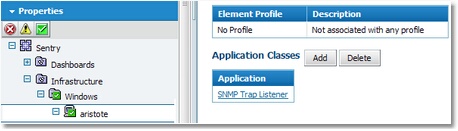
1.Log in to the Portal with normal user credentials. 2.In the Configure tab: Click the Element to which you wish to add the EMC Disk Arrays solution and the Element Properties page appears. Scroll down to Application Classes > Add. Make sure that the element's platform is defined as Storage.
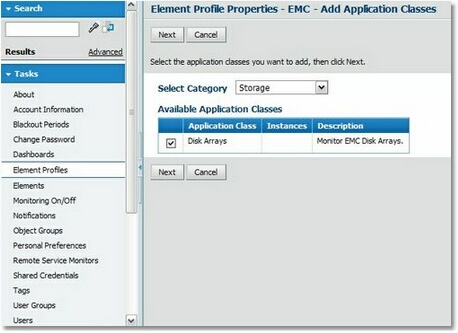
Adding an Application Class 3.On the Properties – <Element> – Add Application Classes page > Select Category > Storage. 4.In the available Application Class list, select the application class applicable to the element and click Next.
Application Class Properties 4.The Properties and Credentials page appears asking for the information required for monitoring the disk array. Enter the WBEM username and password valid on the EMC SMI-S provider. These credentials must have been previously configured in the EMC SMI-S provider as described in the EMC SMI-S Provider section. 5.Thresholds are automatically set by BMC Performance Manager Express for EMC Disk Arrays. It is recommended that you leave the default thresholds as they are. Click Finish. Details on how to modify thresholds are given in the User Guide. You can now return to the Status tab to view the monitoring of the element by BMC Performance Manager Express for EMC Disk Arrays. |