Adding BMC Performance Manager Express for EMC Disk Arrays to an Element Profile


|
Adding BMC Performance Manager Express for EMC Disk Arrays to an Element Profile |
|
|
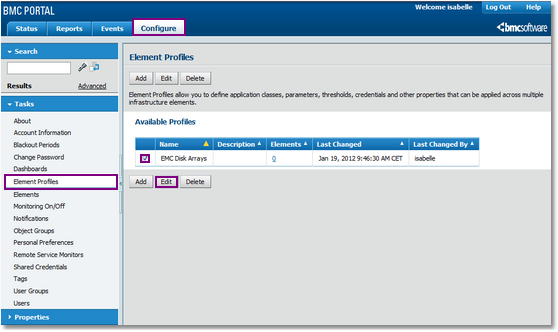
1.Log in to the Portal with normal user credentials. 2.Click Configure tab > Element Profiles. The Available Profiles page appears. Select the Profile to which you wish to add the Storage class > Edit.
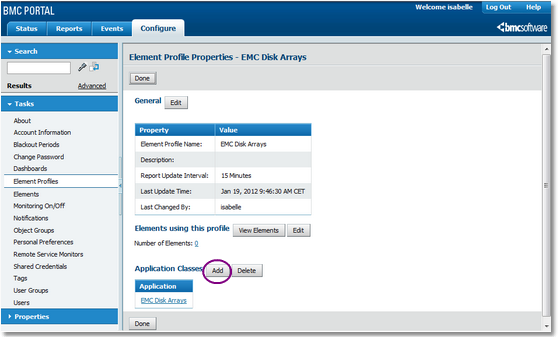
Selecting a Profile 3.The selected Element Profile’s Properties page appears. Go to Application Classes > Add.
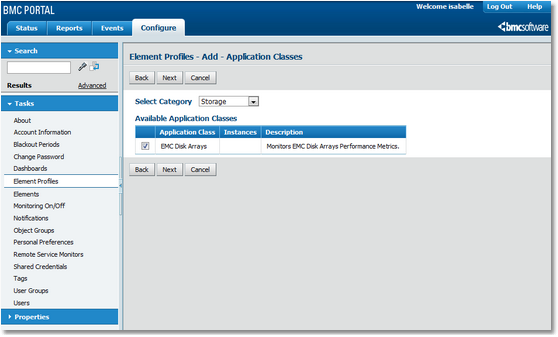
Adding Application Classes 4.The Element Profile Properties – Add Application Classes page appears. Choose Storage from the Select Category drop-down list.
Selecting the Storage Applicable Class 5.Select the application class applicable to your system and click Next. 6.On the Properties and Credentials page, enter the information required for monitoring the disk array:
7.Click Next. You arrive at the final step for adding the BMC Performance Manager Express for EMC Disk Arrays application class: Thresholds, Properties and Credentials. 8.Thresholds are automatically set by BMC Performance Manager Express for EMC Disk Arrays. It is recommended to keep the default thresholds (or see the Thresholds section). Click Finish.
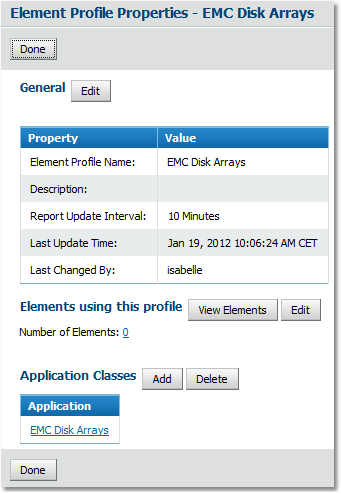
Element Profile Properties 9.Click Done to save the changes made. The BMC Performance Manager Express for EMC Disk Arrays application class is now added to all the elements in the selected Element Profile. |