Scheduling Automatic Reports


Scheduling Automatic Reports |
|
|
TrueSight Operations Management - Dell Compellent Storage Monitoring can automatically produce text reports that provide detailed and valuable information about your monitored storage systems. To schedule automatic reports1.Create a new policy or edit an existing policy. 2.Click Add Monitoring Configuration and scroll down to the Reporting section.
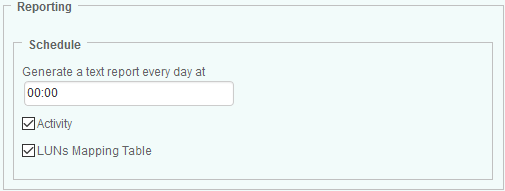
Scheduling Automatic Reports 3.In the Schedule section, indicate the time at which the report(s) must be generated. 4.Check the Activity report type to automatically generate the following reports: ▪Storage Centers Activity: Reports on front-end read/front-end write bytes traffic and back-end read/back-end write bytes traffic for all monitored storage centers ▪Controllers Activity: Reports on Transfer Bytes for all monitored controllers ▪Disk Folders Activity: Reports on Read and Write Bytes for all monitored disk folders ▪Disks Activity: Reports on Read and Write Bytes for all monitored disks ▪Ports Activity: Reports on Transfer Bytes for all monitored ports ▪Volumes Activity: Reports on Read and Write Bytes for all monitored volumes 5.Check LUNs Mapping Table to automatically generate a text report of the LUNs-to-hosts mapping table. The .csv file generated for this report consists in the following comma-separated data: Storage Center, Hostname, Host, WWN/IQN, LUN, FC Ports, Size and Status. 6.Click OK to save your settings. The generated file(s) are time-stamped and stored in %PATROL_HOME%\log as csv files for the specific time set through the History Retention Period attribute.
|