|
Advanced configuration variables are used to manually set variables that are not available through the TrueSight standard interface.
 These variables should only be set when instructed so by Sentry Software Support. These variables should only be set when instructed so by Sentry Software Support.
List of available configuration variables
|
|
|
|
automaticReinitialization
|
0 = disabled
|
If set to 1, triggers a re-initialization of the monitoring solution. The discovery checks this variable every minute and deletes it before performing the re-initialization.
|
collectionHubHeapSizeMax
|
None
|
Maximum heap size in megabytes allocated to the Java Collection Hub.
|
collectionHubHeapSizeMin
|
None
|
Minimum heap size in megabytes allocated to Java Collection Hub.
|
collectionHubOverrideJavaCommandLine
|
None
|
Command line used by the KM to launch the Java Collection Hub. This variable should only be set if instructed by Sentry Support.
|
defaultReinitializationOptions
|
None
|
List of default options to be executed by TrueSight Operations Management - Dell Compellent Storage Monitoring on reinitialization.
•resetThresholds •resetThresholdManagementMode •resetAlertActions •resetOtherAlertSettings •resetDebugMode •resetRemovedPausedObjectList •resetReport •resetSecuritySettings •resetJavaSettings Insert a colon “;” between the variable and its value: “resetThresholds;1”; and if you enter multiple variables, they need to be separated by a carriage return.
|
disableMissingDeviceDetection
|
None
|
When set to ‘1’, disables the missing device detection mechanism of Dell Compellent Storage Monitoring. By default, Dell Compellent Storage Monitoring raises an alarm for devices that were discovered and that are no longer discovered.
|
disableJRECheck
|
0 = JRE validation tests enabled
|
When set to 1, disable the validation tests of the JRE used by the KM to run Java code. This can be used to force the KM to use a non-Sun or non-Oracle JRE.
|
disablePslExecuteBugWorkaround
|
0 = activated
|
When set to ‘1’, deactivates the workaround in the KM for a bug in the PslExecute() PSL function.
If the KM detects that the version of the PATROL Agent is affected by the PslExecute() bug, it uses an alternate technique to create asynchronous threads with the event_trigger() function and the RemPsl standard event. The disablePslExecuteBugWorkaround variable disables this workaround.
|
errorCountAutoResetTimeout
|
None
|
Time in seconds after which the alerts on the ErrorCount parameters are automatically acknowledged and reset.
|
forceClassicConfigMode
|
0 = disabled
|
When the KM is used with BMC TrueSight Operations Management, all the KM configuration menus are disabled in the PATROL Consoles. To enable them, set the forceClassicConfigMode variable to 1.
|
javaPassword
|
None
|
Password associated to the javaUsername variable.
|
javaPath
|
None
|
Path to the folder containing the Java executable used by the Collection Hub.
|
javaUsername
|
None
|
Username used to launch the Java Collection Hub.
|
pausedObjectList
|
n/a
|
Enter the PATROL object path of all the objects to be paused, i.e. for which no collection will be performed. Values must be delimited by a pipe |.
|
psCommand
|
n/a
|
Command used on UNIX/Linux systems to retrieve the list of the currently running processes.
Note: This command is used for debug purpose.
|
removedObjectList
|
n/a
|
Enter the PATROL object path of all the objects to be removed from the monitoring environment. Values must be delimited by a pipe |.
|
startupDelay
|
0 second
|
To specify the number of seconds that Dell Compellent KM for PATROL will wait before starting its discovery.
|
To set a configuration variable
1.Create a new policy or edit an existing policy. 2.Click Add Monitoring Configuration and scroll down to the Advanced Configuration Variables section and click Add to open the Configuration Variables panel: 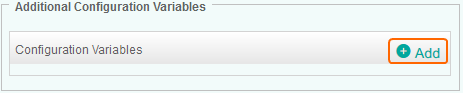
Adding a Configuration Variable
3.In the Configuration Variables panel, enter the name of the configuration variable and enter the value to be set. Refer to the table above to learn about all the configuration variables you can use to perform operations you cannot complete with the console standard user interface. 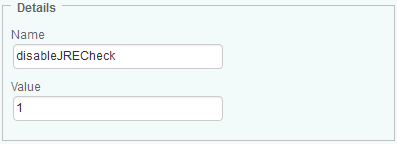
Configuring a Variable
4.Click OK to save your settings. The Name field is case sensitive.
5.The configuration variable is then listed in the Additional Configuration Variable section: 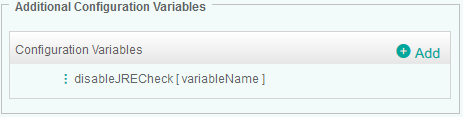
List of Set Configuration Variables
To edit a configuration variable
1.Click the  button next to the variable you wish to modify and click Edit. button next to the variable you wish to modify and click Edit. 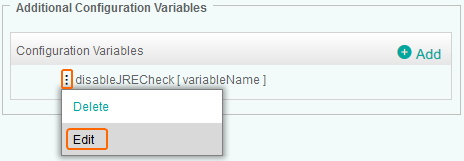
Editing a Configuration Variable
2.Change the variable value and click OK to save your settings. To delete a configuration variable
1.Click the button next to the variable you wish to remove and click Delete. 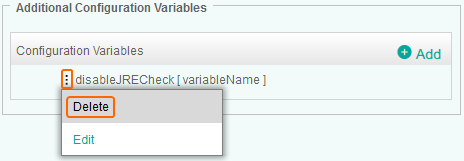
Deleting a Configuration Variable
2.Click OK to validate. The configuration variable is removed from the list.
| 

