Configuring Monitor Settings


Configuring Monitor Settings |
|
|
The configuration of Monitor Types is performed through policies. Policies enable you to deploy configurations on PATROL Agents and monitoring solutions, such as Dell Compellent Storage Monitoring in an automated way. Policies are designed to define and configure monitoring criteria and apply them to selected PATROL Agents. The configuration criteria are automatically pushed to the PATROL Agents on which the policy is applied. When a monitoring policy is applied to a PATROL Agent, the device is automatically added to the list of monitored devices. To create a monitoring policy1.Log on to the TrueSight console. 2.In the navigation pane, expand Configuration and select Infrastructure Policies. 3.In the Infrastructure Policies page, ensure that the Monitoring tab is selected and click Create Policy. 4.In the Create Monitoring Policy page, specify the monitoring policy properties: Step 1 - Define the General Properties
Step 2 - Select the PATROL AgentsDefine conditions to select the PATROL Agents on which you want to apply the policy: 1.Select a property. 2.Select an operator to create the condition. The available operators depend on the property that you select. 3.Specify a value for the selected property. 4.(Optional) To add more than one condition, click the 5.(Optional) To group the conditions, use the parentheses and Boolean operators from their corresponding lists. The Add Monitor Types dialog box presents configuration fields for compatible BMC PATROL monitoring solutions that are located in the Central Monitoring Repository. Step 3 - Select the Dell Compellent Storage Monitor Type1.Click the Monitoring tab. 2.Click Add Monitoring Configuration. 3.In the Add Monitoring Configuration dialog box, configure the properties: ▪From the Monitoring Solution menu, select Dell Compellent Storage. ▪From the Version menu, select the required version. ▪The Monitor Profile is automatically selected. Step 4: Add a Monitoring Configuration1.In the Dell Compellent Storage Configuration section, click Add to open the Dell Compellent Enterprise Manager settings panel.
Dell Compellent Enterprise Manager Global Settings 2.In the Global Settings section, define the Connection Settings to access the Dell Compellent Enterprise Manager: ▪Hostname: hostname of the system where the Dell Compellent Enterprise Manager is running ▪Port Number: By default, the Dell Compellent Enterprise Manager runs on port 5989 when the encryption option is enabled, or on port 5988 when the encryption is disabled. ▪Encryption: Select this option to encrypt the connection. ▪Enter the WBEM Credentials that will be used to connect to the Dell Compellent Enterprise Manager. 3.(Optional) - Customize the following settings: ▪Discovery and Polling Intervals ▪Discovery and Collect Timeout ▪Remote Array Discovery Conditions 4.Click OK to save your settings. Step 5: Configure other settings1.From the Add Monitoring Configuration panel, you can perform the following operation: ▪Enable/disable the debug mode ▪Manage configuration variables ▪Configure global alert actions 2.Click OK to validate. To edit a monitoring policy1.Log on to the TrueSight console. 2.In the navigation pane, expand Configuration and select Infrastructure Policies. 3.In the Infrastructure Policies page, locate the monitoring policy you wish to modify, click its action button 4.In the Edit Monitoring Policy page, locate the monitoring configuration you wish to modify and click its action button 5.Customize the configuration. 6.Click Save to apply your changes to the selected PATROL Agent(s). |
 button, and perform the earlier steps.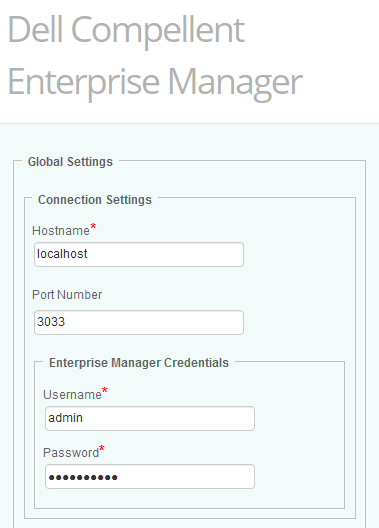
 and click