|
This feature provides a simple way to save the configuration of a PATROL Agent by exporting it to a file for later reuse. The configuration saved in a file can then be loaded onto a different PATROL Agent through the PATROL interface. The main benefits are that it:
| • | Eliminates the trouble of manually configuring Monitoring Studio on another PATROL Agent all over again |
| • | Ensures both configurations are identical |
Monitoring Studio offers you two options:
Exporting the entire Monitoring Studio configuration
| 1. | Right-click the main Monitoring Studio icon > KM commands > Configuration > Export Configuration. |
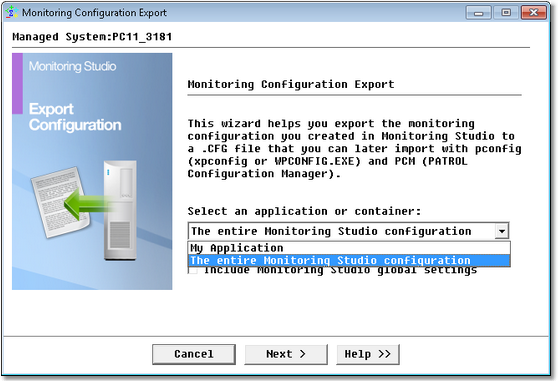
Configuration Export Wizard — Application/Container Selection Page
| 2. | Select The Entire Monitoring Studio configuration. |
| 3. | (Option) Check Include Monitoring Studio global settings if you want the global settings to be included in the export file: |
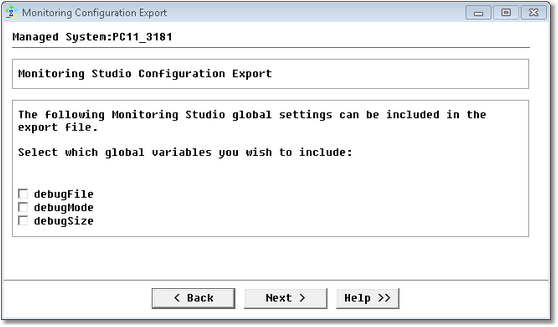
Configuration Export Wizard — Application/Container Selection Page
| ▪ | Select the global variables to be included. Please note that global variables will only be displayed if they have previously been enabled. In the example above, the Debug variables are listed because the Debug mode is enabled. |
| 4. | Enter the path and file name of the file that will contain the PATROL Agent’s configuration: |
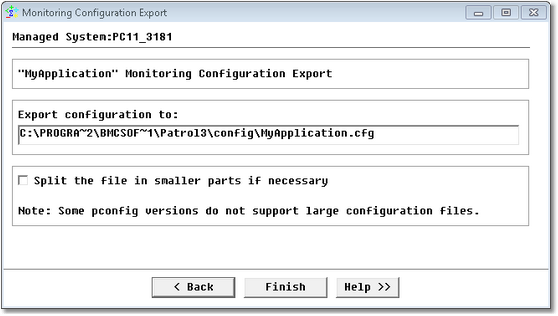
Configuration Export Wizard — Configuration File Location Page
| ▪ | Export configuration to: Enter the path and file name for the configuration file. |
| ▪ | Split the file in smaller parts if necessary: Select this option if you feel that your pconfig version may not support large files. |
| 5. | Click Finish. A successful export of the configuration will bring-up this panel: |
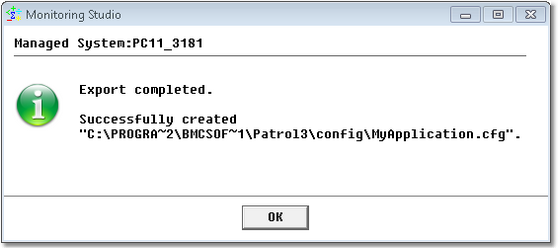
Configuration Export Wizard — Export Confirmation Message
 By default, the configuration file is created in the "%PATROL_HOME%\config" directory and named "Export_SW_Sentry.cfg". By default, the configuration file is created in the "%PATROL_HOME%\config" directory and named "Export_SW_Sentry.cfg".
Exporting an application monitoring configuration
Exporting one or several application monitoring configurations works exactly the same way as exporting the entire application. The main difference is that only the information relevant to the application monitoring will be saved.
To export an application monitoring configuration, you can either:
| • | Right-click the main Monitoring Studio icon > KM commands > Configuration > Export Configuration and select the application-monitoring to export from the drop down list |
| • | Or right-click an application or sub-application container > KM commands > Export Configuration. |
You will then have to specify the path and name of the file that will contain the PATROL Agent’s configuration.
A confirmation message will pop-up once the configuration has been successfully exported.
See Also
Application/Container icons
Import Configuration
| 

