|
It is recommended to create an Application icon that will group all the objects that are related to a same application, a same IT component or device.
 If you setup monitoring objects under the main Monitoring Studio icon without creating an application or container icon, you cannot set global Alert Actions on them. Global Alert Actions can only be set on an application container and will apply to the objects under it. If you setup monitoring objects under the main Monitoring Studio icon without creating an application or container icon, you cannot set global Alert Actions on them. Global Alert Actions can only be set on an application container and will apply to the objects under it.
To create an application icon:
| 1. | In the PATROL Console, right-click the Monitoring Studio icon and select KM Commands > New > Application icon (container)… |
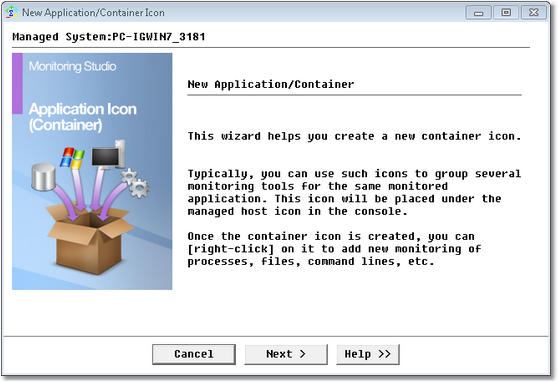
Creating the Application Icon — Welcome Page
| 3. | Name your application icon: |
| ▪ | Container name: Enter the name of application to be monitored. This name will appear next to the container icon in the PATROL Console. |
| ▪ | Description (optional): Describe the application or IT component to be monitored. |
| ▪ | Contact (optional): Enter the name of the person to be alerted or who can provide support in case of an application failure. |
| ▪ | Let me setup advanced options: Check this box if you want to: |
| ▪ | set command lines to start or stop the application monitoring from a KM command. |
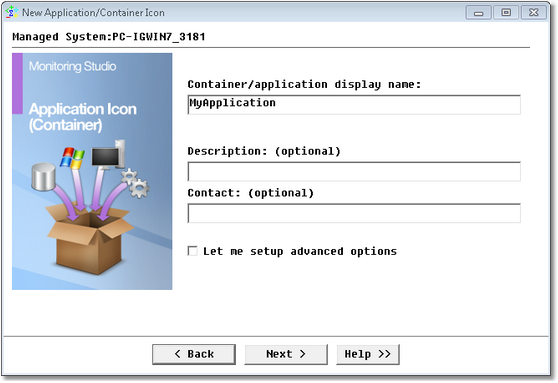
Creating the Application Icon — Configuration Page
| 6. | (BPPM Users) Provide the hostname, IP address, or FQDN of the device the instances will be attached to in the BMC ProactiveNet console and click Next. A device and all its related instances will be created in the BPPM console. |
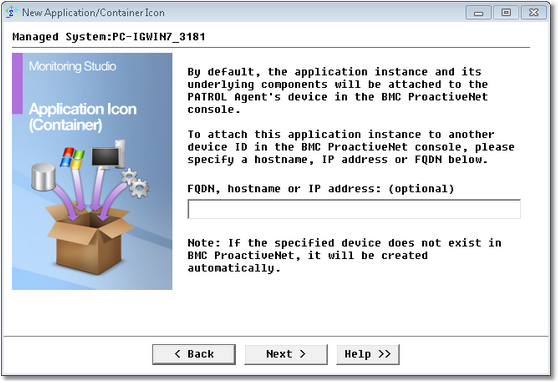
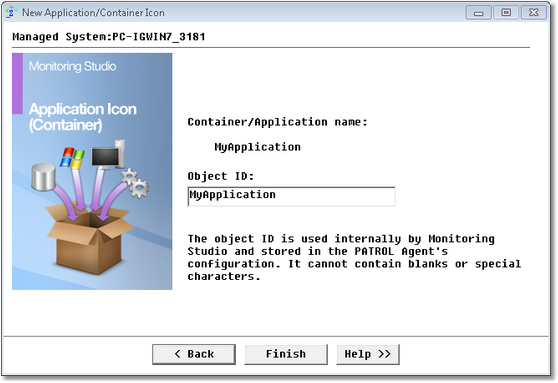
Creating the Application Icon
The application icon appears in the PATROL console. You can now:
| • | create sub-containers by right-clicking the application/container icon and selecting KM Commands > New > Sub-container… |
| • | create or add other objects that belong to this application. This method is recommended if you wish to apply global Alert Actions to all the monitored objects that belong to one application. |
| • | edit your application icon by right-clicking the application/container icon and selecting KM commands > Edit. |
| • | remove your application icon by right-clicking the application/container icon and selecting KM commands > Delete. After confirmation, the application icon and all its dependent objects will be removed from the PATROL Console and from the agent configuration. |
See Also
How to restart an application
How to stop an application
SW_APPLICATIONS
| 

