|
This feature allows you to configure a PATROL Agent by importing a configuration already in use on another PATROL Agent. It:
| • | Eliminates the trouble of manually configuring Monitoring Studio on another PATROL Agent all over again |
| • | Ensures both configurations are identical |
Basically, you import a configuration file that has been "exported" from another Agent and saved. The configuration file can be imported either through a PATROL Console or Central Monitoring Administration (CMA).
Using the PATROL Console
Monitoring Studio offers you two options:
| • | To import the entire Monitoring Studio configuration |
| • | To import an application monitoring configuration |
The options displayed by the import configuration wizard will depend on the file type exported and saved (entire Monitoring Studio configuration and/or application monitoring).
 You may import a PATROL agent configuration (".cfg") with any type of thresholds. If necessary, Monitoring Studio will convert the thresholds to the type of thresholds currently used at the next discovery (within an hour). You may import a PATROL agent configuration (".cfg") with any type of thresholds. If necessary, Monitoring Studio will convert the thresholds to the type of thresholds currently used at the next discovery (within an hour).
To import an existing configuration:
| 1. | Right-click the Monitoring Studio icon > KM commands > Configuration > Import configuration. |
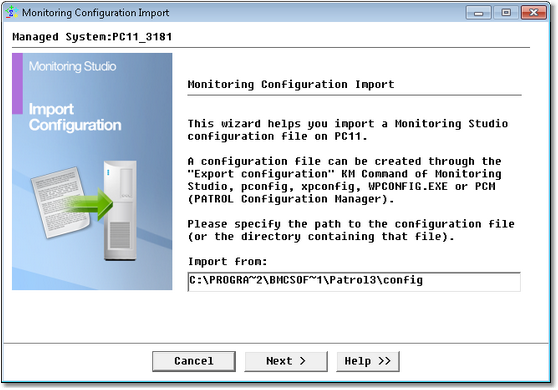
Importing Configuration Wizard — Welcome Page
| 2. | Enter the path to the configuration file and click Next. |
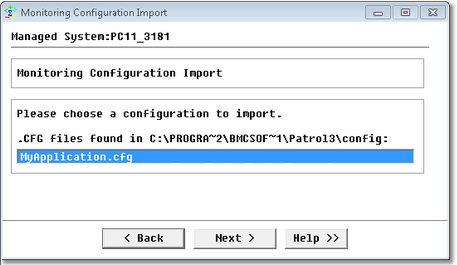
Importing Configuration Wizard — File Selection Page
| 3. | Select the configuration file to import and click Next. |
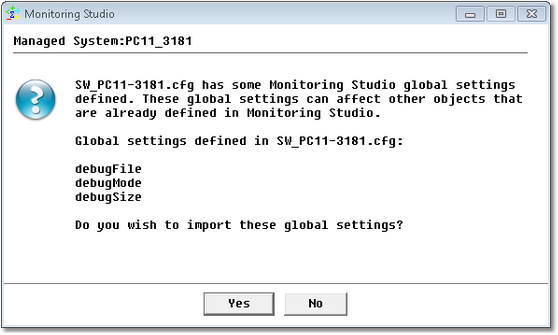
Importing Configuration Wizard — Global Setting Import Page
| 4. | Choose whether global settings will be imported. |
 Importing global settings will overwrite the current global settings of your existing objects. Importing global settings will overwrite the current global settings of your existing objects.
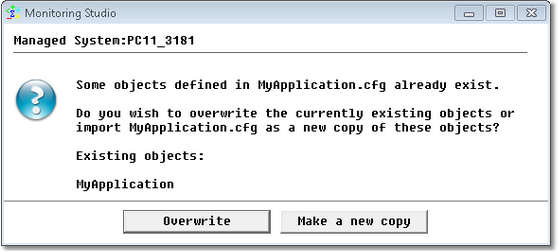
Importing Configuration Wizard — Existing Objects Page
| ▪ | Overwrite to overwrite existing objects. |
| ▪ | Make a new copy if you do not want to overwrite existing objects. In that case, you will have to specify the prefix to be assigned to these copied objects: |
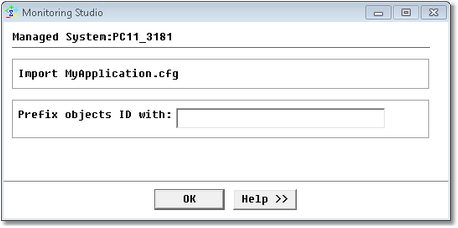
Importing Configuration Wizard — Prefix Definition Page
and click OK.
| 6. | Click Finish. A panel confirming the import appears: |
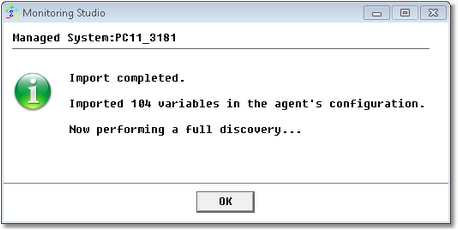
Importing Configuration Wizard — Completed Import Confirmation Page
On completion of the discovery process, you will see all the objects of the imported configuration in your console
Using Central Monitoring Administration
| 1. | Log on to Central Monitoring Administration. |
| 2. | In the Navigation pane, click the Policies drawer. |
| 3. | Expand the Monitoring folder and select a policy view (e.g. All). |
| 4. | Click  to create a Policy that will be deployed on the PATROL Agents that share the same specified Tag or according to their IP address, hostname, etc. to create a Policy that will be deployed on the PATROL Agents that share the same specified Tag or according to their IP address, hostname, etc. |
| 5. | Only select the Configuration Variables option. |
| 6. | Click the Import  button and select the exported Monitoring Studio configuration file (.cfg). This will import the full Monitoring Studio configuration. button and select the exported Monitoring Studio configuration file (.cfg). This will import the full Monitoring Studio configuration. |
| 7. | Recheck the imported configuration values and change them if required. |
| 8. | In the PATROL Console, right-click the Monitoring Studio main icon for all the managed systems on which the configuration has been deployed and select KM Commands > Trigger a KM Discovery. |
.
See Also
Application/Container icons
Exporting Configuration
| 

