|
Monitoring Studio can monitor all the KMs that are loaded in your PATROL Console, extract their parameters' values, compute them with a mathematical formula and use the value returned to perform additional operations, such as converting units, perform correlation, etc.
The objects created are instances of the SW_KMWATCH class.
To create a mathematical formula:
| 1. | In the PATROL Console, right-click the Monitored Application icon and select KM Commands > New > Multi-Parameter Formula... |
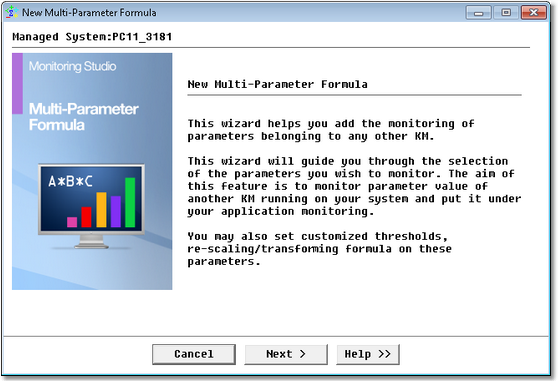
Multi-Parameter Formula Wizard — Welcome Page
| 3. | Specify the parameters to be monitored: |
| ▪ | In the list of parameters currently available on the Agent, select the parameters required. The maximum number currently supported by Monitoring Studio KM is 26. |
 Off-line parameters and parameters with no values (like collectors) are displayed as "OFFLINE" in the list. It is recommended not to select these parameters. Off-line parameters and parameters with no values (like collectors) are displayed as "OFFLINE" in the list. It is recommended not to select these parameters.
| ▪ | (Optional) Check the Use the objects display name to dynamically determine the PATROL IDs box to allow the use of label instances instead of PATROL IDs to determine a parameter's path. This option may be particularly useful when an object ID is unknown. |
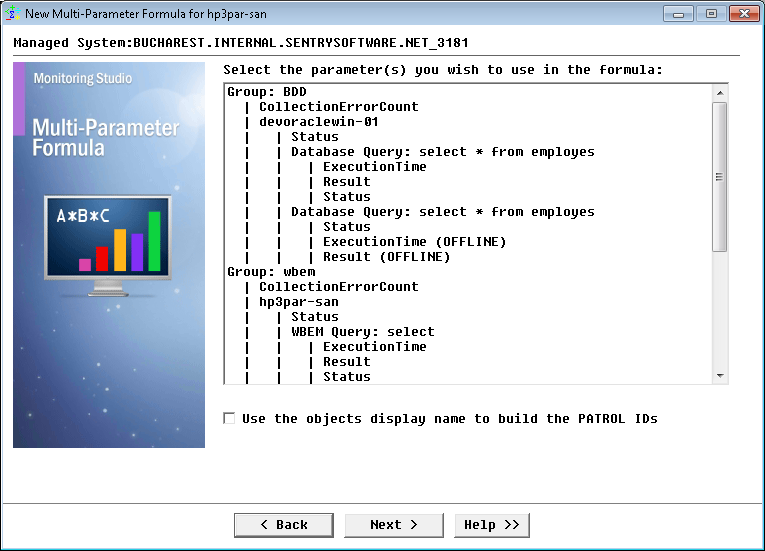
Multi-Parameter Formula Wizard — Parameter(s) Selection Page
| 4. | Define the formula to apply to the monitored parameter(s): |
| ▪ | Formula: Enter the formula you wish to apply to the parameter(s). Use the letter preceding the parameter name and the standard mathematical symbols to do so, such as: + - / * ( ). |
| • | Do not collect if one or more parameter has no value: Select this option if you wish to skip the collect when one or more parameters is not populated yet (usually after a PATROL Agent restart). |
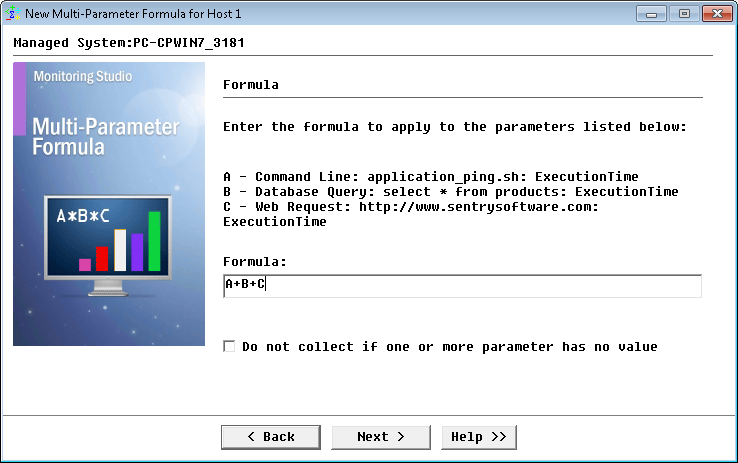
Multi-Parameter Formula Wizard — Defining a formula to apply to the selected parameter(s)
| 6. | Click Finish to start monitoring the selected parameters. A new object is automatically created under the application/container icon in the PATROL console. |
| 

