|
The Windows Events tool monitors events posted by your application to consolidate the application monitoring under a unique icon. You will therefore not have to additionally look up Windows EventLog. It also enables you to define automatic acknowledgment of previously triggered alerts by specifying the Windows event that will acknowledge the alert.
Windows Event monitoring objects are instances of the SW_NTEVENTS class.
Creating a Windows Event Monitoring
| 1. | In the PATROL Console, right-click the Application icon and select KM Commands > New > Windows Event Monitoring... |
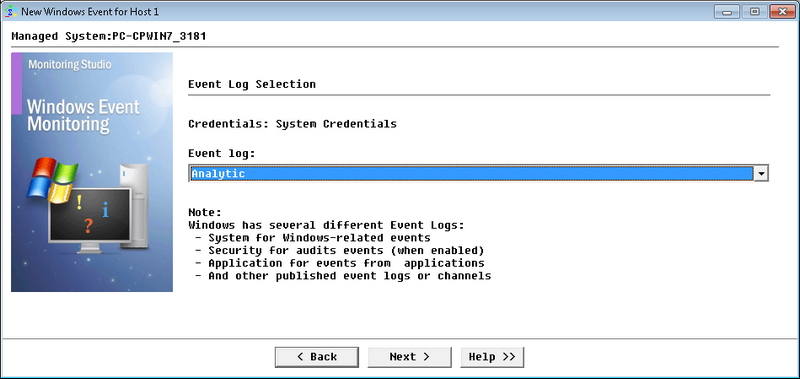
Windows Event Monitoring Wizard — Welcome Page
| 2. | Select the Windows Event log to monitor: |
| ▪ | Application: Any event related to an application. |
| ▪ | Security: Security events that are specified in the audit policy. |
| ▪ | System: Any event related to the operating system. |
| ▪ | Any other event available on your system. |
and click Next.
| 3. | Identify the Windows Event to monitor: |
| ▪ | Source: The software that logged the event, which can be either a program name such as "SQL Server," or a component of the system or of a large program such as a driver name. For example, "Elnkii" indicates an EtherLink II driver. |
| ▪ | NT Event Types to monitor: A classification of the event severity: Error, Information, or Warning in the system and application logs; Success Audit or Failure Audit in the security log. In the Event Viewer normal list view, these are represented by a symbol. |
| ▪ | Enter the searched NT Event ID: A number identifying the particular event type. The first line of the description usually contains the name of the event type. |
Example
6005 is the ID of the event that occurs when the Event log service is started. The first line of the description of such an event is "The Event log service was started." The Event ID and the Source can be used by product support representatives to troubleshoot system problems.
|
| ▪ | Optional information: Arguments (insertion strings) that create a description of the NT Event. See the documentation of the NT Event you are monitoring for more information about these arguments. The argument number specifies where in the description the information should be found. Up to two arguments can be chosen and it is possible to indicate whether the information entered in the text bound is to be found within the argument ("must contain") or actually indicates the entire argument ("must exactly be"). |
| ▪ | Case sensitive: Indicates whether or not the search for the Argument that is to be found within the Windows Event description will be case sensitive. |
 If you are unsure about the characteristics of the Windows event you want to detect, you will need to use the Monitoring Studio built-in Windows EventLog Reader tool to view content of the EventLogs and the characteristics of the events, including their arguments (insertion strings). Right-click on the main Monitoring Studio icon > KM commands > Tools > Windows EventLog Reader. If you are unsure about the characteristics of the Windows event you want to detect, you will need to use the Monitoring Studio built-in Windows EventLog Reader tool to view content of the EventLogs and the characteristics of the events, including their arguments (insertion strings). Right-click on the main Monitoring Studio icon > KM commands > Tools > Windows EventLog Reader.
Click Next.
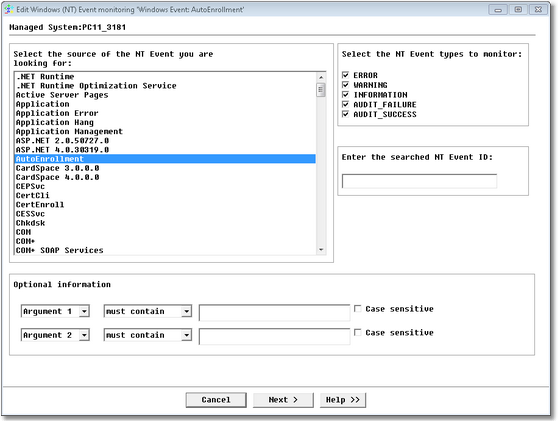
Windows Event Monitoring Wizard — Event Identification Page
| 4. | Configure the automatic acknowledgement feature. This feature allows you to reset the MatchingEventCount parameter to zero and its status to 'normal' – thereby, acknowledging the alert. This can be done in the following two cases: |
| ▪ | Acknowledge alert(s) if the following timeout is reached: A timeout since the last found matching Event |
| ▪ | Acknowledge alert(s) if the following NT Event is found: Specify the Windows Event |
When this occurs, you can specify whether to:
| ▪ | Acknowledge all alerts, previously triggered by this Windows Event monitoring: All the previous alerts are acknowledged in one action and the MatchingEventCount parameter is reset. |
| ▪ | Acknowledge only one alert triggered by this NT Event search: Just one alert should be acknowledged (the MatchingEventCount parameter is thus decreased by one). |
Click Next.
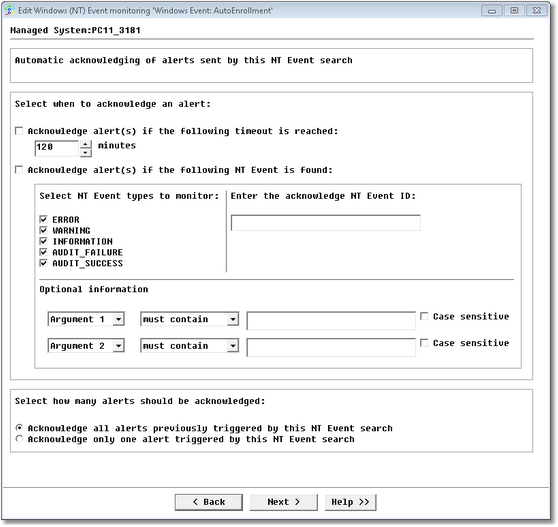
Windows Event Monitoring Wizard — Alert Acknowledgement Definition Page
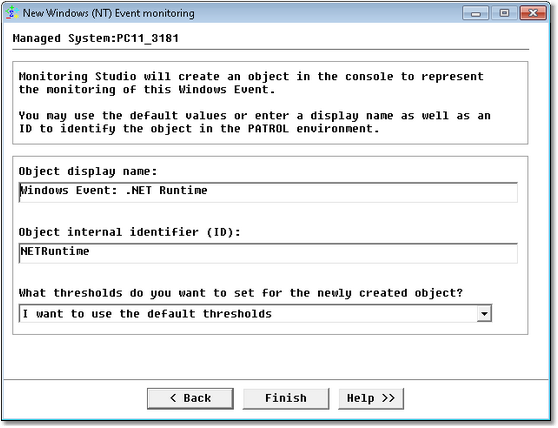
Windows Event Monitoring Wizard — Settings Page
An icon representing the Windows event appears in the console under which are displayed the parameters MatchingEventRate and MatchingEventCount. You can set alert thresholds and automatic acknowledgements for the events found.
See Also
Can I search for Windows Events whose description match a regular expression?
What is the meaning of the "Argument1, 2..." fields in the Windows Event monitoring wizard?
Windows EventLog Reader tool
SW_NTEVENTS
| 

