|
This section details the various connection settings available for performing queries on Oracle database server. First steps are common to all database queries and connection methods. They are documented in the Database Query Analysis section.
Step 5.1c: Setting Command line connection to Oracle database servers
If you have selected Command Line Utility as the connection method, the following panel is displayed:
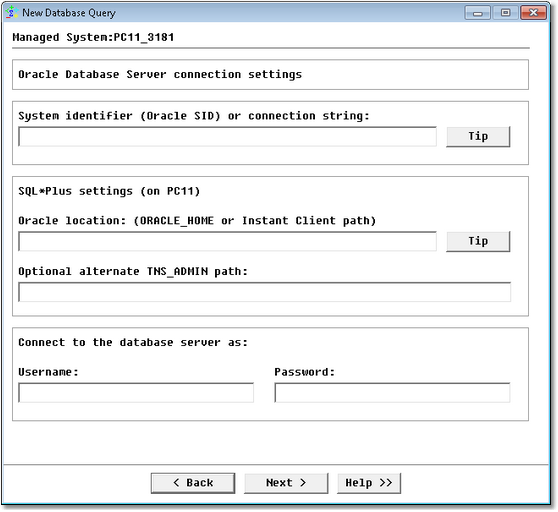
Database Query Analysis Wizard — Oracle Database Server Command Line Connection Settings
| • | System identifier (Oracle SID) or connection string: Specify the Oracle SID of the database server you want to connect to. If the Oracle Instant Client is installed, you can use the syntax://hostname:1521/oracleSID. Otherwise, this must match one of the tnsnames.ora entries. |
| • | Oracle location: Path to the Oracle client. This can be either ORACLE_HOME if the Oracle Database Server or Full Client is installed (example: c:\Oracle\ora92, or the path to Oracle Instant Client (example: /opt/oracle_instant_client). |
| • | Optional alternate TNS_ADMIN path: If the Oracle Database Server or Full Client is installed and the tnsnames.ora file is not located in the default directory, you can specify the path to the directory which contains tnsnames.ora that will allow SQL*Plus to resolve the Oracle SID that you entered in the first field. |
| • | Username: Database account to use to connect to the server |
| • | Password: Password associated with the specified username. |
 Note that space characters are not supported for passwords in Windows, thus you need to enter a space-free password if you are working with this operating system. Note that space characters are not supported for passwords in Windows, thus you need to enter a space-free password if you are working with this operating system.
 | SQL*Plus: |
| ✓ | Monitoring Studio uses Oracle SQL*Plus to connect to an Oracle Database Server. Therefore, SQL*Plus needs to be installed on the computer where Monitoring Studio and the PATROL Agent are running. |
| ✓ | SQL*Plus is installed by default with Oracle Database Server. If you are configuring local queries, you need to enter the current ORACLE_HOME as the Oracle location. |
| ✓ | SQL*Plus is also installed by default with the Oracle Database Client. If the Oracle Database Client has been installed on the computer where the PATROL Agent is running, you need to enter the current ORACLE_HOME as the Oracle location. |
| ✓ | Starting with version 10g, Oracle now provides a new lightweight client: Oracle Instant Client. This new client is made of several packages. In order to make Oracle queries with Monitoring Studio, you need to install the "Instant Client Basic" (or "Instant Client Basic Lite") as well as "Instant Client SQL*Plus". Specify the directory where you unzipped the Oracle packages as the Oracle location. |
| ✓ | On Windows, Monitoring Studio will try to detect by itself the SQL*Plus settings. On Linux and UNIX, Monitoring Studio will detect the proper SQL*Plus settings only if the PATH environment variable contains the directory of the SQL*Plus binary. |
| Oracle system identifier (Oracle SID): |
| ✓ | If Oracle Database Server of the full Oracle Database Client is installed on the computer where the PATROL Agent and Monitoring Studio are running, SQL*Plus will be using the classic name resolution system. In this case, the Oracle system identifier (Oracle SID) that you enter in the first field will be resolved by using the tnsnames.ora file. |
| ✓ | In most cases, the tnsnames.ora file is located in the $ORACLE_HOME/network/admin directory. If it is located in another specific directory, you must specify the optional alternate TNS_ADMIN path (only enter the path to the directory). |
| ✓ | The tnsnames.ora needs to be maintained by an Oracle administrator. Please consult your database administrator if the Oracle system identifier of the database you want to connect to is not registered in the tnsnames.ora file. |
| ✓ | If the Oracle Instant Client is installed on the computer where the PATROL Agent and Monitoring Studio are running, you do not need the tnsnames.ora file. Instead, you can use the following syntax for the Oracle system identifier: //server_hostname:1521/database_sid |
Click Next to access the query definition panel.
Step 5.2c - Setting JDBC connection to Oracle database servers
If you have selected Java Database Connectivity (JDBC) as the connection method, the following panel is displayed:
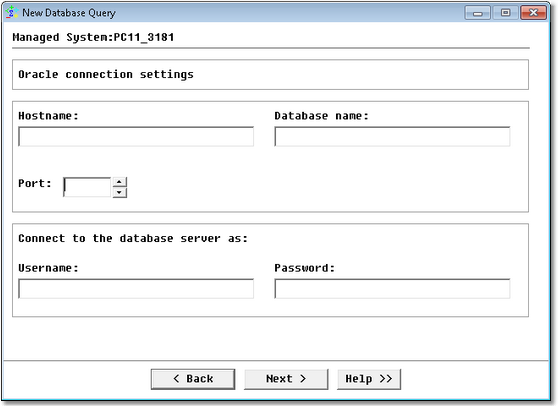
Database Query Analysis Wizard — Oracle Database Server JDBC Connection Settings
| • | Hostname: Name of the server where Oracle Server is running (hostname or IP address) |
| • | Database name: Name of the database |
| • | Port: Specify the Oracle port number |
| • | Username: Database account to use to connect to the server |
| • | Password: Password associated with the specified username |
Click Next to access the query definition panel.
Step 5.3c - Setting ODBC connection to Oracle database servers
If you have selected Open Database Connectivity (ODBC) as the connection method, the following panel is displayed:
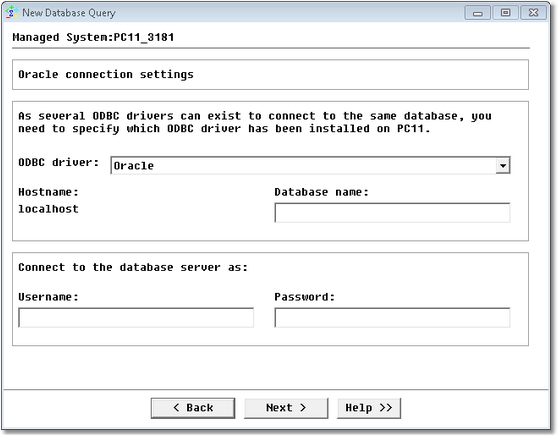
Database Query Analysis Wizard — Oracle Database Server ODBC Connection Settings
| • | ODBC Driver: Select the appropriate ODBC driver. The ODBC driver must be installed on the PATROL Agent |
| • | Hostname: Name of the server where Oracle Server is running (hostname or IP address) |
| • | Database name: Name of the database |
| • | Username: Database account to use to connect to the server |
| • | Password: Password associated with the specified username |
Monitoring Studio provides an Oracle driver for Windows and the Easysoft Oracle ODBC driver for UNIX servers. On Windows, only queries to a local Oracle database are supported.
Click Next to access the query definition panel.
|


