|
Many devices use SNMP to report their health and operations. They often use SNMP traps to notify failures but the best case is when they embed a true SNMP agent and a documented MIB which specifies the meaning of each SNMP OID. Listening for SNMP traps is a safe method to ensure that your device is operating properly.
The SNMP Trap Listening Monitor monitors and listens for SNMP traps and enables rapid recovery actions depending on the traps received, thereby ensuring optimal functioning of applications or devices that send SNMP traps.
 Only SNMP version 1 is supported for SNMP trap listening. SNMP v2c and v3 traps are not supported. Only SNMP version 1 is supported for SNMP trap listening. SNMP v2c and v3 traps are not supported.
 The SNMP Agent emitting the traps should be configured to send them to the PATROL Agent where Monitoring Studio is installed and running, otherwise, Monitoring Studio will not be able to receive the SNMP trap and will only listen for the SNMP traps on the localhost. No other Trap Listener should be running at the same time. The SNMP Agent emitting the traps should be configured to send them to the PATROL Agent where Monitoring Studio is installed and running, otherwise, Monitoring Studio will not be able to receive the SNMP trap and will only listen for the SNMP traps on the localhost. No other Trap Listener should be running at the same time.
To listen for SNMP traps
| 1. | In the PATROL Console, right-click the Host or Monitor Group icon and select KM Commands > New > Monitor... |
| 2. | Select SNMP Trap from the drop-down list and click Next. |
 If SNMP is deactivated on the PATROL Agent, a warning message is displayed, inviting you to activate it using the following configuration variable: /snmp/support. Besides, Monitoring Studio will trigger an alert on the CollectionErrorCount parameter under the Monitoring Studio icon if SNMP is disabled in the configuration and one or several SNMP monitors have been created. If SNMP is deactivated on the PATROL Agent, a warning message is displayed, inviting you to activate it using the following configuration variable: /snmp/support. Besides, Monitoring Studio will trigger an alert on the CollectionErrorCount parameter under the Monitoring Studio icon if SNMP is disabled in the configuration and one or several SNMP monitors have been created.
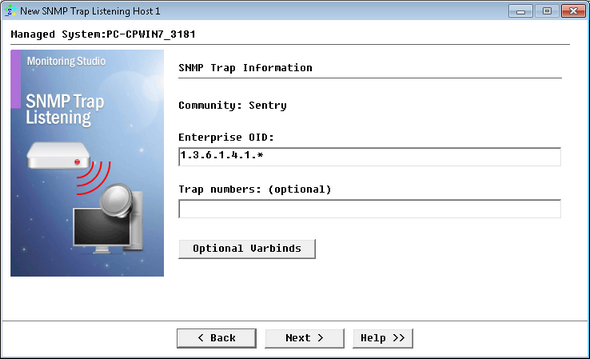
Listening for SNMP Traps - SNMP Trap Information
| 3. | Identify the traps to listen to: |
| ▪ | Enterprise OID: Enter the Enterprise OID of the SNMP Trap. You can use regular expressions (Example: 1.3.6.1.4.44.141.32.*) |
| ▪ | (Optional) Trap numbers: Enter the number identifying the SNMP Trap |
| ▪ | Optional Varbinds: Click this button to configure the Varbinds settings. A Varbind or Variable Binding is a sequence of two specific fields. The first field is an OID, which addresses a specific parameter; the second field contains the value of the specified parameter |
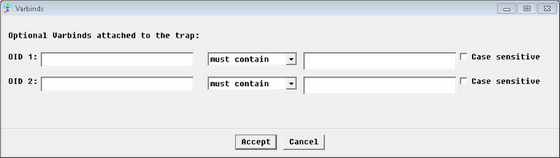
Listening for SNMP Traps - Varbinds Settings
| ▪ | OID 1 & 2: First and second attached variables OID that should be contained within the SNMP trap. You can also enter the text that should be found (or not) within the OID content. |
| ▪ | Case sensitive: Indicates whether or not the search will be case sensitive. |
All these pieces of information define the SNMP Trap that is expected. Monitoring Studio will react to the SNMP Trap received only if this information is found within the SNMP Trap. All other SNMP Traps will be ignored.
If you are unsure about the characteristics of the SNMP trap you want to detect, you will need to use a SNMP MIB Browser tool to understand the exact meaning of each trap. You can also use the Monitoring Studio built-in SNMP trap listener tool to view in real-time the SNMP traps and their characteristics that are received by the PATROL Agent. Right-click on the main Monitoring Studio icon > KM commands > Tools > Real-time SNMP Trap Listener.
The SNMP trap listening port is actually a PATROL Agent configuration variable: /snmp/trap_port=162.You can set this variable to whatever port you want Monitoring Studio to listen on.
Make sure that only one device is listening for traps on the localhost or Monitoring Studio will not be able to run the SNMP Trap listener.
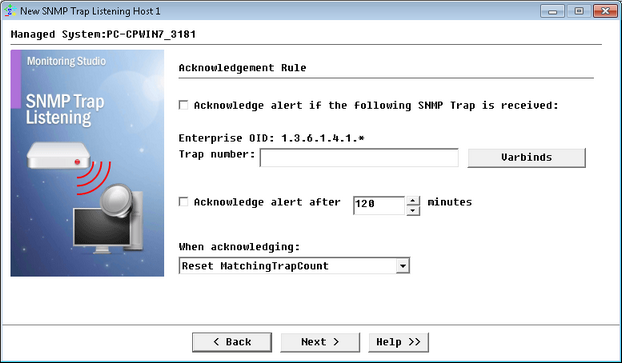
Listening for SNMP Traps - Acknowledgment Rule
| 5. | Set the automatic acknowledgment: |
| ▪ | Acknowledge alert if the following SNMP Trap is received: Check this option if you wish to acknowledge an alert when the SNMP trap received matches the criteria set. |
| ▪ | Trap number: Enter the trap number that will acknowledge the alerts triggered by the specified trap. |
| ▪ | Varbinds: Click this button to configure the first and second attached variables OID that should be contained within the SNMP trap to acknowledge a matching trap received. |
| ▪ | Acknowledge alert after: Check this option if you wish to automatically acknowledge a matching SNMP trap and then specify the time in seconds after which the matching SNMP Trap received will be acknowledged (Default: 120 minutes). |
| ▪ | Select the action to be taken when acknowledging: Reset MatchingTrapCount, i.e. clear all previous alerts or Decrease MatchingTrapCount by one; i.e. clear the previous alert. |
| 8. | Click Finish. The corresponding SNMP Trap instance (SNMP Trap: <Display Name>) is created in the PATROL Console.The collected parameters for SNMP Trap Listening Monitors are listed in the SEN_MS_SNMPTRAP chapter. |
| 

