-
Home
- PATROL
Operate Veritas Cluster Server KM
This section describes the most common operations that can be performed with Veritas Cluster Server KM.
Acknowledging Alerts
By default, alerts are acknowledged automatically. If you modified the alert acknowledgement default settings, you will have to manually acknowledge alerts.
Manually Acknowledging Log Alerts
When an error is detected in a monitored log file, it will either appear in VCSLogAlarmText or VCSLogWarningText and will respectively trigger an Alarm or a Warning on VCSLogAlarmCount or VCSLogWarningCount.
To acknowledge log alerts:
- In the Console, right-click the Log instance > KM Commands > Acknowledgement
- Select:
- Warnings… to view, select, and individually acknowledge errors in the VCSLogWarningText parameter
- Alarms… to view, select, and individually acknowledge errors in the VCSLogAlarmText parameter
- All… to acknowledge all alerts (Warnings and Alarms) at once without viewing.
Generating Reports
The following reports are available in Veritas Cluster Server KM:
- VCS Server > KM Commands > Reports > Cluster Status Summary… reports the summary Veritas Cluster Server status
- Agent instance > KM Commands > Reports > Agent Resources… displays the resources using this agent
- Daemons > KM Commands > Reports > Daemon List… lists all running Veritas Cluster Server daemons
- GAB > KM Commands > Reports > GAB Module Status… reports the status of the GAB module
- LLT > KM Commands > Reports > LLT Module Status… reports the status of the LLT module
- LLT > KM Commands > Reports > LLT Statistics… reports the statistics on the LLT module
- Log instance > KM Commands > Reports > Last Messages… displays the last messages logged in the selected log file
- Service Groups > KM Commands > Reports > Groups Status Summary… reports the status summary all service groups
- Group instance > KM Commands > Reports > Group Dependencies… displays dependency information about the selected service group
- Group instance > KM Commands > Reports > Group Resources… lists all resources for the selected service group
- Resources > KM Commands > Reports > Resources Status Summary… reports the status summary all resources
- Resource instance > KM Commands > Reports > Resource Dependencies… displays dependency information about the selected resource.
Reports can be saved as a task window by clicking Save As Task. You could then save them as a text file or print them.
Refreshing Parameters
This section describes how to manually refresh parameters without waiting for an automatic polling cycle.
Forcing All Discoveries
To force all discoveries, right-click the Server instance and select:
- Refresh Process Cache to refresh the PATROL Agent process cache
- Force Discovery.
The discovery will then be forced on all the KMs loaded on the PATROL Agent and on all the KM applications classes.
Forcing All Data Collectors
To force all data collectors, right-click the Server instance and select:
- Refresh Process Cache to refresh the PATROL Agent process cache
- Refresh parameters to force all data collectors at the same time.
The Veritas Cluster Server KM data collectors and all the data collectors defined under the application classes loaded on the PATROL Agent will then be refreshed.
Forcing Selected Data Collectors
This option is only available from a PATROL Developer Console.
- Right-click the Server instance and select Refresh Process Cache to refresh the PATROL Agent process cache
- Force a data collector to execute immediately as follows:
With the PATROL Console for Windows
- Right-click the Server instance and choose Parameters without Icons…
- Select the required data collector
- Click Update.
With the PATROL Console for UNIX
- Right-click the Server instance and choose Customize > Parameters…
- Select the required data collector
- Click Options > Update.
With the PATROL Central Operator Console
- Right-click the Server instance and choose Properties
- Click the Parameter List tab
- Select the required data collector
- Click Update.
Forcing the Classic Mode
Veritas Cluster Server KM for PATROL can either be configured from a BMC PATROL Console (Classic Mode) or BMC Helix/TrueSight Operations Management. When the KM is installed on a PATROL Agent, which is managed by Central Monitoring Administration (CMA), all the KM configuration menus are disabled in the PATROL Console. To configure Veritas Cluster Server KM from a PATROL Console, you need to force the KM to run in Classic Mode.
This will disconnect Veritas Cluster Server KM from receiving configuration from Central Monitoring Administration. Any monitoring settings that was configured in CMA and used by the PATROL Agent will be removed and replaced by the configuration made from the PATROL Console. However, this will not delete the policies created in CMA from the configuration.
Warning: Any configuration for Veritas Cluster Server KM received from Central Monitoring Administration will be ignored.
To force the KM to operate in Classic mode:
-
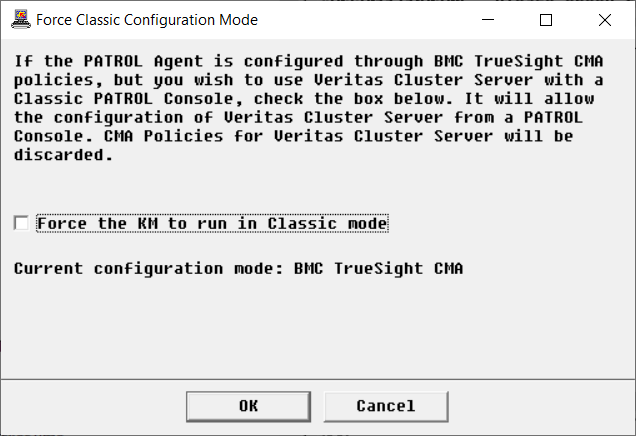
In the PATROL Console, right-click the Veritas Cluster Server icon > KM commands > Configuration > Force Classic Configuration Mode…
-
Check the Force the KM to run in Classic mode box and click OK.

Veritas Cluster Server KM for PATROL starts running in Classic Mode, enabling you to use the KM Configuration menus.
To configure the KM in Helix/TrueSight OM, repeat the above procedure and uncheck Force the KM to run in Classic mode. All configurations made through the PATROL Console will then be ignored.
Reloading Commands
All new commands are reloaded automatically but some situations may require a manual command reload. To do so, in the Console, right-click the Server instance > KM Commands > Reload Commands…