|
Even though TrueSight Operations Management - Monitoring Studio offers a variety of monitoring methods (Monitors), there might be an in-house script or command that you need to run and analyze on a regular basis to monitor a specific technology.
The Command Line Monitor allows you to trigger the periodic execution of a specified command line on the targeted host. This command can be a shell command, a shell script or an executable file with arguments.
Once the Command Line Monitor is executed and its result displayed in the PATROL Console, you can define String Searches and Numeric Value Extractions criteria to retrieve strings or numeric value in the result output.
To run a command line
| 1. | Access the Monitoring Studio Configuration panel, as explained in the Configuring Monitors chapter. |
| 2. | In the Monitors section, click the Command Lines button. |
| 3. | The Command Lines panel is displayed to provide the connection credentials and define the command line settings. |
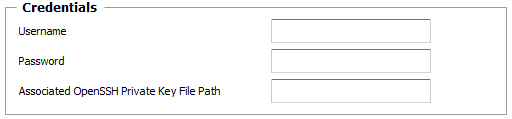
| 4. | Provide the Credentials required to establish a connection to the host: |
Analyzing Command Lines — Credentials Settings
| • | Username: Enter the username to use to establish the connection with the Host. Leave this field blank to use the username provided for the Host at the Monitor Group level. |
| • | Password: Enter the password to use to establish the connection with the Host. Leave this field blank to use the password provided for the Host at the Monitor Group level. |
| ▪ | Optional — Associated OpenSSH Private Key File Path: When monitoring remote hosts running UNIX, Linux or other types of operating systems that support SSH authentication key file, you may need to provide an OpenSSH private key file to establish a secured connection with the remote host. Enter the path of the OpenSSH private key file you wish to use to establish a connection with the remote host and enter the optional PassPhrase in the Password field. |
 The Private Key File should exists on the PATROL Agent node. The Private Key File should exists on the PATROL Agent node.
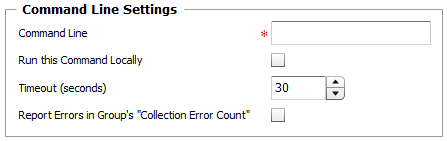
| 5. | Define the Command Line Settings: |
Analyzing Command Lines — Command Line Settings
| ▪ | Command Line: Enter the command line or the path to the script that Monitoring Studio will execute. You can use the following macros in the command line that will be resolved at the run time: |
| • | %{SEN_TIME:<date-time-format>}: Use this macro to insert the current date and time in the command line. You can specify the format of the date and time string that will be inserted, which follows UNIX asctime() format (%Y for year, %m for month, %D for day, %H for hours, %M for minutes, %S for seconds, etc.). |
| • | %{SEN_LASTTIME:<date-time-format>}: Use this macro to insert the date and time at which the command was last executed. This can be particularly useful when you need to specify a time range for the command, like listing events since the last time we checked. The format is the same as the UNIX asctime() format (%Y for year, %m for month, %D for day, %H for hours, %M for minutes, %S for seconds, etc.). |
When using this macro, the execution is skipped entirely the first time the Monitor runs (after the PATROL Agent starts). This is to ensure that an actual date and time is inserted with an actual value for this macro.
| • | %{SEN_SCRIPTPATH:<local-script-path>}: Use this macro to copy a file stored on the PATROL Agent's system to the monitored host before the command is executed. When the command is executed, the macro is replaced by the path to the copied file on the targeted host. This is particularly useful to trigger the execution of scripts that are stored on the PATROL Agent's system without having to install these scripts on each monitored host. This macro is irrelevant when monitoring the localhost. |
| • | %{HOSTNAME}: This macro inserts the hostname of the targeted system, as specified in the host configuration (it therefore may be its IP address, FQDN or short name). |
 The %{SEN_SCRIPTPATH} macro should provide the script file path on the local Agent system. The %{SEN_SCRIPTPATH} macro should provide the script file path on the local Agent system.
The %{SEN_SCRIPTPATH} macro does not support local environment variables (e.g., %PATROL_HOME%).
| • | %{USERNAME}: This macro inserts the username of the specified credentials in the command line to be executed. |
| • | %{PASSWORD}: This macro inserts the password of the specified credentials in the command line to be executed. The password is inserted in clear text. |
 Passwords should never be sent in clear text. Passwords in command lines may be visible to non-root users. Use at your own risk. Passwords should never be sent in clear text. Passwords in command lines may be visible to non-root users. Use at your own risk.
Please note that macros are case sensitive and should then always be written in upper case.
| ▪ | Run this Command Locally: Select this option to execute the command locally on the PATROL Agent while monitoring a remote host. |
| ▪ | Timeout (seconds): Specify the time in seconds after which the command will be stopped (Default: 30 seconds). When the timeout is reached, Monitoring Studio will consider that the command has failed to execute properly and will set the value of the Status attribute to 2 (Failed). No further analysis will be performed (String Search or Numeric Value Extraction). |
| ▪ | Report Errors in Group's "Collection Error Count": Select this option to have the Collection Error Count attribute of the Group reflect possible alerts triggered upon the Command Line execution. The Collection Error Count attribute of the group reports on the collection errors of all Monitors, associated to the group, for which this option is available and selected, providing a global view of the collection errors for the whole group. |
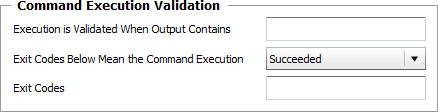
| 6. | Define the Command Execution Validation criteria: |
Analyzing Command Lines — Command Execution Validation
| ▪ | Execution is Validated When Output Contains: Enter the regular expression that needs to match the command output for the command to be considered successful. The regular expression entered here will be searched in the output of the command. If it is not found, the Status attribute of the Command Line Monitor is automatically set to 2 (Failed) indicating that the command failed to execute properly. |
 This option can be particularly useful to ensure that the command has been properly executed and avoid false alerts triggered by the associated String Search/Numeric Value Extraction when an error is encountered during the command execution. For example, if the specified command must print a text banner, you will want to make sure that the text banner is found in the command output instead of an error message). This option can be particularly useful to ensure that the command has been properly executed and avoid false alerts triggered by the associated String Search/Numeric Value Extraction when an error is encountered during the command execution. For example, if the specified command must print a text banner, you will want to make sure that the text banner is found in the command output instead of an error message).
| ▪ | Exit Codes Below Mean the Command Execution: Select an execution option (succeeded/failed), to state if the command line was properly executed or not. When one of the exit codes is found or not found, depending on the option selected, the ExitStatus attribute of the Command Line Monitor is automatically set to 1 (Failed) or 0 (Succeded) indicating that the command failed or succeed to execute properly. |
| ▪ | Exit Codes: Enter one or several exit codes separated by commas. When one of the exit codes is found or not depending on the execution option selected above, the ExitStatus attribute will be set to 1 (Failed) or 0 (Successful). |
The Exit Code and Exit Status attributes are deactivated for never-ending commands and commands for which no exit code is specified or when the exit code is ignored. Also, the Execution Time attribute is deactivated for never-ending command lines to avoid meaningless alerts (Studio Command Line).
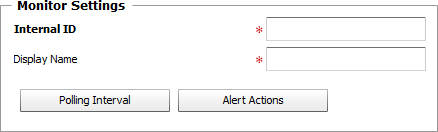
| 7. | Define the Monitor Settings: |
Analyzing Command Lines — Monitor Settings
| ▪ | Internal ID: Enter an ID to identify the managed command line instance in TrueSight Operations Management. |
| ▪ | Display Name: Enter a name to identify the managed command line instance in TrueSight Operations Management. |
| ▪ | Optional — Polling Interval: Set the frequency at which the data collection will be performed. Default is 2 minutes. |
| ▪ | Optional — Alert Actions: Define the action(s) Monitoring Studio needs to perform when the thresholds for any attribute of this command line is breached. |
| 8. | Optional — Define the Content Processing rules you wish to apply to the command line output: |

Analyzing Command Lines — Content Processing Settings
| ▪ | String Searches: Define the search criteria for a specific string you wish to find or not find in the command line output. |
| 9. | Click the Add to List button to complete the creation of the command line instance. |
|


